- 目前版本9.66
- 更新日期2026-07-21
- 檔案大小26.3 MB
- 檔案名稱BvSshClient-Inst.exe
- 作業系統Windows 7 / Windows 8 / Windows 10 / Windows 11
- 支援語系English
- 授權型式免費軟體
- 開發商 Bitvise Limited
- 軟體分類Windows 軟體 / 檔案傳輸與網路
##
翻譯排程處理中,以下暫以英文原文呈現
軟體介紹
Bitvise SSH Client is a comprehensive and secure SSH client designed for Windows 11/10 users who need robust remote access, file transfer, and tunneling capabilities.
Bitvise SSH Client tool provides a highly secure connection to remote systems through the SSH protocol, ensuring encrypted communications and data integrity.
Unlike traditional SSH clients, Bitvise offers a graphical user interface (GUI) alongside a powerful command-line option, making it accessible for both beginners and advanced users.
Key Features
Graphical & Command-Line Interface: A user-friendly GUI along with CLI for automation.
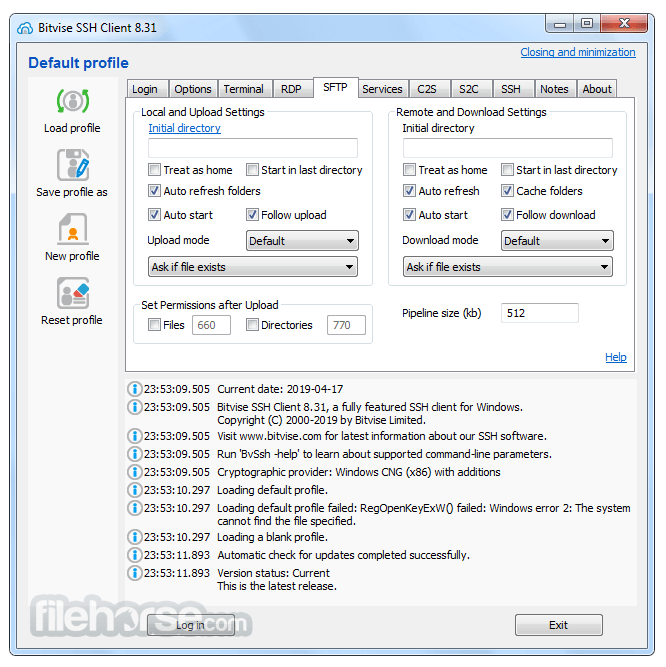
SFTP and SCP Support: Secure file transfer with robust encryption.
Port Forwarding & Tunneling: Enables encrypted connections for applications.
Public Key & Password Authentication: Supports various authentication mechanisms.
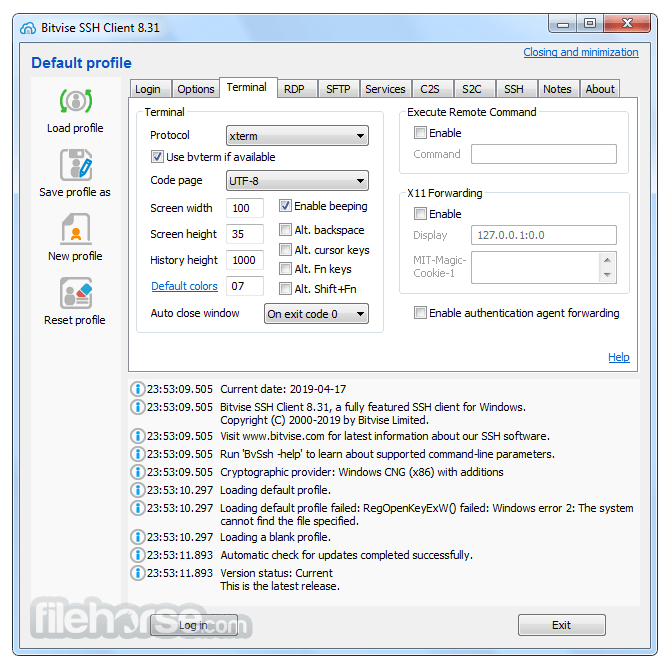
Customizable Terminal Emulation: Configurable with support for different encoding methods.
Integrated Proxy Support: Works with SOCKS and HTTP proxies for secure browsing.
Keypair Management & Agent Forwarding: Simplifies SSH key handling.
Automated Scripting Support: Includes a scripting subsystem for automation.
User Interface
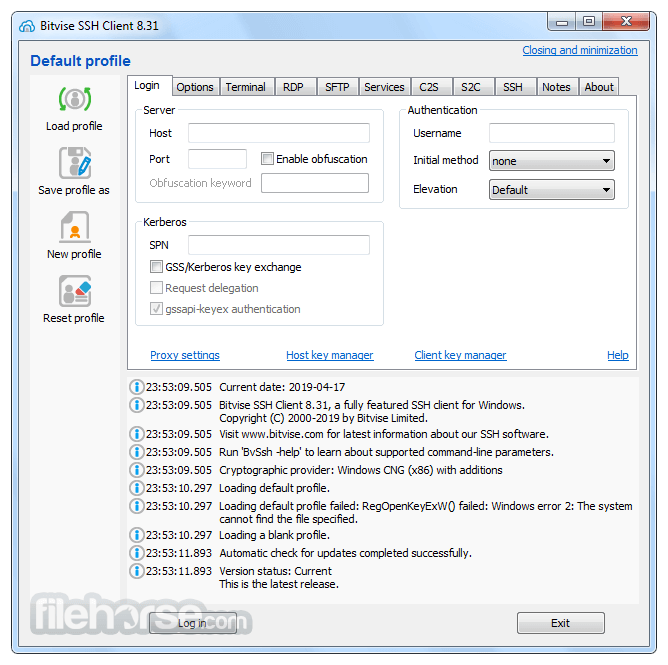
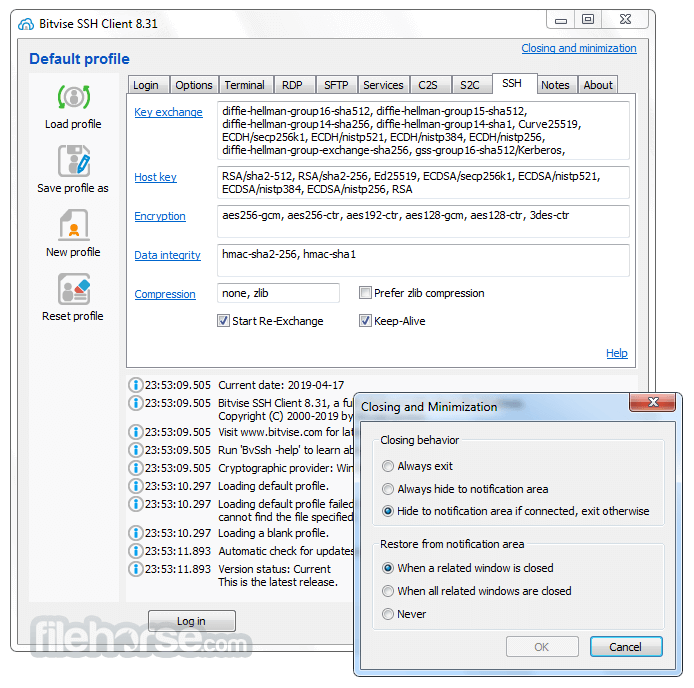
Bitvise SSH Client features an intuitive and lightweight interface, making it accessible even for users unfamiliar with SSH.
The main dashboard provides easy navigation, with tabs for terminal sessions, SFTP, and tunneling options.
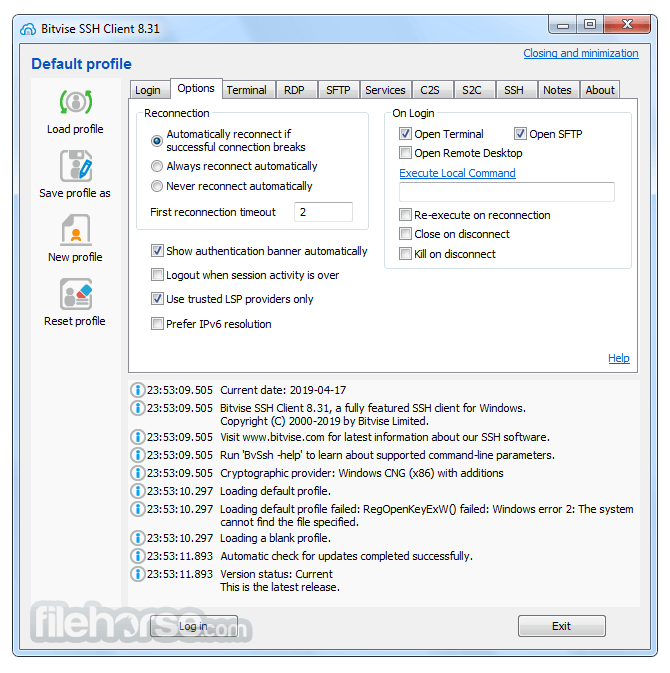
The settings panel allows deep customization, from encryption preferences to authentication methods.
Installation and Setup
Connecting to an SSH Server: Enter the server’s address, port, and credentials.
Using SFTP for File Transfers: Drag and drop files between local and remote directories.
Setting Up Port Forwarding: Configure tunnels under the “Services” tab for secure connections.
Automating Tasks: Use the Bitvise command-line utility for scripting SSH operations.
Managing SSH Keys: Generate, import, and manage SSH keys within the client.
More Features
Is Bitvise SSH Client free?
Yes, the SSH Client is free for personal and commercial use, but Bitvise also offers an SSH Server with additional features.
Can I use Bitvise SSH Client for automation?
Yes, it includes command-line tools and scripting support for automated SSH tasks.
Does Bitvise SSH Client support key-based authentication?
Yes, it supports both password-based and key-based authentication, with an integrated key management tool.
Is Bitvise SSH Client secure?
Yes, it uses strong encryption algorithms and supports secure authentication mechanisms.
Can I use Bitvise SSH Client on Linux or macOS?
No, this software is only available for Windows, though you can use alternatives like OpenSSH for other operating systems.
Alternatives
PuTTY – A lightweight and widely used SSH client.
MobaXterm – Provides a more extensive terminal with built-in tools.
WinSCP – Primarily for file transfers with some SSH capabilities.
Xshell – A commercial SSH client with advanced session management.
Pricing
Bitvise SSH Client is completely free for personal and commercial use. However, Bitvise SSH Server (for hosting SSH connections) comes with a paid license.
System Requirements
Bitvise SSH Client is an excellent choice for Windows users looking for a secure, fast, and feature-rich SSH client. Its intuitive interface, robust security features, and support for automation make it a great alternative to other SSH clients like PuTTY.
Download Bitvise SSH Client Latest Version Why is this app published on FileHorse? (More info)
Bitvise SSH Client tool provides a highly secure connection to remote systems through the SSH protocol, ensuring encrypted communications and data integrity.
Unlike traditional SSH clients, Bitvise offers a graphical user interface (GUI) alongside a powerful command-line option, making it accessible for both beginners and advanced users.
Key Features
Graphical & Command-Line Interface: A user-friendly GUI along with CLI for automation.
SFTP and SCP Support: Secure file transfer with robust encryption.
Port Forwarding & Tunneling: Enables encrypted connections for applications.
Public Key & Password Authentication: Supports various authentication mechanisms.
Customizable Terminal Emulation: Configurable with support for different encoding methods.
Integrated Proxy Support: Works with SOCKS and HTTP proxies for secure browsing.
Keypair Management & Agent Forwarding: Simplifies SSH key handling.
Automated Scripting Support: Includes a scripting subsystem for automation.
User Interface
Bitvise SSH Client features an intuitive and lightweight interface, making it accessible even for users unfamiliar with SSH.
The main dashboard provides easy navigation, with tabs for terminal sessions, SFTP, and tunneling options.
The settings panel allows deep customization, from encryption preferences to authentication methods.
Installation and Setup
- Download the Installer – Visit Bitvise’s official website or FileHorse.com and download the latest version.
- Run the Installer – Follow the simple installation wizard. No additional dependencies are required.
- Configure SSH Settings – Enter the SSH server’s IP address, port (default: 22), and login credentials.
- Set Up Authentication – Choose password-based or key-based authentication.
- Establish Connection – Click the “Login” button to start a session.
Connecting to an SSH Server: Enter the server’s address, port, and credentials.
Using SFTP for File Transfers: Drag and drop files between local and remote directories.
Setting Up Port Forwarding: Configure tunnels under the “Services” tab for secure connections.
Automating Tasks: Use the Bitvise command-line utility for scripting SSH operations.
Managing SSH Keys: Generate, import, and manage SSH keys within the client.
More Features
- Advanced SFTP Client: A high-performance graphical SFTP client.
- One-Click Remote Desktop: Easily forward Remote Desktop sessions with a single click.
- Modern Terminal Emulation: Supports bvterm, xterm, and vt100 protocols.
- Enterprise Authentication: Supports SSPI (GSSAPI) Kerberos 5, NTLM, and host authentication.
- Public Key Authentication: Uses ECDSA, RSA, and DSA with keypair management.
- Robust Security: Ensures encryption compliance with PCI, HIPAA, and FIPS 140-2.
- SSH Jump Proxy: Connect via an SSH jump server for indirect access.
- Obfuscated SSH: Optional SSH obfuscation to evade detection.
- Advanced Port Forwarding: Supports dynamic forwarding via SOCKS and HTTP CONNECT proxy.
- Customizable CLI: Powerful command-line parameters for controlled environments.
- SFTP Drive Mapping: Access SFTP files as local files in Windows applications.
- FTP-to-SFTP Bridge: Enables FTP clients to connect to SFTP servers.
- Scriptable SFTP Client: Command-line sftpc for automation.
- Remote Execution: sexec for command execution, stermc for terminal access.
- Tunneling Client: stnlc for port forwarding, SOCKS tunneling, and FTP-to-SFTP bridging.
- .NET SSH Library: FlowSshNet with PowerShell examples for automation.
- SSH Server Management: Remote administration capabilities for Bitvise SSH Server.
Is Bitvise SSH Client free?
Yes, the SSH Client is free for personal and commercial use, but Bitvise also offers an SSH Server with additional features.
Can I use Bitvise SSH Client for automation?
Yes, it includes command-line tools and scripting support for automated SSH tasks.
Does Bitvise SSH Client support key-based authentication?
Yes, it supports both password-based and key-based authentication, with an integrated key management tool.
Is Bitvise SSH Client secure?
Yes, it uses strong encryption algorithms and supports secure authentication mechanisms.
Can I use Bitvise SSH Client on Linux or macOS?
No, this software is only available for Windows, though you can use alternatives like OpenSSH for other operating systems.
Alternatives
PuTTY – A lightweight and widely used SSH client.
MobaXterm – Provides a more extensive terminal with built-in tools.
WinSCP – Primarily for file transfers with some SSH capabilities.
Xshell – A commercial SSH client with advanced session management.
Pricing
Bitvise SSH Client is completely free for personal and commercial use. However, Bitvise SSH Server (for hosting SSH connections) comes with a paid license.
System Requirements
- Operating System: Windows 7, 8, 10, 11, and Windows Server (2012 and later).
- RAM: 512MB minimum, 1GB recommended.
- Storage: Less than 50MB required.
- Network: Internet connection required for remote access.
- Free for personal and commercial use.
- User-friendly interface with advanced customization.
- Strong security and encryption protocols.
- Supports both GUI and command-line operations.
- Lightweight and resource-efficient.
- Windows-only, no macOS or Linux support.
- Lacks built-in multi-tab terminal functionality.
- No built-in text editor like some alternatives.
Bitvise SSH Client is an excellent choice for Windows users looking for a secure, fast, and feature-rich SSH client. Its intuitive interface, robust security features, and support for automation make it a great alternative to other SSH clients like PuTTY.
Download Bitvise SSH Client Latest Version Why is this app published on FileHorse? (More info)
##
畫面截圖