- 目前版本2.1.6
- 更新日期2026-05-14
- 檔案大小191 MB
- 檔案名稱balenaEtcher-2.1.6.Setup.exe
- 作業系統Windows 7 / Windows 7 64 / Windows 8 / Windows 8 64 / Windows 10 / Windows 10 64
- 支援語系English
- 授權型式開源軟體
- 開發商 Balena
- 軟體分類Windows 軟體 / 光碟藍光
##
翻譯排程處理中,以下暫以英文原文呈現
軟體介紹
BalenaEtcher, commonly referred to simply as Etcher, is a powerful and user-friendly utility designed for flashing OS images to SD cards and USB drives. Developed by Balena, balenaEtcher has gained widespread popularity for its simplicity, reliability, and cross-platform compatibility.
It's an open-source tool that aims to simplify the process of creating bootable media, making it accessible for both beginners and experienced users alike.
Main Features
Is balenaEtcher safe to use?
Yes, this program is safe to use. It includes features like drive selection safety and validated flashing to prevent data corruption and accidental overwriting of system drives.
Can Etcher flash multiple drives at once?
No, the tool currently does not support flashing multiple drives simultaneously.
Does Etcher support custom image formats?
It supports a wide range of image formats, including ISO, IMG, ZIP, and others. Custom formats are generally not supported.
Why is my drive not showing up in Etcher?
Ensure that your drive is properly connected and recognized by your operating system. Etcher lists only removable drives, so check if your drive is correctly identified as removable.
Can I use balenaEtcher to clone my entire hard drive?
No, Etcher is designed for flashing OS images to removable media and is not intended for cloning entire hard drives.
Do I need to format my SD card or thumb drive before using Etcher?
No, formatting is not required. However, be aware that Etcher will erase all data on the drive and replace it with the new image.
Can balenaEtcher create a bootable USB?
Yes, it can create a bootable USB, provided the file you are flashing is a bootable image.
Can Etcher write a Windows ISO?
No, balenaEtcher cannot directly write a Windows ISO to make it bootable. Windows images require additional steps that Etcher is not designed to handle.
Alternatives
Rufus: A popular tool for creating bootable USB drives, particularly for Windows users. It's fast and supports a variety of image formats.
UNetbootin: Another cross-platform tool that allows users to create live USB systems for a variety of Linux distributions.
Universal USB Installer: A simple application for creating bootable USB drives, especially for Linux distributions.
Ventoy: A newer tool that allows users to create a bootable USB drive for ISO/WIM/IMG/VHD(x)/EFI files. With Ventoy, you don’t need to format the drive repeatedly.
WinToUSB: A Windows-specific utility that enables the creation of bootable USB drives with Windows installations.
YUMI: A versatile multiboot USB creator that allows users to add multiple ISO files and create a single USB drive with multiple bootable systems.
Pricing
BalenaEtcher is completely FREE to use. As an open-source project, it does not have any associated costs, and users are encouraged to contribute to its development if they find it useful.
System Requirements
It stands out as a reliable and user-friendly tool for creating bootable media. Its cross-platform nature and minimalistic design make it accessible to a broad audience, from beginners to seasoned IT professionals. The validated flashing process and drive selection safety features ensure a smooth and error-free experience, reducing the risk of corrupted images and bricked devices.
While it may lack some advanced features found in other tools, its ease of use and reliability make it a top choice for anyone needing to create bootable SD cards or USB drives. Whether you're installing a new operating system, setting up a live Linux distribution, or preparing a recovery drive, BalenaEtcher for PC simplifies the process and ensures your media is ready to go with minimal hassle.
Also Available: Download Etcher for Mac
Download balenaEtcher Latest Version Why is this app published on FileHorse? (More info)
It's an open-source tool that aims to simplify the process of creating bootable media, making it accessible for both beginners and experienced users alike.
- Create USB installation media from bootable ISOs
- Install almost any OS to almost any flash drive
- Offer an easy way for your users to flash your OS using our ‘Flash with Etcher’ feature
Main Features
- Cross-Platform Compatibility: Etcher is available for Windows, macOS, and Linux, ensuring that users can create bootable media regardless of their operating system.
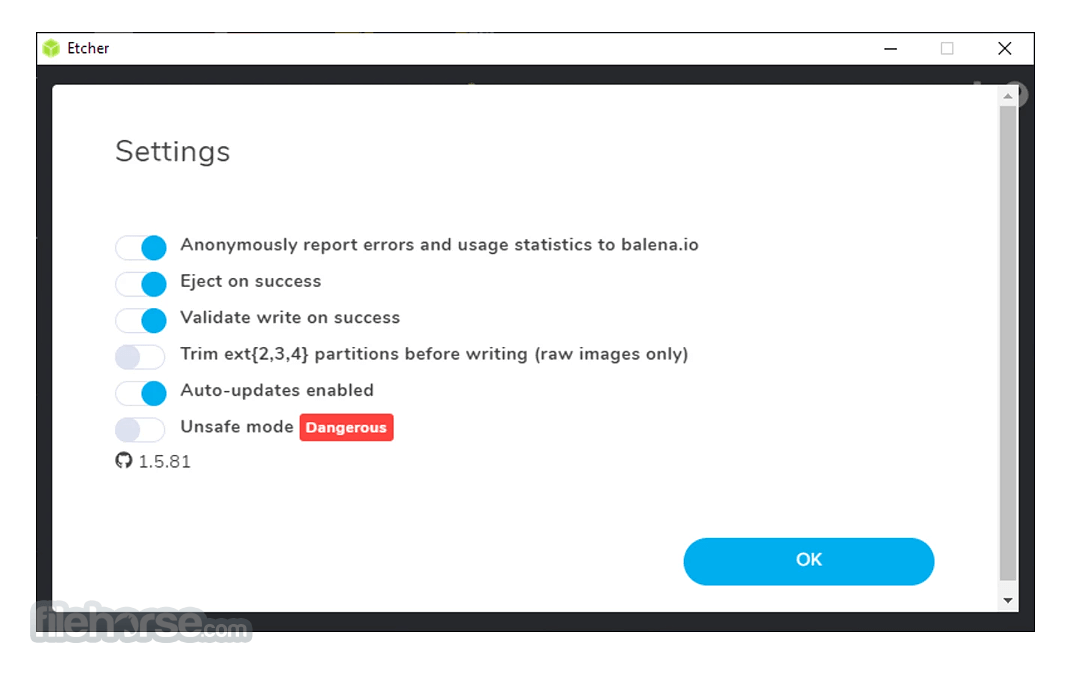
- Validated Flashing: This feature ensures that the data written to your drive is accurate, preventing common issues like corrupted images.
- Beautiful Interface: It boasts a clean, modern interface that is intuitive and easy to navigate.
- Support for Various Formats: The software supports multiple image formats, including ISO, IMG, ZIP, and more.
- No More Corrupted Drives: It uses a unique method of writing data to drives, which minimizes the risk of bricking devices.
- Open Source: As an open-source project, Etcher is continuously improved by a community of developers.
- Drive Selection Safety: Etcher lists only removable drives to prevent accidental overwriting of system drives.
- Auto-Unmount: Automatically unmounts volumes before writing and remounts them afterwards, reducing user intervention.
- Portable Version: Available as a portable application, allowing users to run it without installation.
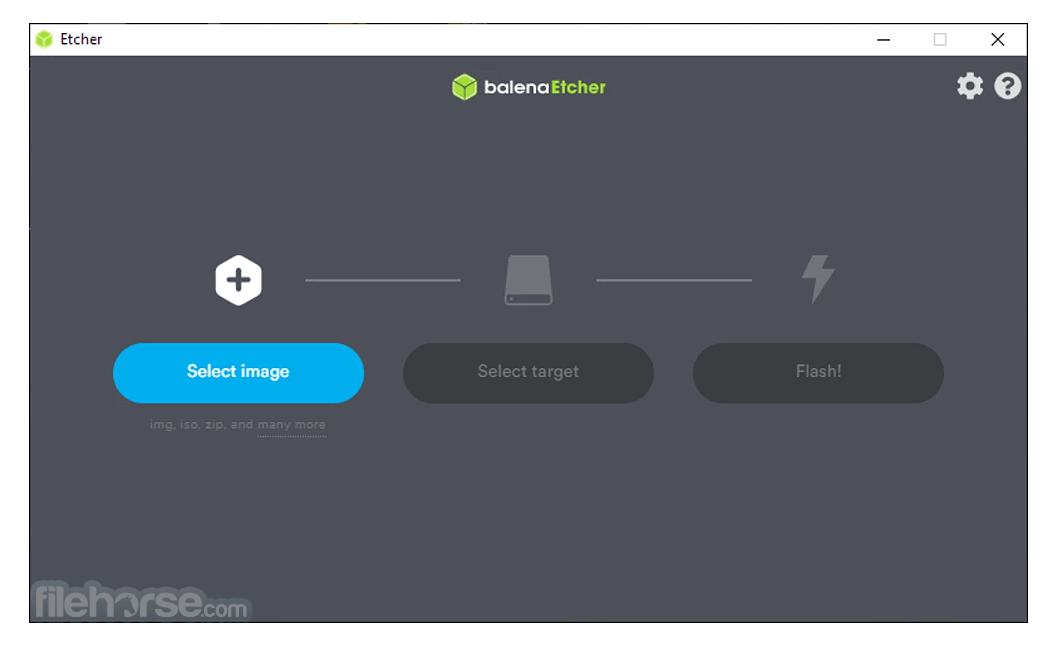
- Select Image: Users can browse their system to select the OS image file they wish to flash.
- Select Drive: It automatically detects removable drives, making it easy to choose the correct one.
- Flash!: A single click starts the flashing process, with a progress bar and detailed status updates provided throughout.
- The interface is clean, with a minimalistic design that avoids unnecessary clutter, making it accessible even for those who are not tech-savvy.
- Download the installer from the official website or FileHorse.
- Run the installer and follow the on-screen instructions.
- Once installed, launch the application from the Start menu.
- Download an OS Image: Obtain the desired OS image file (e.g., a Linux distribution or a Windows installation image).
- Launch the app: Open the BalenaEtcher application.
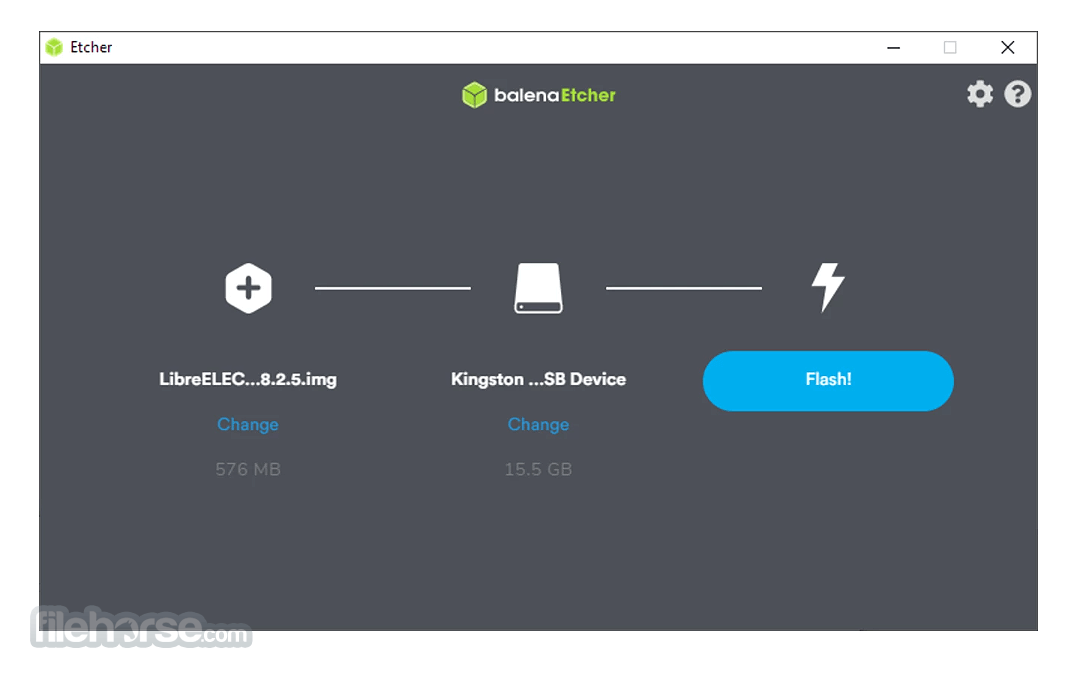
- Select Image: Click the "Select Image" button and browse to the location of your downloaded image file.
- Insert Drive: Insert the SD card or USB drive you want to use.
- Select Drive: Click the "Select Target" button and choose the appropriate drive from the list.
- Flash!: Click the "Flash!" button to start the process. Wait for the progress bar to reach 100% and for the validation to complete.
- Eject Drive: Once the process is finished, safely eject your drive and use it as needed.
Is balenaEtcher safe to use?
Yes, this program is safe to use. It includes features like drive selection safety and validated flashing to prevent data corruption and accidental overwriting of system drives.
Can Etcher flash multiple drives at once?
No, the tool currently does not support flashing multiple drives simultaneously.
Does Etcher support custom image formats?
It supports a wide range of image formats, including ISO, IMG, ZIP, and others. Custom formats are generally not supported.
Why is my drive not showing up in Etcher?
Ensure that your drive is properly connected and recognized by your operating system. Etcher lists only removable drives, so check if your drive is correctly identified as removable.
Can I use balenaEtcher to clone my entire hard drive?
No, Etcher is designed for flashing OS images to removable media and is not intended for cloning entire hard drives.
Do I need to format my SD card or thumb drive before using Etcher?
No, formatting is not required. However, be aware that Etcher will erase all data on the drive and replace it with the new image.
Can balenaEtcher create a bootable USB?
Yes, it can create a bootable USB, provided the file you are flashing is a bootable image.
Can Etcher write a Windows ISO?
No, balenaEtcher cannot directly write a Windows ISO to make it bootable. Windows images require additional steps that Etcher is not designed to handle.
Alternatives
Rufus: A popular tool for creating bootable USB drives, particularly for Windows users. It's fast and supports a variety of image formats.
UNetbootin: Another cross-platform tool that allows users to create live USB systems for a variety of Linux distributions.
Universal USB Installer: A simple application for creating bootable USB drives, especially for Linux distributions.
Ventoy: A newer tool that allows users to create a bootable USB drive for ISO/WIM/IMG/VHD(x)/EFI files. With Ventoy, you don’t need to format the drive repeatedly.
WinToUSB: A Windows-specific utility that enables the creation of bootable USB drives with Windows installations.
YUMI: A versatile multiboot USB creator that allows users to add multiple ISO files and create a single USB drive with multiple bootable systems.
Pricing
BalenaEtcher is completely FREE to use. As an open-source project, it does not have any associated costs, and users are encouraged to contribute to its development if they find it useful.
System Requirements
- Windows: Windows 11, 10, 8 or 7
- Hardware requirements are minimal, and Etcher can run on virtually any modern computer.
- Simple, intuitive interface.
- Cross-platform compatibility.
- Open-source and free.
- Validated flashing reduces errors.
- Drive selection safety feature.
- Does not support flashing multiple drives simultaneously.
- Limited to flashing removable media only.
- Lacks advanced features found in some alternative tools.
It stands out as a reliable and user-friendly tool for creating bootable media. Its cross-platform nature and minimalistic design make it accessible to a broad audience, from beginners to seasoned IT professionals. The validated flashing process and drive selection safety features ensure a smooth and error-free experience, reducing the risk of corrupted images and bricked devices.
While it may lack some advanced features found in other tools, its ease of use and reliability make it a top choice for anyone needing to create bootable SD cards or USB drives. Whether you're installing a new operating system, setting up a live Linux distribution, or preparing a recovery drive, BalenaEtcher for PC simplifies the process and ensures your media is ready to go with minimal hassle.
Also Available: Download Etcher for Mac
Download balenaEtcher Latest Version Why is this app published on FileHorse? (More info)
##
影片介紹
##
畫面截圖