- 目前版本4.141
- 更新日期2026-05-30
- 檔案大小673.34 KB
- 檔案名稱flux-setup4.exe
- 作業系統Windows 7 / Windows 8 / Windows 10 / Windows 11
- 支援語系English
- 授權型式免費軟體
- 開發商 Michael Herf
- 軟體分類Windows 軟體 / 桌面強化
##
翻譯排程處理中,以下暫以英文原文呈現
軟體介紹
f.lux is a free program for Windows designed to automatically adjust the color temperature of your computer screen based on the time of day.
It helps reduce eye strain, improve sleep quality, and create a more comfortable viewing experience by shifting the screen’s brightness and warmth according to natural daylight cycles.
The flux desktop app is particularly beneficial for users who work late at night, reducing exposure to blue light that can disrupt sleep patterns.
Key Features
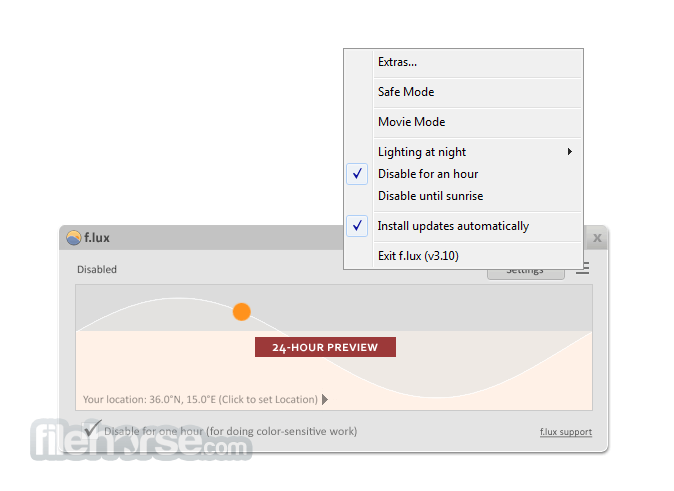
It has a minimalistic and straightforward interface. The main dashboard features a graph that visually represents color temperature changes throughout the day.
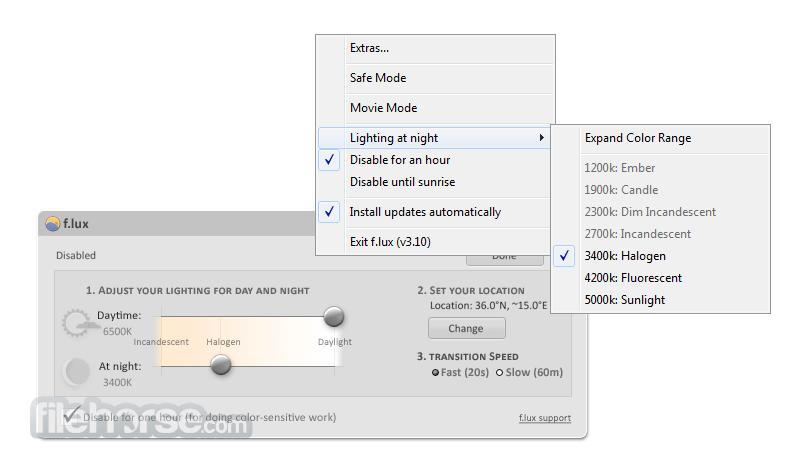
Users can easily adjust settings via sliders, toggle different modes, and configure advanced preferences with just a few clicks. The UI is clean, lightweight, and non-intrusive, running silently in the system tray after setup.
Installation and Setup
Can I disable f.lux for certain apps?
Yes, you can create an exclusion list by right-clicking the app icon in the system tray and selecting “Disable when using (app).”
Does f.lux affect gaming or video editing?
Yes, this small program alters screen colors, which may interfere with tasks requiring color accuracy. Use “Disable for an Hour” or “Gaming Mode” to temporarily turn it off.
Is f.lux free?
Yes, this program is completely FREE for personal use.
Does f.lux reduce blue light completely?
No, it minimizes blue light but does not eliminate it. For full protection, consider blue light-filtering glasses.
Can f.lux improve sleep quality?
Yes, by reducing blue light exposure at night, it can help maintain a healthier sleep cycle.
Alternatives
Iris – Advanced eye-care software with more customization options.
CareUEyes – Includes screen dimming and blue light filtering.
Pricing
This program is completely free for personal use. There are no premium or paid versions, making it an excellent choice for users looking for a free screen-adjustment tool.
System Requirements
f.lux is an essential tool for anyone who spends long hours in front of a screen. Intelligently adjusting screen color temperature throughout the day, it helps reduce eye strain and improve sleep quality.
While it may not be suitable for professionals working with color-sensitive tasks, it remains a must-have for general users who want a more comfortable viewing experience. Best of all, it's completely FREE, making it an easy recommendation for Windows users looking to minimize blue light exposure.
Also Available: Download f.lux for Mac
Download f.lux Latest Version Why is this app published on FileHorse? (More info)
It helps reduce eye strain, improve sleep quality, and create a more comfortable viewing experience by shifting the screen’s brightness and warmth according to natural daylight cycles.
The flux desktop app is particularly beneficial for users who work late at night, reducing exposure to blue light that can disrupt sleep patterns.
Key Features
- Automatic Color Temperature Adjustment – Changes screen color based on time and location.
- Customizable Settings – Users can manually adjust brightness and color temperature.
- Presets for Different Environments – Includes modes like “Working Late,” “Movie Mode,” and “Darkroom Mode.”
- Sunset and Sunrise Detection – Adapts brightness based on local time.
- Sleep and Circadian Rhythm Support – Helps users maintain better sleep habits.
- Gaming Mode – Temporarily disables f.lux for color-sensitive tasks.
- Compatibility with Smart Lights – Works with Philips Hue and other smart lighting systems.
- Improved Snapdragon Compatibility: Added workarounds to improve support for Qualcomm Snapdragon systems (Adreno GPU), particularly with external monitors.
- Crash Fixes: Resolved multiple crashes that occurred when the app closed while a dialog box was still open.
- Per-Monitor Calibration Progress: Continued development on individual monitor calibration, improving multi-display color handling.
- Remote Desktop Fixes: Addressed issues affecting f.lux behavior during remote desktop sessions.
- New Colorspace Stability Testing: Introduced updated monitor colorspace code, currently undergoing stability testing before full activation.
It has a minimalistic and straightforward interface. The main dashboard features a graph that visually represents color temperature changes throughout the day.
Users can easily adjust settings via sliders, toggle different modes, and configure advanced preferences with just a few clicks. The UI is clean, lightweight, and non-intrusive, running silently in the system tray after setup.
Installation and Setup
- Download the latest version of this app from the official website or FileHorse.
- Run the installer and follow the on-screen instructions.
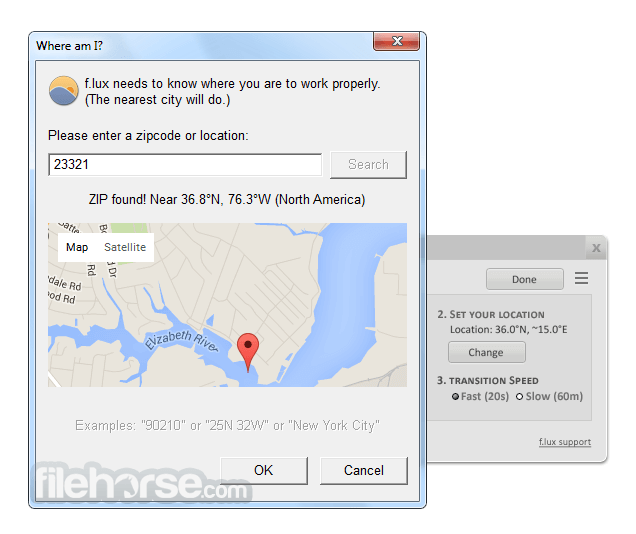
- After installation, enter your location (city or latitude/longitude) to allow f.lux to adjust lighting based on your local sunrise and sunset times.
- Adjust color settings using the slider to find a comfortable balance.
- Customize advanced settings if needed, such as disabling f.lux for specific apps.
- Adjust Temperature Manually – Use the slider to change screen warmth.
- Enable or Disable for Certain Apps – Exclude apps that require color accuracy, such as Photoshop.
- Switch Between Presets – Choose different modes based on activity.
- Turn Off Temporarily – Right-click the system tray icon and select “Disable for an Hour” if needed.
- Use Sleep Mode – Set up this app to reduce blue light before bedtime.
Can I disable f.lux for certain apps?
Yes, you can create an exclusion list by right-clicking the app icon in the system tray and selecting “Disable when using (app).”
Does f.lux affect gaming or video editing?
Yes, this small program alters screen colors, which may interfere with tasks requiring color accuracy. Use “Disable for an Hour” or “Gaming Mode” to temporarily turn it off.
Is f.lux free?
Yes, this program is completely FREE for personal use.
Does f.lux reduce blue light completely?
No, it minimizes blue light but does not eliminate it. For full protection, consider blue light-filtering glasses.
Can f.lux improve sleep quality?
Yes, by reducing blue light exposure at night, it can help maintain a healthier sleep cycle.
Alternatives
Iris – Advanced eye-care software with more customization options.
CareUEyes – Includes screen dimming and blue light filtering.
Pricing
This program is completely free for personal use. There are no premium or paid versions, making it an excellent choice for users looking for a free screen-adjustment tool.
System Requirements
- OS: Windows 7, 8, 10, 11
- Processor: Any modern Intel or AMD processor
- RAM: 2GB minimum
- Storage: 10MB of free space
- Internet Connection: Required for location-based adjustments
- Free and lightweight
- Automatically adjusts screen colors based on time of day
- Simple and easy-to-use interface
- Helps reduce eye strain and improve sleep quality
- Works with smart lighting systems
- May interfere with color-sensitive work like photo editing
- No built-in scheduler for precise manual control
- Requires temporary disabling for gaming or video editing
f.lux is an essential tool for anyone who spends long hours in front of a screen. Intelligently adjusting screen color temperature throughout the day, it helps reduce eye strain and improve sleep quality.
While it may not be suitable for professionals working with color-sensitive tasks, it remains a must-have for general users who want a more comfortable viewing experience. Best of all, it's completely FREE, making it an easy recommendation for Windows users looking to minimize blue light exposure.
Also Available: Download f.lux for Mac
Download f.lux Latest Version Why is this app published on FileHorse? (More info)
##
畫面截圖