⚠ 這是歷史版本頁面 — 查看 ISO Workshop 最新版本 →

- 目前版本10.7
- 更新日期2021-11-18
- 檔案大小4.35 MB
- 檔案名稱isoworkshop_10.7.exe
- 作業系統Windows 7 / Windows 8 / Windows 10
- 支援語系English
- 授權型式免費軟體
- 開發商 Glorylogic
- 軟體分類Windows 軟體 / 光碟藍光
##
編輯短評
ISO Workshop 是一套專注於 ISO 映像檔管理的 Windows 免費工具,涵蓋建立、擷取、轉檔、燒錄與編輯等常見需求,讓使用者不必安裝多套軟體就能處理光碟映像。它的介面設計相當直覺,適合快速完成備份實體光碟、製作可開機隨身碟或從 ISO 中取出檔案等任務。這款軟體由 Glorylogic 持續維護,更新頻率穩定,在同類工具中屬於評價中上的熱門選擇,雖然不是最頂尖的旗艦級產品,但以免費軟體來說已具備足夠的實用性。
如果你偶爾需要處理 ISO 檔,又不想被付費軟體的複雜功能綁住,ISO Workshop 會是輕量且稱職的選項。與 DVD Shrink、DAEMON Tools Lite 或 Nero Burning ROM 相比,它少了虛擬光碟掛載或進階影音編輯等附加功能,但換來的是更單純的操作流程與較低的學習成本。需要注意的是,這套軟體僅提供英文介面,且僅支援 Windows 平台,使用前最好確認自己能接受英文選單;授權為免費軟體,可安心下載使用,但若需要更完整的燒錄或映像管理功能,可能還是得考慮其他付費替代方案。
##
翻譯排程處理中,以下暫以英文原文呈現
軟體介紹
ISO Workshop is a versatile software designed for managing and working with ISO image files on your PC.
ISO image files are essentially virtual representations of optical discs (CDs, DVDs, Blu-rays), allowing you to store and share the contents of these discs digitally.
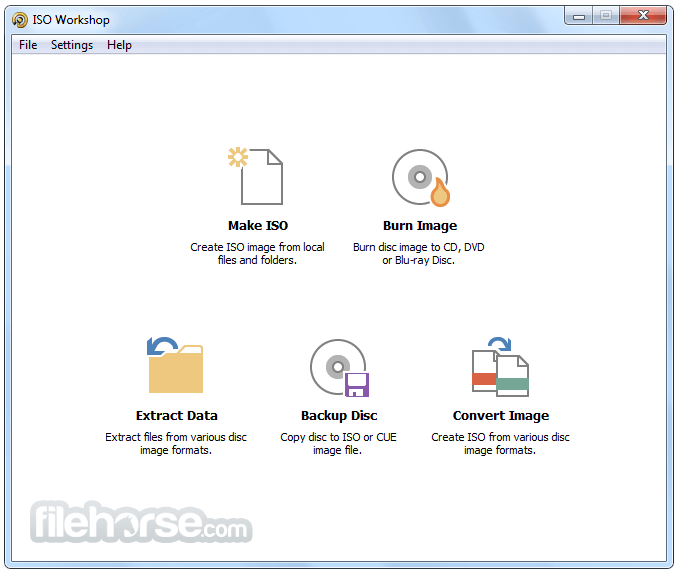
It simplifies tasks related to ISO images, including creation, extraction, conversion, burning, and editing, all within a user-friendly interface.
Whether you need to back up your physical discs, create bootable USB drives, extract files from ISOs, or make disc-to-disc copies, ISO Workshop for PC aims to be your all-in-one solution for handling ISO files effectively.
Highlights
ISO Creation and Burning
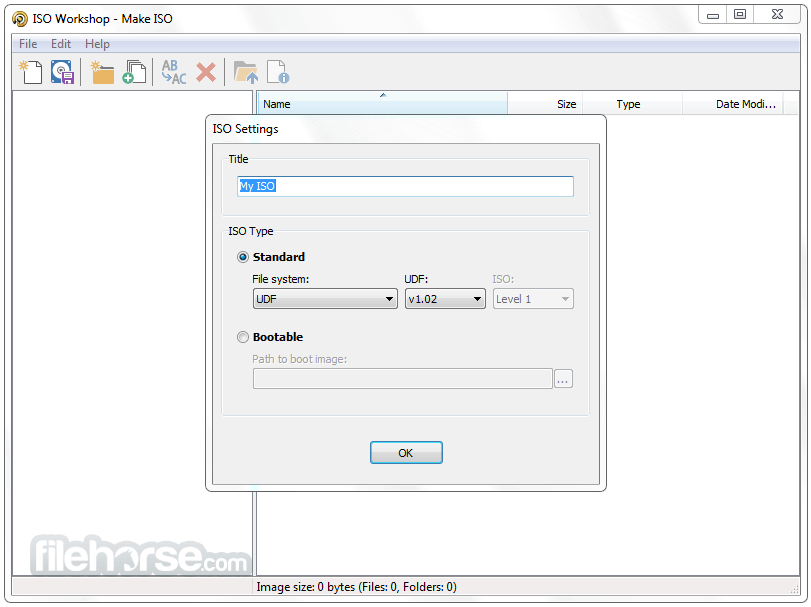
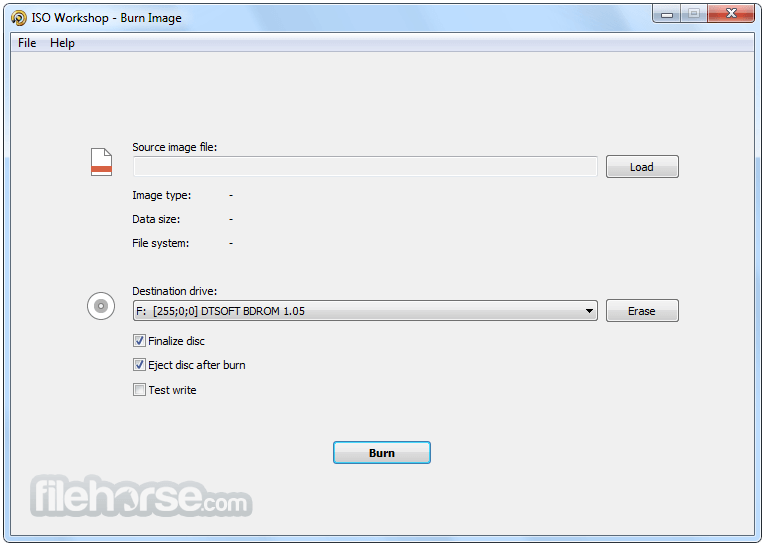
It allows you to create ISO files from folders and files on your computer, making it easy to archive and distribute data. You can also burn ISO images to physical discs, including CDs, DVDs, and Blu-rays, with support for various disc formats.
ISO Extraction
Extracting files and folders from ISO images is a breeze with the program. Simply select the ISO file, choose the destination folder, and the software will do the rest.
ISO Conversion
Convert between different ISO formats effortlessly. It supports various ISO extensions, ensuring compatibility across a wide range of devices and platforms.
Disc Copying
Make exact copies of your CDs, DVDs, and Blu-rays with the app. This feature is especially handy for creating backups or sharing content with others.
ISO Editing
Edit existing ISO files by adding, removing, or renaming files and folders within the image. You can also optimize ISO files for better compression.
Bootable USB Creation
It allows you to create bootable USB drives from ISO images, which is essential for tasks like installing operating systems or running diagnostics.
User-Friendly Interface
The software features an intuitive and user-friendly interface that doesn't overwhelm users with unnecessary complexities. It's designed for both beginners and experienced users.
High-Speed Processing
The software is optimized for speed, ensuring that tasks like ISO creation, extraction, and burning are completed as quickly as possible.
Installation and Setup
Creating ISOs: Click on the "Create ISO" button, select the source files or folders, and specify the output location. Click "Start" to create the ISO.
Extracting ISOs: Click on the "Extract ISO" button, choose the source ISO file, select the destination folder, and click "Start" to extract the contents.
Burning ISOs: Click on the "Burn ISO" button, select the ISO file, choose the burning options (e.g., burn speed), and click "Start" to burn the ISO to a disc.
Copying Discs: Click on the "Copy Disc" button, insert the source disc, choose the destination drive, and click "Start" to copy the disc.
Editing ISOs: Click on the "Edit ISO" button, load the ISO file, and use the built-in file manager to add, remove, or rename files and folders.
Creating Bootable USBs: Click on the "Make Bootable USB" button, select the ISO file, choose the USB drive, and click "Start" to create a bootable USB drive.
FAQ
Is ISO Workshop FRE to use?
It offers both a FREE version and a Pro version. The free version includes basic functionality, while the Pro version unlocks advanced features like disc-to-disc copying and ISO editing. You can upgrade to Pro for a one-time fee.
Can ISO Workshop create bootable USB drives for Linux distributions?
Yes, it can create bootable USB drives for various Linux distributions. Simply select the Linux ISO image, choose your USB drive, and follow the steps to create the bootable media.
Does ISO Workshop support dual-layer DVDs?
Yes, it supports dual-layer DVDs, allowing you to create or burn ISO images onto these larger-capacity discs.
Can I use ISO Workshop to compress ISO files?
Yes, it includes an option to optimize ISO files for better compression. This feature can be helpful when you need to save storage space.
Is ISO Workshop compatible with Windows 11/10?
Yes, the program is fully compatible with Windows 11/10, as well as earlier versions of Windows, such as Windows 7 and Windows 8.
Alternatives
ImgBurn: ImgBurn is a popular free application specifically designed for burning ISO images to optical discs. It offers advanced features for disc burning and is well-regarded among enthusiasts.
UltraISO: UltraISO is a paid software solution known for its robust ISO editing capabilities. It allows users to directly edit ISO files and includes additional features for creating and managing disc images.
Rufus: Rufus is a free, open-source utility for creating bootable USB drives from ISO images. While not as feature-rich as ISO Workshop, it excels in the specific task of making bootable USB media.
Nero Burning ROM: Industrys leading CD, DVD and Blu-ray disc burning software.
CDBurnerXP: CDBurnerXP is a free, open-source tool that offers a wide range of disc-related functions, including burning ISO images to CDs, DVDs, and Blu-rays. It's particularly user-friendly.
Pricing
Free Version: The free version provides basic functionality for creating, extracting, and burning ISO images.
Pro Version - $39.95 (One-time payment): The Pro version unlocks advanced features such as disc-to-disc copying and ISO editing. It is available for a one-time payment, making it a cost-effective solution for users who require additional capabilities.
System Requirements
ISO Workshop is a valuable tool for anyone working with ISO image files on their Windows PC. Its intuitive interface and wide range of features make it accessible to users of all levels of experience. Whether you need to create, extract, edit, or burn ISOs, it has you covered.
The option to upgrade to the Pro version adds even more functionality, making it a compelling choice for users who require advanced features such as disc-to-disc copying and ISO editing.
While there are alternative software options available, it stands out as a reliable and efficient choice for managing ISO images. It simplifies the often complex process of working with disc images, making it an excellent addition to your software toolkit, particularly if you frequently deal with optical media.
Download ISO Workshop Latest Version Why is this app published on FileHorse? (More info)
ISO image files are essentially virtual representations of optical discs (CDs, DVDs, Blu-rays), allowing you to store and share the contents of these discs digitally.
It simplifies tasks related to ISO images, including creation, extraction, conversion, burning, and editing, all within a user-friendly interface.
Whether you need to back up your physical discs, create bootable USB drives, extract files from ISOs, or make disc-to-disc copies, ISO Workshop for PC aims to be your all-in-one solution for handling ISO files effectively.
Highlights
- Make standard or bootable ISO, with various file systems
- Burn ISO image or any other disc image to CD, DVD or BD
- Browse and extract files from various disc image formats
- Copy any CD, DVD or Blu-ray Disc to ISO or BIN image
- Convert various disc images to ISO or BIN
- Award-winning, easy-to-use, intuitive user interface
- Low CPU resource usage during any process, including burning
- Free for personal use and for any non-commercial organization
- Supports CD-R/RW, DVD-R/RW, DVD+R/RW, DVD+R DL, BD-R/RE
- Supports all types of CD/DVD/Blu-ray Recorders
ISO Creation and Burning
It allows you to create ISO files from folders and files on your computer, making it easy to archive and distribute data. You can also burn ISO images to physical discs, including CDs, DVDs, and Blu-rays, with support for various disc formats.
ISO Extraction
Extracting files and folders from ISO images is a breeze with the program. Simply select the ISO file, choose the destination folder, and the software will do the rest.
ISO Conversion
Convert between different ISO formats effortlessly. It supports various ISO extensions, ensuring compatibility across a wide range of devices and platforms.
Disc Copying
Make exact copies of your CDs, DVDs, and Blu-rays with the app. This feature is especially handy for creating backups or sharing content with others.
ISO Editing
Edit existing ISO files by adding, removing, or renaming files and folders within the image. You can also optimize ISO files for better compression.
Bootable USB Creation
It allows you to create bootable USB drives from ISO images, which is essential for tasks like installing operating systems or running diagnostics.
User-Friendly Interface
The software features an intuitive and user-friendly interface that doesn't overwhelm users with unnecessary complexities. It's designed for both beginners and experienced users.
High-Speed Processing
The software is optimized for speed, ensuring that tasks like ISO creation, extraction, and burning are completed as quickly as possible.
Installation and Setup
- Download the installation package from the official website or FileHorse.
- Run the installer, and a setup wizard will guide you through the process.
- Follow the on-screen instructions to choose installation preferences.
- Once installed, the app is ready to use.
- The setup process is quick and hassle-free, making it accessible to users of all skill levels.
Creating ISOs: Click on the "Create ISO" button, select the source files or folders, and specify the output location. Click "Start" to create the ISO.
Extracting ISOs: Click on the "Extract ISO" button, choose the source ISO file, select the destination folder, and click "Start" to extract the contents.
Burning ISOs: Click on the "Burn ISO" button, select the ISO file, choose the burning options (e.g., burn speed), and click "Start" to burn the ISO to a disc.
Copying Discs: Click on the "Copy Disc" button, insert the source disc, choose the destination drive, and click "Start" to copy the disc.
Editing ISOs: Click on the "Edit ISO" button, load the ISO file, and use the built-in file manager to add, remove, or rename files and folders.
Creating Bootable USBs: Click on the "Make Bootable USB" button, select the ISO file, choose the USB drive, and click "Start" to create a bootable USB drive.
FAQ
Is ISO Workshop FRE to use?
It offers both a FREE version and a Pro version. The free version includes basic functionality, while the Pro version unlocks advanced features like disc-to-disc copying and ISO editing. You can upgrade to Pro for a one-time fee.
Can ISO Workshop create bootable USB drives for Linux distributions?
Yes, it can create bootable USB drives for various Linux distributions. Simply select the Linux ISO image, choose your USB drive, and follow the steps to create the bootable media.
Does ISO Workshop support dual-layer DVDs?
Yes, it supports dual-layer DVDs, allowing you to create or burn ISO images onto these larger-capacity discs.
Can I use ISO Workshop to compress ISO files?
Yes, it includes an option to optimize ISO files for better compression. This feature can be helpful when you need to save storage space.
Is ISO Workshop compatible with Windows 11/10?
Yes, the program is fully compatible with Windows 11/10, as well as earlier versions of Windows, such as Windows 7 and Windows 8.
Alternatives
ImgBurn: ImgBurn is a popular free application specifically designed for burning ISO images to optical discs. It offers advanced features for disc burning and is well-regarded among enthusiasts.
UltraISO: UltraISO is a paid software solution known for its robust ISO editing capabilities. It allows users to directly edit ISO files and includes additional features for creating and managing disc images.
Rufus: Rufus is a free, open-source utility for creating bootable USB drives from ISO images. While not as feature-rich as ISO Workshop, it excels in the specific task of making bootable USB media.
Nero Burning ROM: Industrys leading CD, DVD and Blu-ray disc burning software.
CDBurnerXP: CDBurnerXP is a free, open-source tool that offers a wide range of disc-related functions, including burning ISO images to CDs, DVDs, and Blu-rays. It's particularly user-friendly.
Pricing
Free Version: The free version provides basic functionality for creating, extracting, and burning ISO images.
Pro Version - $39.95 (One-time payment): The Pro version unlocks advanced features such as disc-to-disc copying and ISO editing. It is available for a one-time payment, making it a cost-effective solution for users who require additional capabilities.
System Requirements
- Operating System: Windows 11, Windows 10, Windows 8.1, Windows 8, Windows 7 (32-bit and 64-bit editions)
- Processor: Intel Pentium 166 MHz or higher
- RAM: 64 MB or more
- Hard Disk Space: 10 MB of free disk space
- Optical Drive: CD/DVD/BD drive for burning operations
- User-friendly interface suitable for both beginners and advanced users.
- Offers a wide range of ISO-related functions, from creation to editing and burning.
- Supports various disc formats, including CDs, DVDs, and Blu-rays.
- Fast processing speed ensures efficient task completion.
- The free version provides essential functionality, making it accessible to all users.
- Some advanced features are only available in the Pro version, requiring a one-time purchase.
- Limited to Windows operating systems, excluding macOS and Linux users.
- While intuitive, the user interface could benefit from a modernization update.
ISO Workshop is a valuable tool for anyone working with ISO image files on their Windows PC. Its intuitive interface and wide range of features make it accessible to users of all levels of experience. Whether you need to create, extract, edit, or burn ISOs, it has you covered.
The option to upgrade to the Pro version adds even more functionality, making it a compelling choice for users who require advanced features such as disc-to-disc copying and ISO editing.
While there are alternative software options available, it stands out as a reliable and efficient choice for managing ISO images. It simplifies the often complex process of working with disc images, making it an excellent addition to your software toolkit, particularly if you frequently deal with optical media.
Download ISO Workshop Latest Version Why is this app published on FileHorse? (More info)
##
畫面截圖
- 2026-02-04 ISO Workshop 13.7 6.89 MB
- 2025-11-05 ISO Workshop 13.6 6.86 MB
- 2025-06-02 ISO Workshop 13.5 6.79 MB
- 2025-04-10 ISO Workshop 13.4 6.1 MB
- 2025-02-27 ISO Workshop 13.3 5.79 MB
- 2025-01-21 ISO Workshop 13.2 5.8 MB
- 2024-10-24 ISO Workshop 13.1 5.8 MB
- 2024-07-16 ISO Workshop 13.0 5.8 MB