- 目前版本3.6.4
- 更新日期2026-08-12
- 檔案大小314 MB
- 檔案名稱GitHubDesktop.zip
- 作業系統Mac OS X 10.10 or later
- 支援語系English
- 授權型式免費軟體
- 開發商 GitHub, Inc.
- 軟體分類Mac 軟體 / 開發者工具
##
翻譯排程處理中,以下暫以英文原文呈現
軟體介紹
GitHub Desktop for Mac is a seamless way to contribute to projects on GitHub and GitHub Enterprise. GitHub Desktop allows developers to synchronize branches, clone repositories, and more.
Pull requests, merge button, fork queue, issues, pages, wiki: all awesome features that make sharing easier. But those things are only great after you've pushed your code to the tool.
Features and Highlights
Start a project
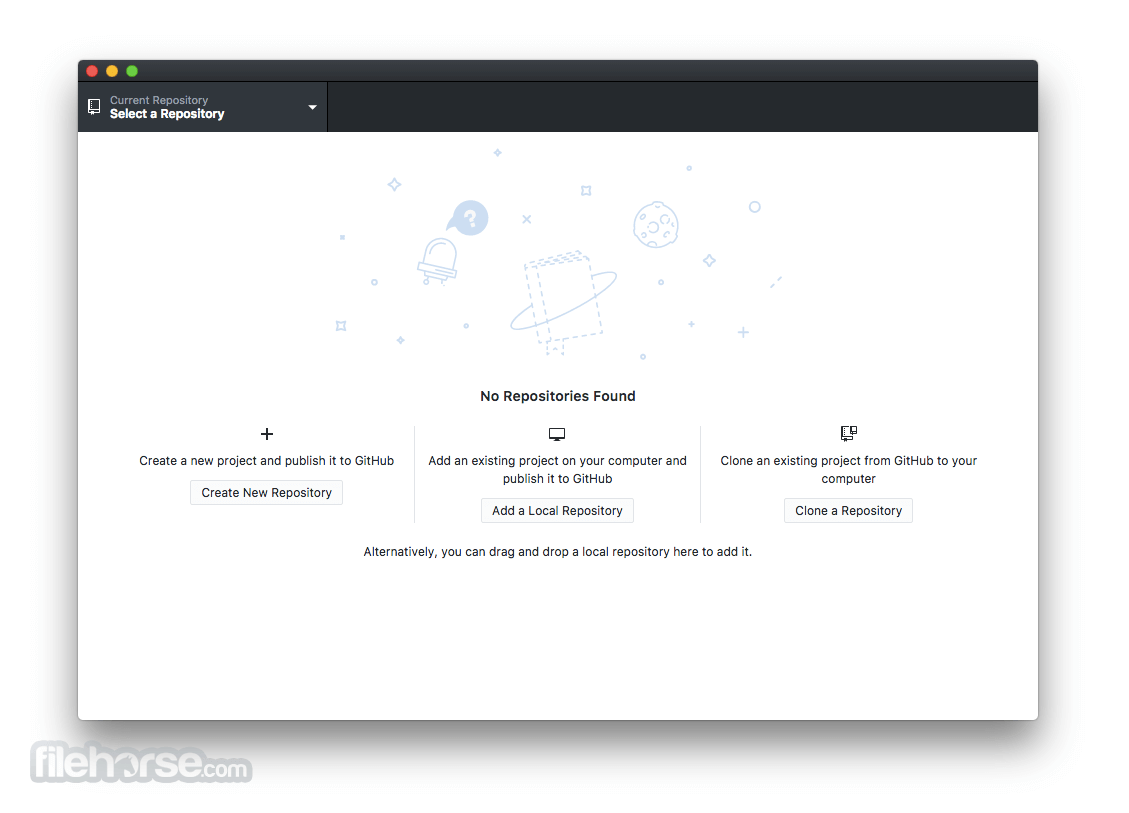
You’ll find all the projects you’re working on listed in the sidebar. If you’re starting a new project, use the repository drop down menu to create a new repository or clone an existing one directly from GitHub.com.
Branch off
Branches are essential to proposing changes and reviewing code on the app—and they’re always available in the top left corner of the repository view. Just select the current branch to switch branches or create a new one.
Craft the perfect commit
View a diff of your uncommitted changes, and form the perfect commit by selecting the files—or even the specific lines—that make up a change. Enter the summary and description, then commit.
Synchronize branches
The sync button pushes your changes to the app and pulls down other's changes in one operation. It notifies you to know when you have changes you haven't pushed or there are new changes on the tool you haven't pulled down.
Clone repositories in one click
When you add repositories to Git Hub Desktop for macOS, it automatically matches them up with any organizations you belong to. Want to pull down a repository from GitHub.com? Check out the button on the website.
User Interface
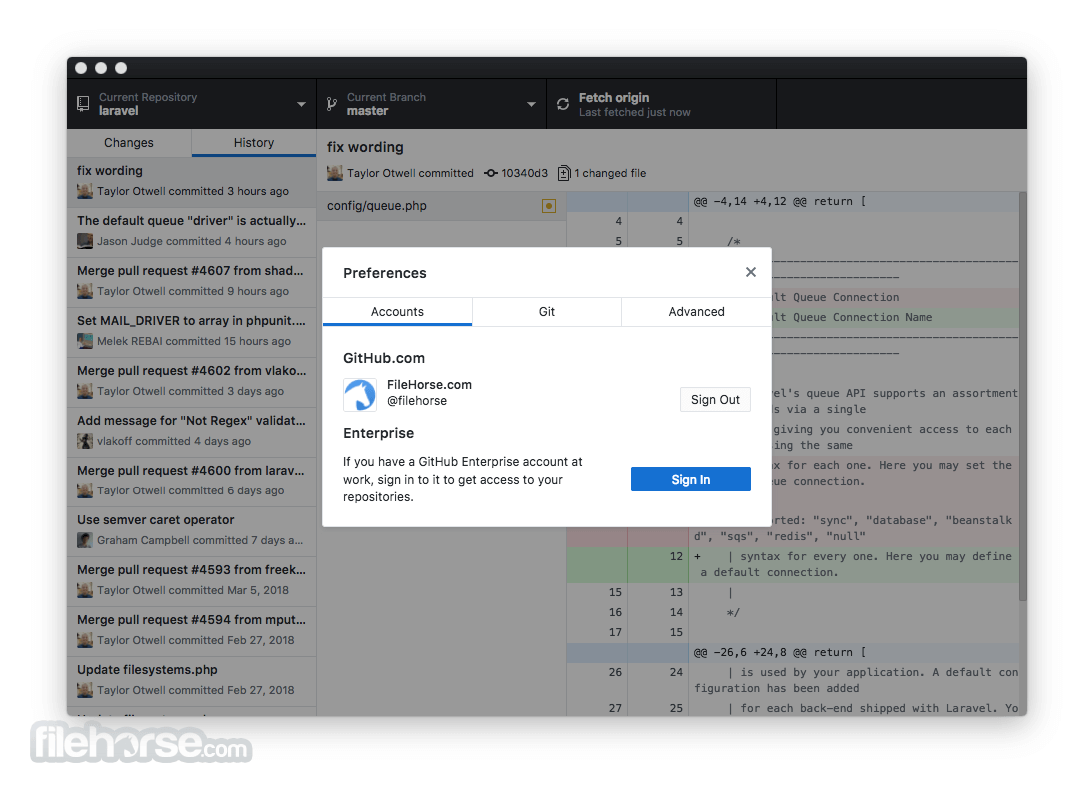
The interface of this program is clean and well-organized, focusing on usability. The main dashboard displays a list of repositories, each with its status and recent activity.
The left sidebar provides quick access to essential functions like current repository, branches, and commits. The central pane displays detailed information about the selected repository, including commit history and file changes.
Installation and Setup
Installation
Cloning a Repository:
Can I use GitHub for Mac without a GitHub account?
No, you need a GitHub account to use the full features of the application, including managing repositories and collaborating with others.
Does GitHub Desktop support GitLab or Bitbucket?
GitHub Desktop is specifically designed for use with GitHub. For GitLab or Bitbucket, you would need to use their respective tools or general Git clients.
How do I resolve merge conflicts?
When a merge conflict occurs, the application will highlight the conflicting files. You can open these files in your preferred editor to resolve the conflicts manually, then commit the resolved changes.
Can I contribute to open-source projects using GitHub Desktop?
Yes, you can clone, fork, and create pull requests for open-source projects directly from the application, making it easier to contribute.
Is there a way to undo a commit or revert changes?
Yes, you can undo the last commit by selecting 'Undo Commit' from the 'History' view. To revert changes, you can use the 'Discard changes' option.
Alternatives
SourceTree - A free Git client for macOS, developed by Atlassian. It offers a similar graphical interface and supports both GitHub and Bitbucket.
GitKraken - A popular Git client known for its modern interface and robust feature set. It supports GitHub, GitLab, and Bitbucket, and offers features like in-app code editing.
Fork - A fast and friendly Git client for Mac. It offers a range of features including repository management, conflict resolution, and visual commit history.
Pricing
Free
Everything included in Free, plus:
Also Available: Download GitHub Desktop for Windows
Download GitHub Desktop for Mac Latest Version Why is this app published on FileHorse? (More info)
Pull requests, merge button, fork queue, issues, pages, wiki: all awesome features that make sharing easier. But those things are only great after you've pushed your code to the tool.
Features and Highlights
Start a project
You’ll find all the projects you’re working on listed in the sidebar. If you’re starting a new project, use the repository drop down menu to create a new repository or clone an existing one directly from GitHub.com.
Branch off
Branches are essential to proposing changes and reviewing code on the app—and they’re always available in the top left corner of the repository view. Just select the current branch to switch branches or create a new one.
Craft the perfect commit
View a diff of your uncommitted changes, and form the perfect commit by selecting the files—or even the specific lines—that make up a change. Enter the summary and description, then commit.
Synchronize branches
The sync button pushes your changes to the app and pulls down other's changes in one operation. It notifies you to know when you have changes you haven't pushed or there are new changes on the tool you haven't pulled down.
Clone repositories in one click
When you add repositories to Git Hub Desktop for macOS, it automatically matches them up with any organizations you belong to. Want to pull down a repository from GitHub.com? Check out the button on the website.
User Interface
The interface of this program is clean and well-organized, focusing on usability. The main dashboard displays a list of repositories, each with its status and recent activity.
The left sidebar provides quick access to essential functions like current repository, branches, and commits. The central pane displays detailed information about the selected repository, including commit history and file changes.
Installation and Setup
Installation
- Download: Visit the official website and download the installer compatible with your operating system (Windows or macOS).
- Run the Installer: Execute the downloaded file and follow the on-screen instructions to complete the installation.
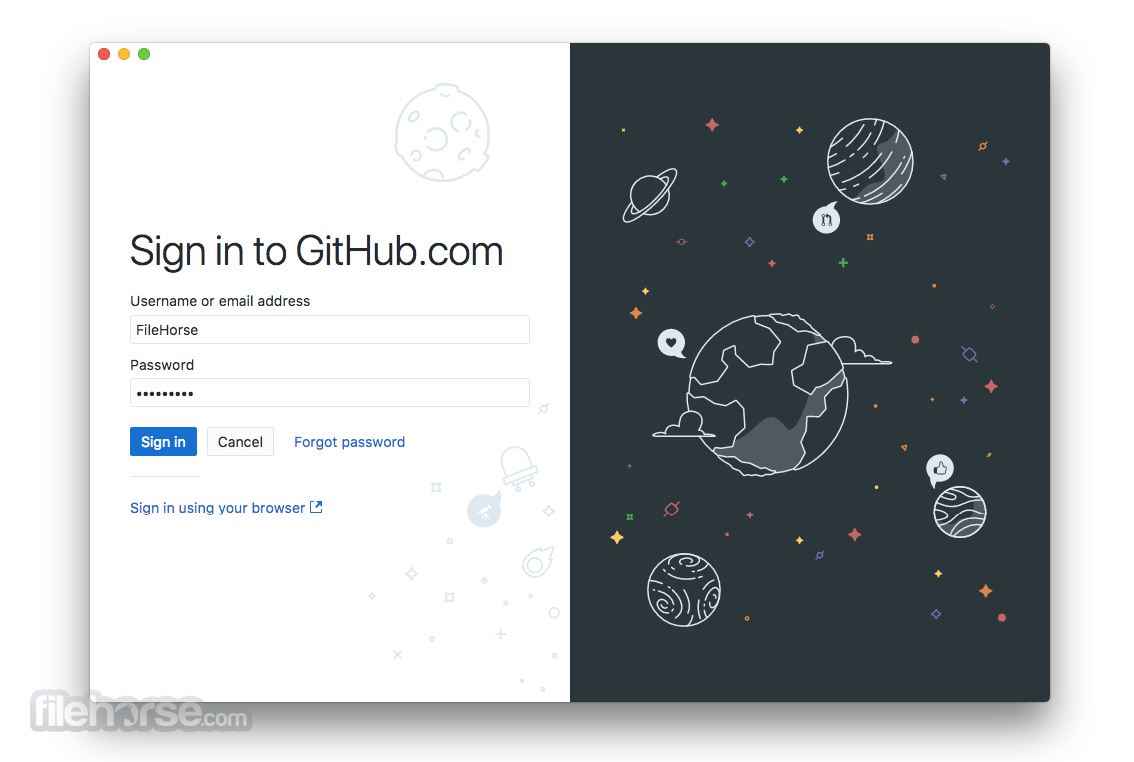
- Sign In: Launch the application and sign in with your GitHub credentials to access your repositories.
- Clone a Repository: Use the 'Clone a repository' option to pull a project from GitHub to your local machine.
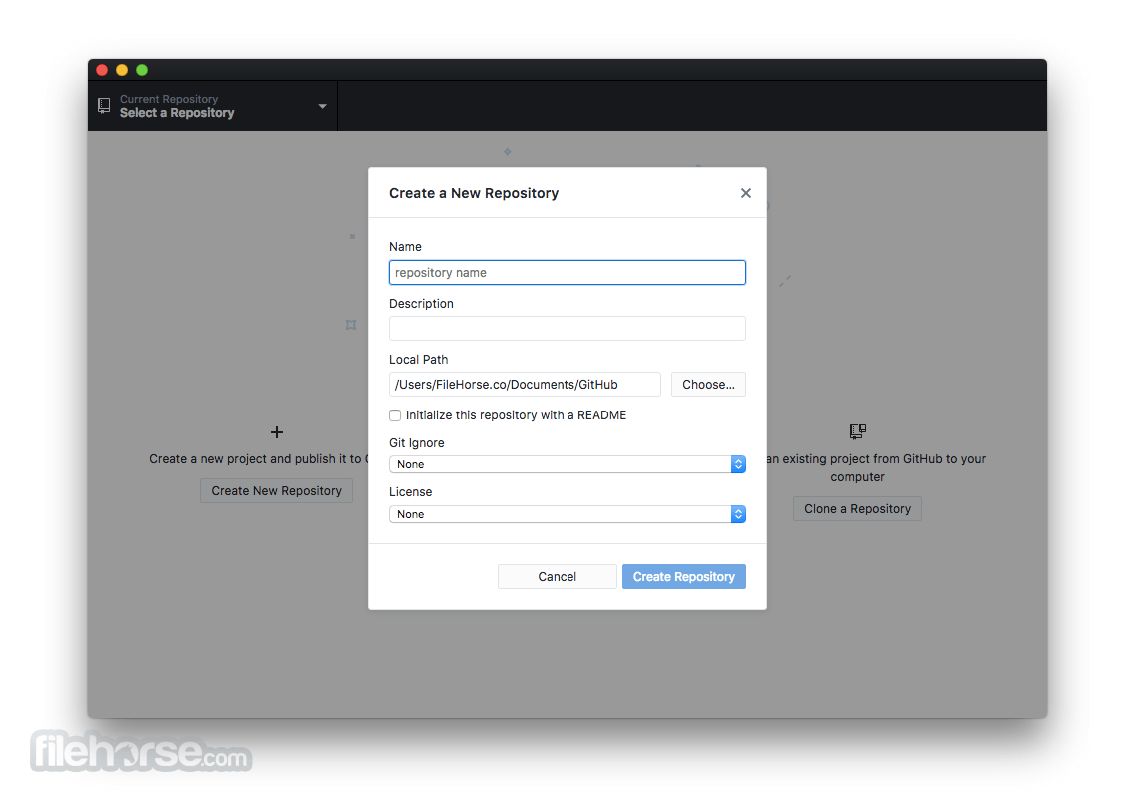
- Create a New Repository: Set up a new repository by providing a name, description, and choosing the location on your local machine.
- Configure Settings: Adjust settings like the default editor and shell to match your workflow preferences.
Cloning a Repository:
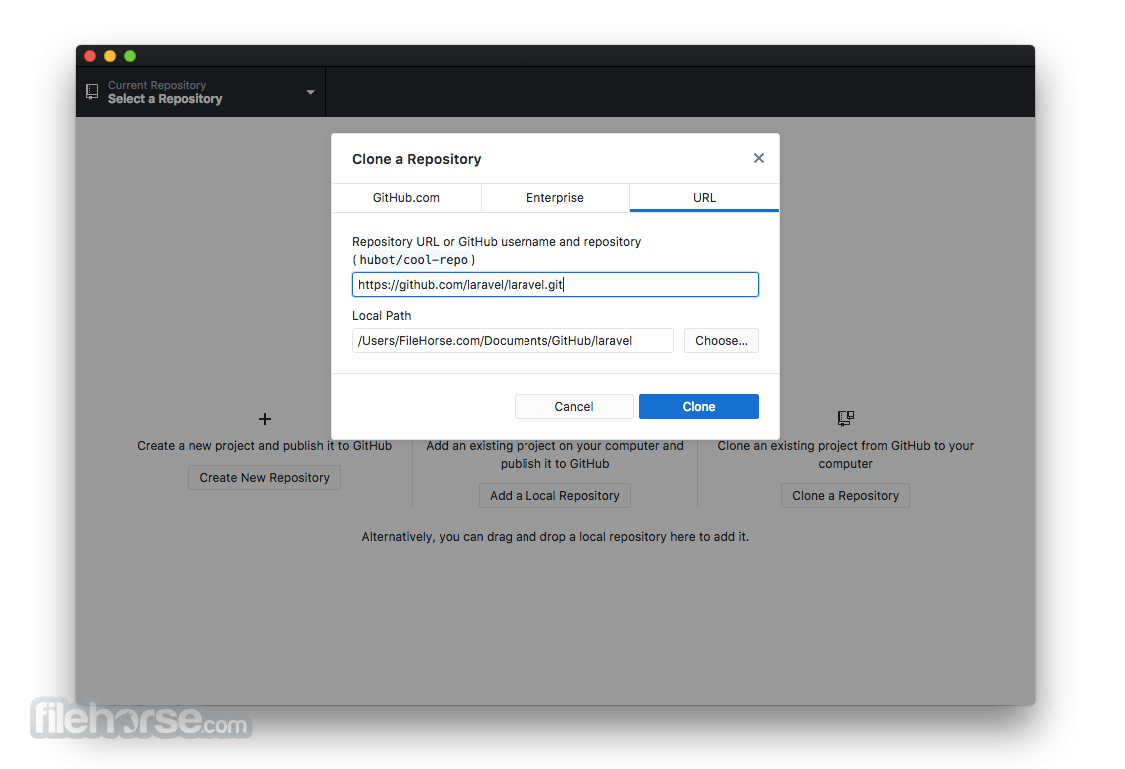
- Open the application and select 'Clone a repository.'
- Enter the repository URL or select one from your GitHub account.
- Choose the local directory where the repository will be stored and click 'Clone.'
- Navigate to the repository in the application.
- Click on the 'Current Branch' dropdown and select 'New Branch.'
- Enter a name for the branch and create it.
- Make changes to the files in your repository.
- Return to the application, stage the changes by selecting them, and click 'Commit to [branch name].'
- Provide a commit message and click 'Commit.'
- Go to the 'Current Branch' dropdown and select 'Create Pull Request.'
- Provide a title and description for the pull request and submit it.
- Ensure your branch is up to date with the main branch.
- Click on the 'Current Branch' dropdown and select 'Merge into Current Branch.'
- Choose the branch to merge from and confirm the merge.
Can I use GitHub for Mac without a GitHub account?
No, you need a GitHub account to use the full features of the application, including managing repositories and collaborating with others.
Does GitHub Desktop support GitLab or Bitbucket?
GitHub Desktop is specifically designed for use with GitHub. For GitLab or Bitbucket, you would need to use their respective tools or general Git clients.
How do I resolve merge conflicts?
When a merge conflict occurs, the application will highlight the conflicting files. You can open these files in your preferred editor to resolve the conflicts manually, then commit the resolved changes.
Can I contribute to open-source projects using GitHub Desktop?
Yes, you can clone, fork, and create pull requests for open-source projects directly from the application, making it easier to contribute.
Is there a way to undo a commit or revert changes?
Yes, you can undo the last commit by selecting 'Undo Commit' from the 'History' view. To revert changes, you can use the 'Discard changes' option.
Alternatives
SourceTree - A free Git client for macOS, developed by Atlassian. It offers a similar graphical interface and supports both GitHub and Bitbucket.
GitKraken - A popular Git client known for its modern interface and robust feature set. It supports GitHub, GitLab, and Bitbucket, and offers features like in-app code editing.
Fork - A fast and friendly Git client for Mac. It offers a range of features including repository management, conflict resolution, and visual commit history.
Pricing
Free
- Unlimited public/private repositories
- Automatic security and version updates
- 2,000 CI/CD minutes/month
- Free for public repositories
- 500MB of Packages storage
- Free for public repositories
- Issues & Projects
- Community support
- GitHub Copilot Access
- GitHub Codespaces Access
Everything included in Free, plus:
- Access to GitHub Codespaces
- Protected branches
- Multiple reviewers in pull requests
- Draft pull requests
- Code owners
- Required reviewers
- Pages and Wikis
- Environment deployment branches and secrets
- 3,000 CI/CD minutes/month
- Free for public repositories
- 2GB of Packages storage
- Free for public repositories
- Web-based support
- OS: macOS
- RAM: 2 GB or more
- Disk Space: 100 MB of free disk space
- Internet Connection: Required for initial setup and repository cloning
- User-friendly interface
- Seamless GitHub integration
- Comprehensive repository management
- Free to use
- Limited to GitHub repositories
- Fewer advanced Git features compared to some competitors
Also Available: Download GitHub Desktop for Windows
Download GitHub Desktop for Mac Latest Version Why is this app published on FileHorse? (More info)
##
畫面截圖