- 目前版本3.22.12
- 更新日期2026-07-18
- 檔案大小35.1 MB
- 檔案名稱Things3.zip
- 作業系統macOS 10.15 Catalina or later
- 支援語系English
- 授權型式商業試用
- 開發商 Cultured Code
- 軟體分類Mac 軟體 / 辦公商務
##
翻譯排程處理中,以下暫以英文原文呈現
軟體介紹
Things for Mac is an award-winning personal task manager that helps you achieve your goals! The app has been completely rebuilt from the ground up – with a timeless new design, delightful interactions, and powerful new features.
Features and Highlights
All-New Design
The all-new Things sports an all-new design. Not just how it looks – but also how it works, and how it feels. The interactions are delightful. The animations are smooth. The content is more structured. The concepts are clearer.
Beautiful To-Dos
Just take a look at the basic building block of the app - its to-dos. You immediately get a sense of how the new apps feel. When you open a to-do, it smoothly transforms into a clear white piece of paper, ready for your thoughts. If you like, you can add more details (tags, a checklist, a start date, a deadline), but those fields are neatly tucked away in the corner until you need them. There are no distractions here, it’s just you and your thoughts.
Design Is Not an Afterthought
There's a lot of thought, and trial, and error, that went into making these new apps simple to use while at the same time putting in all the powerful features. You'll notice this in every corner of the app. The new apps are not mere iterations of what came before, they are a whole new app experience.
Today and This Evening
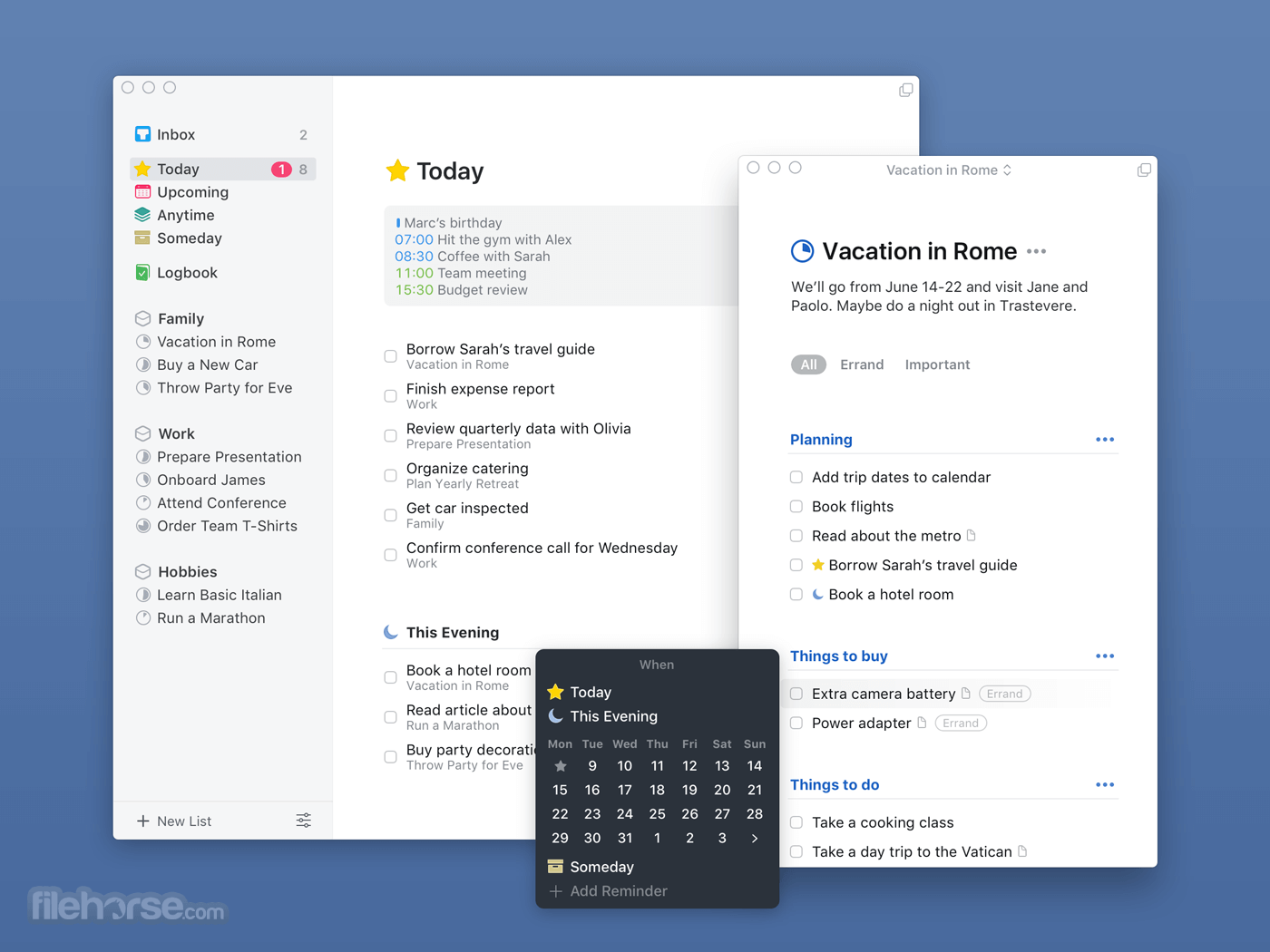
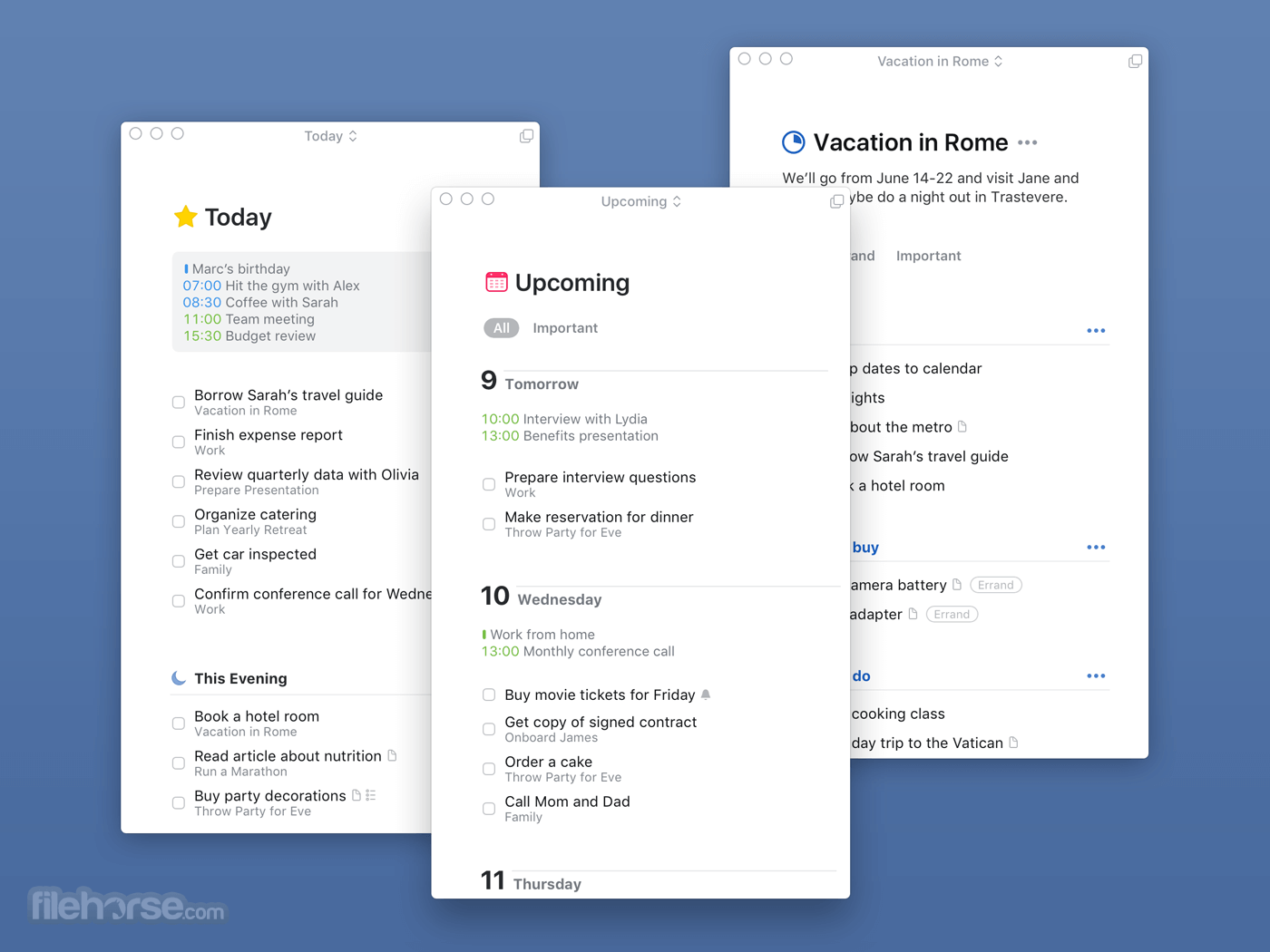
Once you’ve made your plan in the morning, the Today list is your go-to place for all daily activities. Calendar events now display together with your to-dos, giving an outline of your schedule.
Calendar Events
Decide which calendars you want to see in Things: Personal, Family, Work, and more. The events are neatly grouped at the top of your Today list. With your to-dos below, your whole day is laid out before you.
This Evening
There are often to-dos you won’t get to until later in the day – such as things you can only do when you get home. It added This Evening, which allows you to keep these to-dos separate from the rest, in their own discrete list.
Upcoming
Plan your week ahead with the new Upcoming list. It shows everything on your agenda for the coming days: scheduled to-dos, repeating to-dos, deadlines, and calendar events.
Divide and Conquer
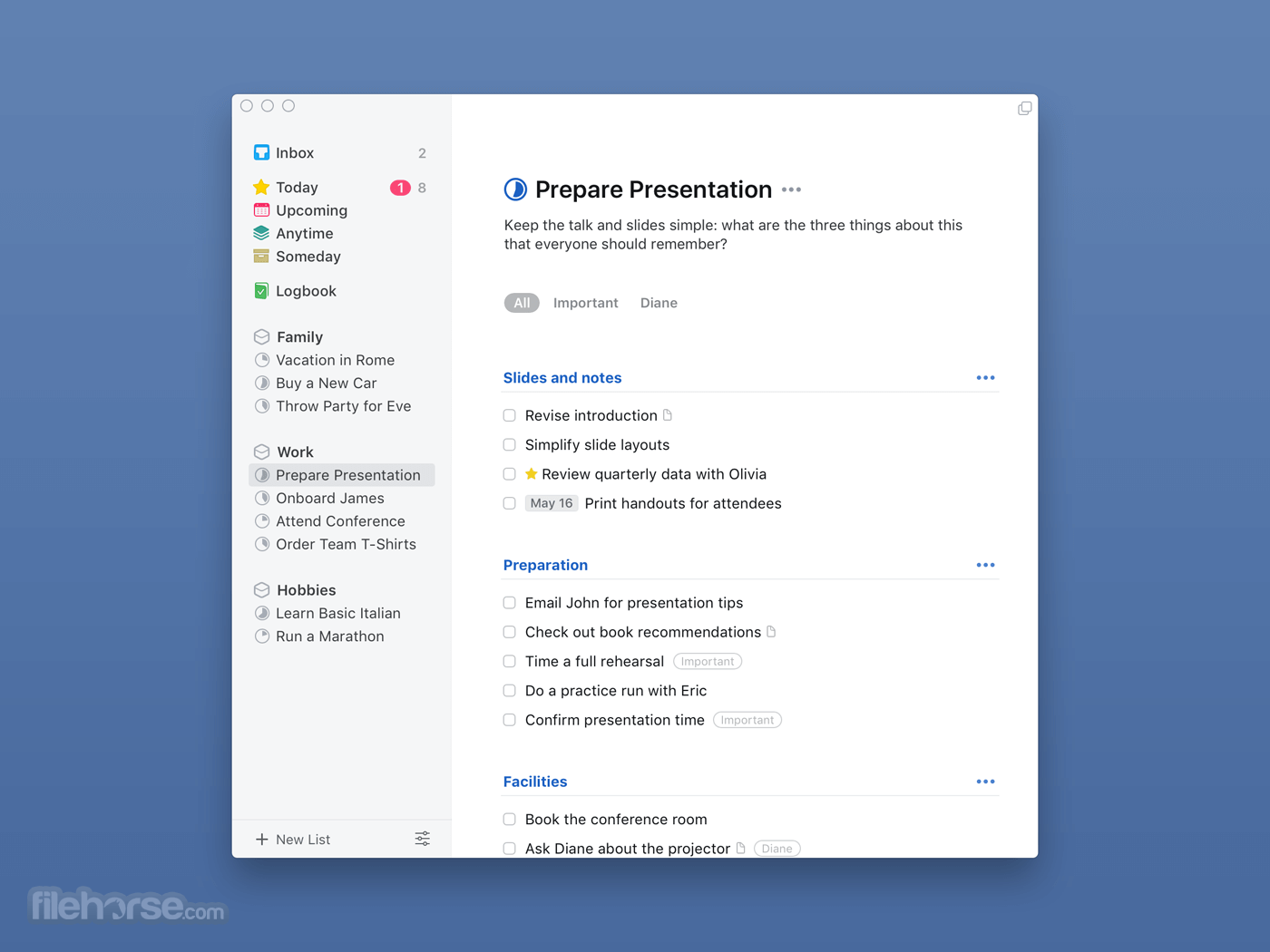
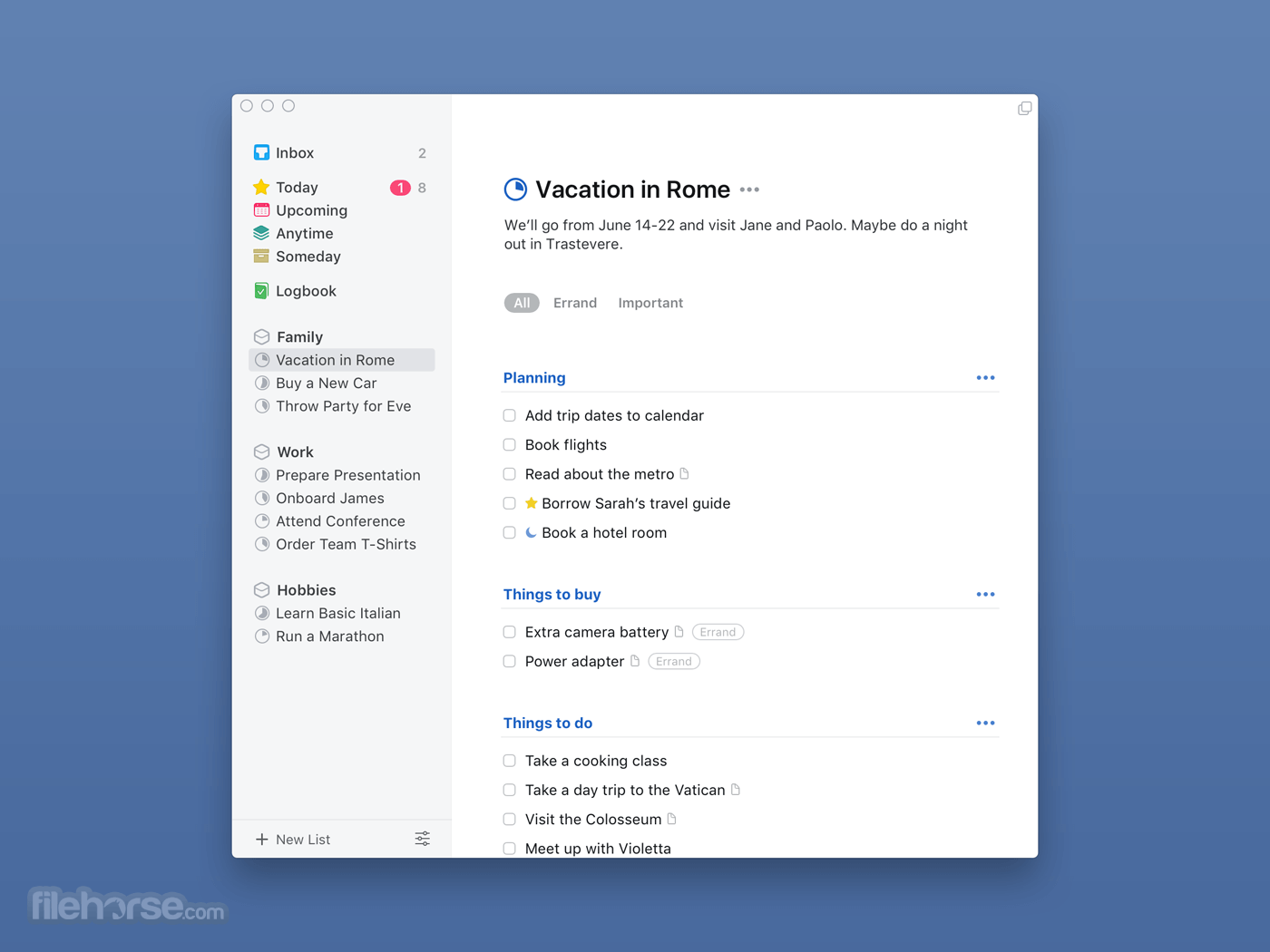
Use headings to create categories, milestones, or whatever you need – just give each one a name and drag your to-dos underneath. Instantly you’ve got a nice, clean structure for your list, and the plan becomes perfectly clear.
Keep It Together
Headings are a true productivity booster. Not only do they give you a nice visual structure, but you can now easily rearrange whole groups of to-dos simply by dragging and dropping their heading. And when you're done, archive your heading and all of its to-dos for future reference.
Checklists
Some things take several steps to complete but don’t require a full-blown project. For those cases now have checklists, which help you break down the finer details of a to-do and outline precisely what’s required to get it done.
Create To-Dos
Insert a new item right where you want it: drag the button to insert a to-do at the right place in your Today list, or under the right heading in a project, or add a new to-do to the right day in Upcoming. Everything becomes so seamless – it's magical.
Create Headings
When you're inside a project, Magic Plus has another skill: creating headings! Just drag it to the left margin and let go.
Drop to Inbox
No matter what list you're in, you can send a new to-do straight to your Inbox – with a single, consistent gesture and without ever leaving the list. Simply grab the Magic Plus and drop it on the Inbox target that appears to the left.
Quick Indeed
To hold its promise, Quick Find needs to be – quick. It built it so that the moment you hit a key, the results show up instantly. And as you keep typing, the search results update blazingly fast, narrowing your search on the fly.
App-Wide Tag Search
Need to find all your "Errand"s or everything you need to discuss with "Kate"? Quick Find's got you covered – it automatically detects when you’re typing a tag and lets you pull up an app-wide filter in milliseconds.
Just a Swipe Away
The Jump Start popover helps you make scheduling decisions quickly by putting all the answers in one convenient place. With just a swipe you can add to-dos to Today or This Evening, set a time to be reminded, schedule something for a later date, or put things on hold in Someday.
Slim Mode
Introducing Slim Mode! Collapse your sidebar with a two-finger swipe to cut out distractions and focus on the task at hand. This is also great when you’re working in split view, or if you just need more room on your screen.
Multiple Windows
Things for macOS provides a wonderfully flexible work environment on macOS. Open multiple projects in their own panes and drag to-dos back and forth between them to organize with ease. Use multiple displays? No problem! You can open different lists on each one. Same with desktop spaces and split views – whatever suits your personal setup.
How to Use
macOS 11.0 Big Sur or later
Apple Silicon and Intel Macs supported
64-bit processor
Internet connection for sync features
PROS
Download Things for Mac Latest Version Why is this app published on FileHorse? (More info)
Features and Highlights
All-New Design
The all-new Things sports an all-new design. Not just how it looks – but also how it works, and how it feels. The interactions are delightful. The animations are smooth. The content is more structured. The concepts are clearer.
Beautiful To-Dos
Just take a look at the basic building block of the app - its to-dos. You immediately get a sense of how the new apps feel. When you open a to-do, it smoothly transforms into a clear white piece of paper, ready for your thoughts. If you like, you can add more details (tags, a checklist, a start date, a deadline), but those fields are neatly tucked away in the corner until you need them. There are no distractions here, it’s just you and your thoughts.
Design Is Not an Afterthought
There's a lot of thought, and trial, and error, that went into making these new apps simple to use while at the same time putting in all the powerful features. You'll notice this in every corner of the app. The new apps are not mere iterations of what came before, they are a whole new app experience.
Today and This Evening
Once you’ve made your plan in the morning, the Today list is your go-to place for all daily activities. Calendar events now display together with your to-dos, giving an outline of your schedule.
Calendar Events
Decide which calendars you want to see in Things: Personal, Family, Work, and more. The events are neatly grouped at the top of your Today list. With your to-dos below, your whole day is laid out before you.
This Evening
There are often to-dos you won’t get to until later in the day – such as things you can only do when you get home. It added This Evening, which allows you to keep these to-dos separate from the rest, in their own discrete list.
Upcoming
Plan your week ahead with the new Upcoming list. It shows everything on your agenda for the coming days: scheduled to-dos, repeating to-dos, deadlines, and calendar events.
Divide and Conquer
Use headings to create categories, milestones, or whatever you need – just give each one a name and drag your to-dos underneath. Instantly you’ve got a nice, clean structure for your list, and the plan becomes perfectly clear.
Keep It Together
Headings are a true productivity booster. Not only do they give you a nice visual structure, but you can now easily rearrange whole groups of to-dos simply by dragging and dropping their heading. And when you're done, archive your heading and all of its to-dos for future reference.
Checklists
Some things take several steps to complete but don’t require a full-blown project. For those cases now have checklists, which help you break down the finer details of a to-do and outline precisely what’s required to get it done.
Create To-Dos
Insert a new item right where you want it: drag the button to insert a to-do at the right place in your Today list, or under the right heading in a project, or add a new to-do to the right day in Upcoming. Everything becomes so seamless – it's magical.
Create Headings
When you're inside a project, Magic Plus has another skill: creating headings! Just drag it to the left margin and let go.
Drop to Inbox
No matter what list you're in, you can send a new to-do straight to your Inbox – with a single, consistent gesture and without ever leaving the list. Simply grab the Magic Plus and drop it on the Inbox target that appears to the left.
Quick Indeed
To hold its promise, Quick Find needs to be – quick. It built it so that the moment you hit a key, the results show up instantly. And as you keep typing, the search results update blazingly fast, narrowing your search on the fly.
App-Wide Tag Search
Need to find all your "Errand"s or everything you need to discuss with "Kate"? Quick Find's got you covered – it automatically detects when you’re typing a tag and lets you pull up an app-wide filter in milliseconds.
Just a Swipe Away
The Jump Start popover helps you make scheduling decisions quickly by putting all the answers in one convenient place. With just a swipe you can add to-dos to Today or This Evening, set a time to be reminded, schedule something for a later date, or put things on hold in Someday.
Slim Mode
Introducing Slim Mode! Collapse your sidebar with a two-finger swipe to cut out distractions and focus on the task at hand. This is also great when you’re working in split view, or if you just need more room on your screen.
Multiple Windows
Things for macOS provides a wonderfully flexible work environment on macOS. Open multiple projects in their own panes and drag to-dos back and forth between them to organize with ease. Use multiple displays? No problem! You can open different lists on each one. Same with desktop spaces and split views – whatever suits your personal setup.
How to Use
- Launch the app and set up your Things Cloud account
- Create projects and to-dos using the "+" button
- Organize tasks with tags, headings, and areas
- Use “Today” and “Upcoming” to manage priorities
- Set due dates, deadlines, and reminders
- Sync across devices using Things Cloud
- Review and update tasks in the “Logbook”
macOS 11.0 Big Sur or later
Apple Silicon and Intel Macs supported
64-bit processor
Internet connection for sync features
PROS
- Clean and intuitive user interface
- Excellent task and project organization
- Seamless syncing with iPhone and iPad
- Supports natural language input
- Fast performance and reliable updates
- No collaboration or shared lists
- Premium pricing with no free tier
- Limited customization of themes
- No web or Android version
- Lacks advanced automation features
Download Things for Mac Latest Version Why is this app published on FileHorse? (More info)
##
畫面截圖