OpenShot Video Editor 3.5.1 (64-bit)
v 3.5.1 (64-bit)
Windows
開源軟體
8.26/10 (38)
- 目前版本3.5.1 (64-bit)
- 更新日期2026-04-08
- 檔案大小209 MB
- 檔案名稱OpenShot-v3.5.1-x86_64.exe
- 作業系統Windows 7 64 / Windows 8 64 / Windows 10 64 / Windows 11
- 支援語系English
- 授權型式開源軟體
- 開發商 OpenShot Studios, LLC.
- 軟體分類Windows 軟體 / 影片軟體
##
翻譯排程處理中,以下暫以英文原文呈現
軟體介紹
OpenShot Video Editor is a powerful, open-source video editing software for PC designed to be easy to use, quick to learn, and a robust tool for video editing tasks.
With its intuitive interface and extensive feature set, OpenShot 64bit is suitable for both beginners and professional video editors.
The software supports a wide range of video, audio, and image formats, making it a versatile choice for various editing projects.
Developed by Jonathan Thomas, it has grown significantly since its initial release in 2008, continually adding new features and improving performance.
Key Features
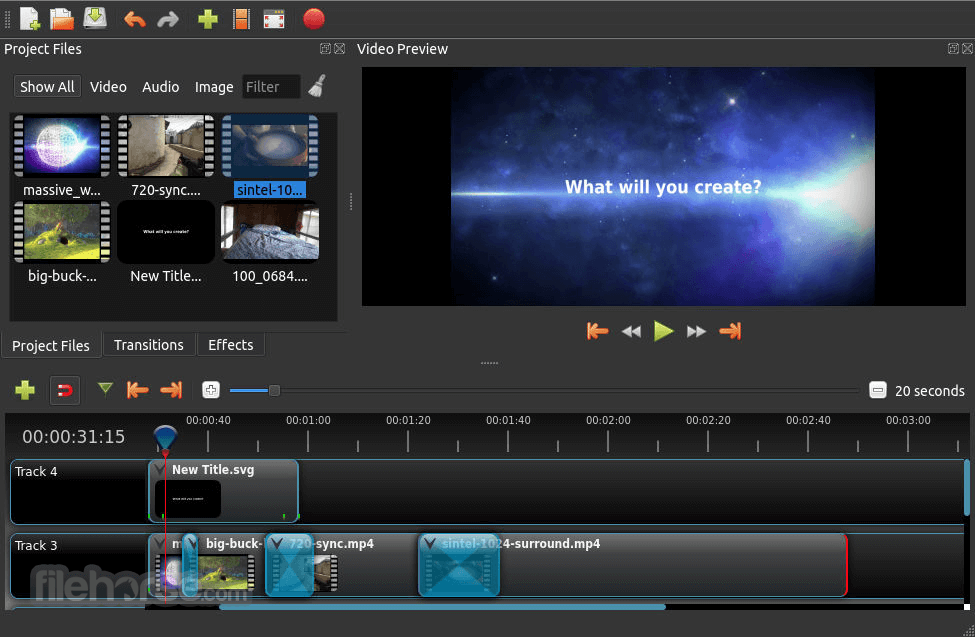
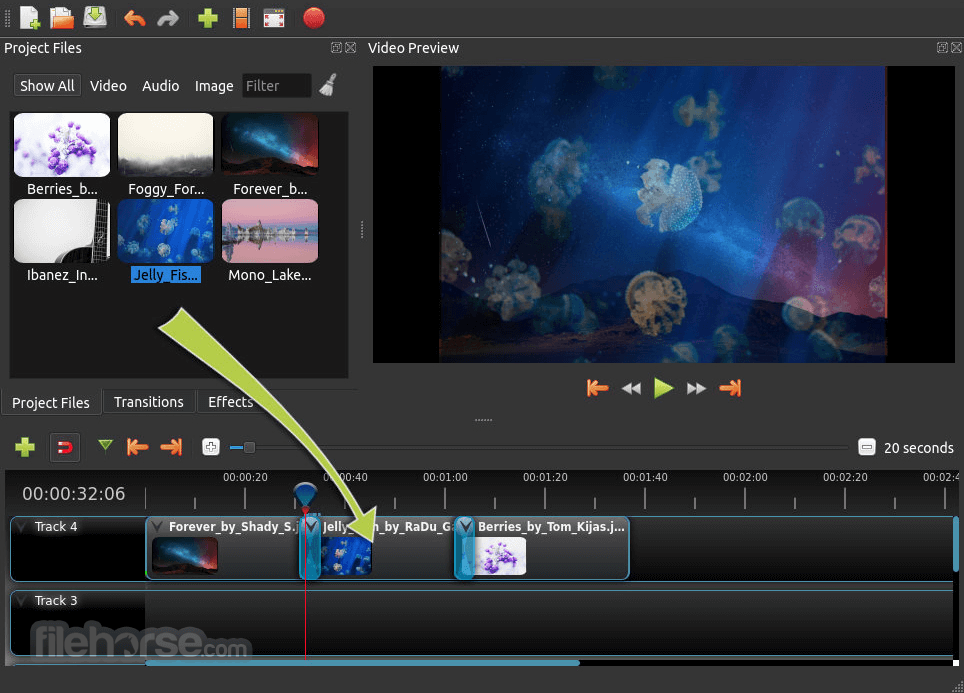
OpenShot's user interface is clean and user-friendly, designed to make video editing accessible to everyone. The layout includes a timeline, a preview window, and a project files area.
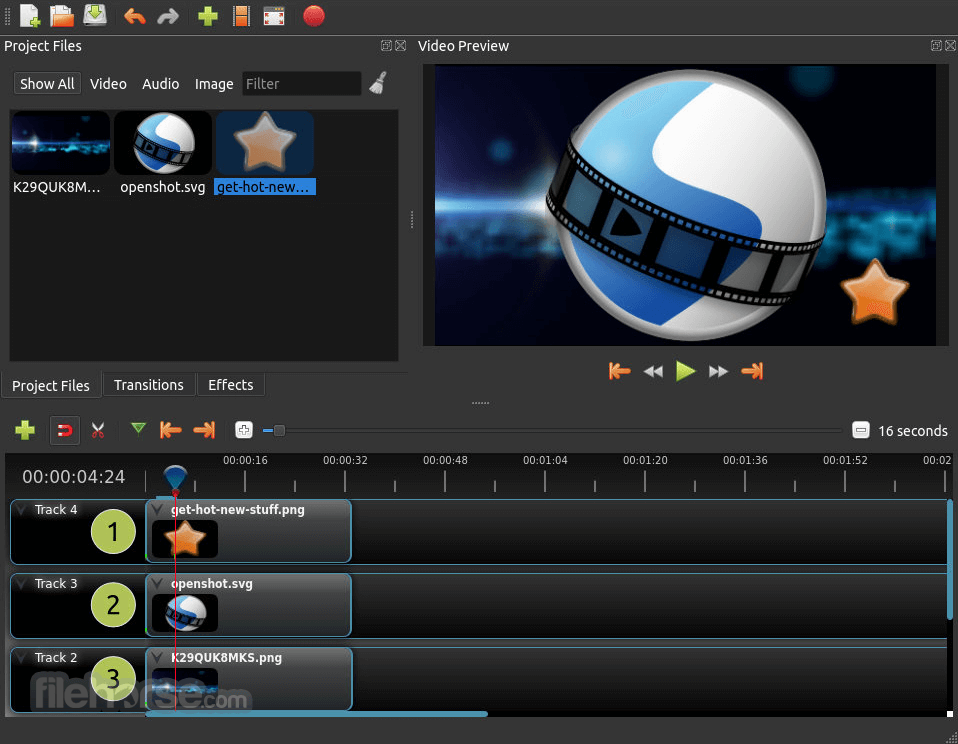
The timeline is where most of the editing takes place, with multiple tracks for video, audio, and effects. The preview window allows users to view their edits in real time, ensuring that they can see the results of their changes immediately.
The project files area is where users can organize their media files, making it easy to drag and drop them onto the timeline.
Installation and Setup
Starting a New Project
FAQ
Is OpenShot Video Editor 64bit free?
Yes, this program is completely FREE and open-source.
Can I use OpenShot for professional video editing?
While OpenShot is suitable for basic to intermediate video editing, it may lack some advanced features found in professional-grade software. However, it is a powerful tool for most video editing needs.
Does OpenShot support 4K video editing?
Yes, it supports 4K video editing and can handle high-resolution videos.
How do I fix performance issues in OpenShot?
Performance issues can often be improved by adjusting the playback settings, reducing the preview quality, or optimizing your system for better performance.
Can I use OpenShot to create animated titles?
Yes, it includes a title editor with options for creating both 2D and 3D animated titles.
Alternatives
Shotcut: Another free, open-source video editor with a wide range of features and support for various formats.
DaVinci Resolve: A professional-grade video editor with advanced color correction and audio post-production capabilities. The free version offers many powerful features.
Lightworks: A professional video editing software with a free version that includes a robust set of tools for video editing.
HitFilm: A free video editing and visual effects software with a range of advanced features for creating professional-quality videos.
Kdenlive: An open-source video editor for Linux, Windows, and macOS, known for its stability and extensive feature set.
Pricing
This program is completely FREE to download and use. As an open-source project, it relies on community contributions and donations to support its development and maintenance.
System Requirements
OpenShot Video Editor is a versatile and accessible tool for video editing, offering a range of features that cater to both beginners and intermediate users. Its intuitive interface, combined with powerful editing capabilities, makes it a strong contender in the realm of free video editing software. While it may not match the advanced features of professional-grade software, it provides a robust set of tools that are sufficient for most video editing tasks.
OpenShot's cross-platform compatibility and support for various formats further enhance its appeal, making it a valuable resource for anyone looking to edit videos without breaking the bank. Whether you're creating simple home videos or working on more complex projects, this video editor is a reliable and efficient choice.
Also Available: OpenShot Video Editor (32-bit)
Download OpenShot Video Editor (64-bit) Latest Version Why is this app published on FileHorse? (More info)
With its intuitive interface and extensive feature set, OpenShot 64bit is suitable for both beginners and professional video editors.
The software supports a wide range of video, audio, and image formats, making it a versatile choice for various editing projects.
Developed by Jonathan Thomas, it has grown significantly since its initial release in 2008, continually adding new features and improving performance.
Key Features
- Cross-Platform Compatibility: The video program is available on Windows, macOS, and Linux, ensuring a consistent experience across different operating systems.
- Drag and Drop Support: The intuitive drag-and-drop functionality allows users to easily add clips, transitions, and effects to the timeline.
- Unlimited Tracks: Users can add as many layers as they need for watermarks, background videos, audio tracks, and more.
- Clip Resizing, Scaling, Trimming, Snapping, and Rotation: It provides comprehensive tools to manipulate video clips, making precise editing easier.
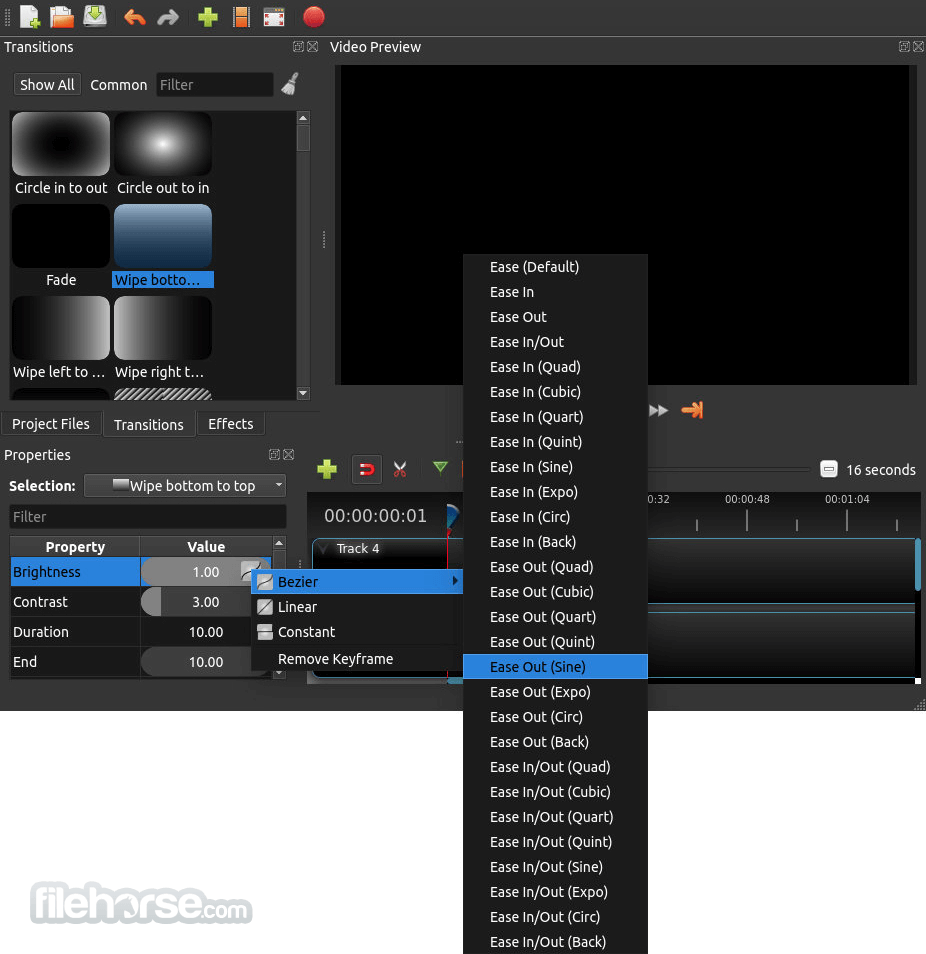
- Keyframe Animation: Users can animate almost any aspect of their project using powerful keyframe animations.
- Video Effects Engine: It includes a variety of video effects such as blurring, color correction, chroma key (green screen), and more.
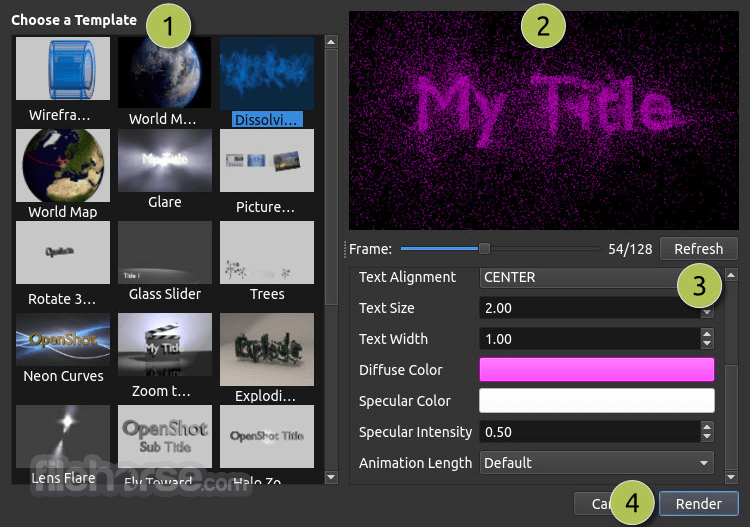
- Title Editor: Create professional-looking titles and effects, including 3D animated titles powered by Blender.
- Audio Waveforms: Visualize audio files as waveforms, and even output the waveforms as part of the video.
- Time Mapping and Speed Changes: Control the playback speed of your clips, including reversing the direction.
- Real-Time Preview: Watch your edits in real-time with the real-time preview feature.
OpenShot's user interface is clean and user-friendly, designed to make video editing accessible to everyone. The layout includes a timeline, a preview window, and a project files area.
The timeline is where most of the editing takes place, with multiple tracks for video, audio, and effects. The preview window allows users to view their edits in real time, ensuring that they can see the results of their changes immediately.
The project files area is where users can organize their media files, making it easy to drag and drop them onto the timeline.
Installation and Setup
- Download: Visit the official website or FileHorse and download the appropriate version for your operating system.
- Run the Installer: Open the downloaded file and run the installer. Follow the on-screen instructions to complete the installation.
- Launch the Software: Once installed, launch the app from your applications menu or desktop shortcut.
- Initial Setup: On first launch, the software may prompt you to set up some initial preferences, such as default project settings. These can be adjusted later in the settings menu.
Starting a New Project
- Open the app and select "New Project" from the welcome screen or the "File" menu.
- Set your project settings, such as resolution, frame rate, and aspect ratio.
- Click the "Import Files" button or drag and drop your media files into the project files area.
- Organize your media files into folders for easier access.
- Drag your media files from the project files area to the timeline.
- Use the trim tool to cut and trim clips to the desired length.
- Add transitions between clips by dragging and dropping them onto the timeline.
- Select the "Effects" tab to browse available video effects. Drag and drop effects onto your clips on the timeline.
- Use the "Title" menu to create and add titles to your project. Customize the titles with text, font, color, and animation options.
- Add audio tracks to your timeline by dragging audio files from the project files area.
- Use the audio tools to adjust volume, fade in/out, and apply effects.
- Click the "Export" button to open the export dialog.
- Choose your desired export settings, such as format, resolution, and quality.
- Click "Export Video" to start the rendering process.
FAQ
Is OpenShot Video Editor 64bit free?
Yes, this program is completely FREE and open-source.
Can I use OpenShot for professional video editing?
While OpenShot is suitable for basic to intermediate video editing, it may lack some advanced features found in professional-grade software. However, it is a powerful tool for most video editing needs.
Does OpenShot support 4K video editing?
Yes, it supports 4K video editing and can handle high-resolution videos.
How do I fix performance issues in OpenShot?
Performance issues can often be improved by adjusting the playback settings, reducing the preview quality, or optimizing your system for better performance.
Can I use OpenShot to create animated titles?
Yes, it includes a title editor with options for creating both 2D and 3D animated titles.
Alternatives
Shotcut: Another free, open-source video editor with a wide range of features and support for various formats.
DaVinci Resolve: A professional-grade video editor with advanced color correction and audio post-production capabilities. The free version offers many powerful features.
Lightworks: A professional video editing software with a free version that includes a robust set of tools for video editing.
HitFilm: A free video editing and visual effects software with a range of advanced features for creating professional-quality videos.
Kdenlive: An open-source video editor for Linux, Windows, and macOS, known for its stability and extensive feature set.
Pricing
This program is completely FREE to download and use. As an open-source project, it relies on community contributions and donations to support its development and maintenance.
System Requirements
- OS: Windows 11, 10, 8 or 7
- Processor: Multi-core processor with 64-bit support
- RAM: 4 GB (8 GB recommended)
- Storage: 500 MB of available space
- Free and open-source
- Cross-platform compatibility
- User-friendly interface
- Supports a wide range of formats
- Powerful keyframe animation
- Performance issues on lower-end systems
- Lacks some advanced features found in professional software
- Occasional stability issues
OpenShot Video Editor is a versatile and accessible tool for video editing, offering a range of features that cater to both beginners and intermediate users. Its intuitive interface, combined with powerful editing capabilities, makes it a strong contender in the realm of free video editing software. While it may not match the advanced features of professional-grade software, it provides a robust set of tools that are sufficient for most video editing tasks.
OpenShot's cross-platform compatibility and support for various formats further enhance its appeal, making it a valuable resource for anyone looking to edit videos without breaking the bank. Whether you're creating simple home videos or working on more complex projects, this video editor is a reliable and efficient choice.
Also Available: OpenShot Video Editor (32-bit)
Download OpenShot Video Editor (64-bit) Latest Version Why is this app published on FileHorse? (More info)
##
影片介紹
##
畫面截圖