- 目前版本9.0.0.2120
- 更新日期2026-03-19
- 檔案大小3.1 MB
- 檔案名稱RemotePlayInstaller.exe
- 作業系統Windows 10 (64-bit) / Windows 11
- 支援語系English
- 授權型式免費軟體
- 開發商 Sony Interactive Entertainment Inc.
- 軟體分類Windows 軟體 / 檔案傳輸與網路
##
翻譯排程處理中,以下暫以英文原文呈現
軟體介紹
PS5 Remote Play is an official application from Sony that allows users to stream and control their PlayStation 5 console from a Windows PC over the internet or a local network.
This software enables seamless gaming on a computer, whether for convenience, shared screen scenarios, or playing in a different room away from the console.
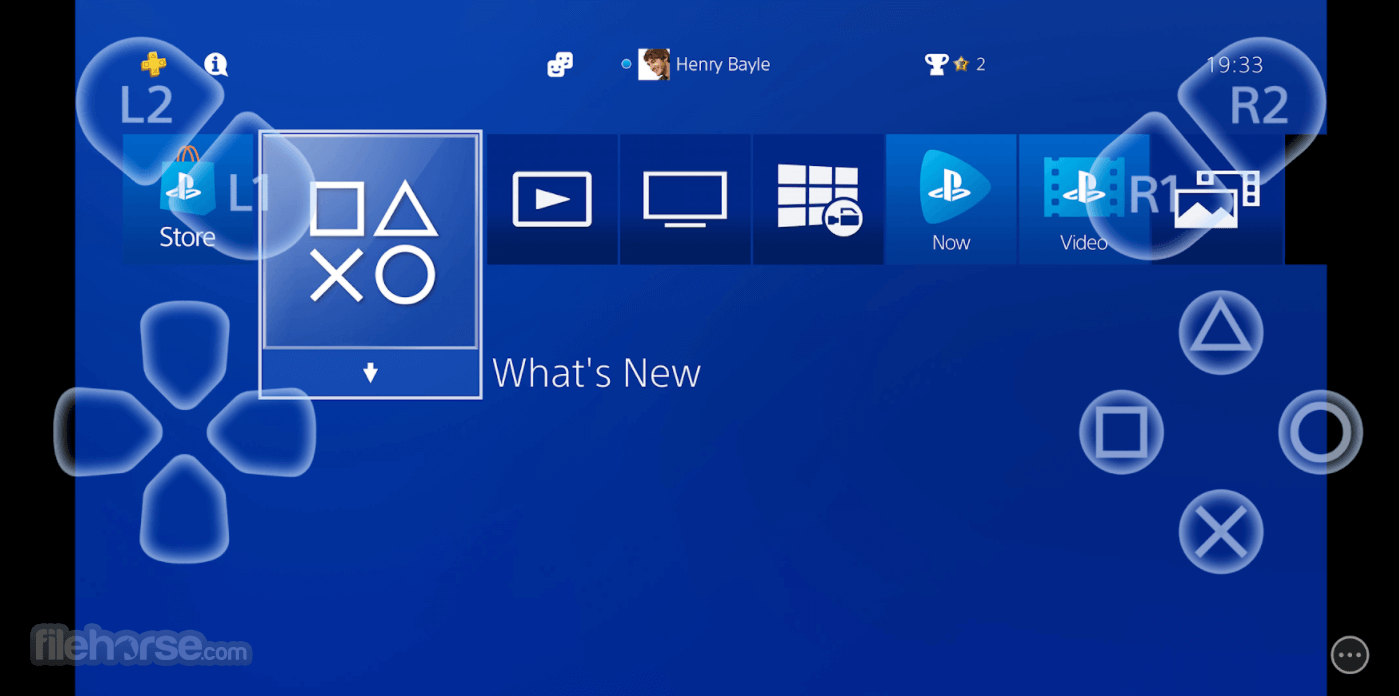
PS5 Remote Play for Windows replicates the PS5 experience on a secondary screen while maintaining quality gameplay, provided the network connection is stable.
Key Features
Remote Access: Play PS5 games on your PC via streaming.
Full DualSense Controller Support: Connect and use the PS5 controller with adaptive triggers and haptic feedback (limited functionality).
Adjustable Streaming Quality: Supports up to 1080p at 60 FPS for a smooth gaming experience.
Multi-Device Support: Available on Windows, Mac, Android, and iOS.
Low Latency Connection: Optimized for minimal input delay with strong network conditions.
Easy-to-Use Interface: Simple connection process between the PS5 and PC.
Installation and Setup
Download the Software: Visit the official website or FileHorse.com and download the latest version of PS5 Remote Play for Windows.
Install the Application: Follow the on-screen instructions to install the software on your PC.
Enable Remote Play on PS5:
Connect to the Console: The app will automatically search and link with your PS5.
Start Playing: Once connected, you can control and play your PS5 remotely.
How to Use
Can I use PS5 Remote Play over the internet?
Yes, but a high-speed internet connection is required to ensure low latency and smooth gameplay.
What resolution and frame rate does it support?
The maximum resolution is 1080p at 60 FPS, but performance depends on your network.
Can I use a keyboard and mouse instead of a controller?
No, it requires a compatible PlayStation controller.
Does Remote Play work on all PS5 games?
Most PS5 games are supported, but some titles may have limited functionality due to DRM restrictions.
Can I use Remote Play if someone else is using the PS5?
No, it takes full control of the console and logs out any active user.
Alternatives
Moonlight Game Streaming – Provides remote play for PC games with NVIDIA hardware.
Parsec – Allows remote access and streaming of games across multiple platforms.
Xbox Remote Play – Microsoft’s equivalent for streaming Xbox games to PC.
Rainway – A general game streaming service that works across different devices.
Steam Link – Offers similar remote streaming but is limited to PC and Steam games.
Pricing
This program is completely FREE to use, but requires a PlayStation 5 console and a PlayStation Network account.
System Requirements
PS5 Remote Play for Windows PC is an excellent solution for those who want to play their PlayStation 5 games away from their TV. It provides an easy-to-use interface, smooth connectivity, and a decent streaming quality, making it ideal for casual gaming sessions. However, it heavily relies on a strong internet connection and lacks keyboard and mouse support.
Despite its limitations, it remains a valuable tool for PlayStation users who need flexibility in their gaming setup. If you have a good network, it’s a great way to extend your PS5 experience to a PC.
Also Available: Download PS5 Remote Play for Mac
Download PS5 Remote Play Latest Version Why is this app published on FileHorse? (More info)
This software enables seamless gaming on a computer, whether for convenience, shared screen scenarios, or playing in a different room away from the console.
PS5 Remote Play for Windows replicates the PS5 experience on a secondary screen while maintaining quality gameplay, provided the network connection is stable.
Key Features
Remote Access: Play PS5 games on your PC via streaming.
Full DualSense Controller Support: Connect and use the PS5 controller with adaptive triggers and haptic feedback (limited functionality).
Adjustable Streaming Quality: Supports up to 1080p at 60 FPS for a smooth gaming experience.
Multi-Device Support: Available on Windows, Mac, Android, and iOS.
Low Latency Connection: Optimized for minimal input delay with strong network conditions.
Easy-to-Use Interface: Simple connection process between the PS5 and PC.
Installation and Setup
Download the Software: Visit the official website or FileHorse.com and download the latest version of PS5 Remote Play for Windows.
Install the Application: Follow the on-screen instructions to install the software on your PC.
Enable Remote Play on PS5:
- Go to Settings > System > Remote Play and enable Remote Play.
- Ensure Rest Mode settings allow the console to stay connected.
Connect to the Console: The app will automatically search and link with your PS5.
Start Playing: Once connected, you can control and play your PS5 remotely.
How to Use
- Launch the desktop app on your PC.
- Ensure your PS5 is on or in Rest Mode with Remote Play enabled.
- Sign into your PSN account in the application.
- Select your PS5 from the list of detected consoles.
- Use a DualSense or DualShock 4 controller via USB or Bluetooth.
- Adjust video quality settings based on network performance.
- Start playing your favorite PS5 games on your PC.
Can I use PS5 Remote Play over the internet?
Yes, but a high-speed internet connection is required to ensure low latency and smooth gameplay.
What resolution and frame rate does it support?
The maximum resolution is 1080p at 60 FPS, but performance depends on your network.
Can I use a keyboard and mouse instead of a controller?
No, it requires a compatible PlayStation controller.
Does Remote Play work on all PS5 games?
Most PS5 games are supported, but some titles may have limited functionality due to DRM restrictions.
Can I use Remote Play if someone else is using the PS5?
No, it takes full control of the console and logs out any active user.
Alternatives
Moonlight Game Streaming – Provides remote play for PC games with NVIDIA hardware.
Parsec – Allows remote access and streaming of games across multiple platforms.
Xbox Remote Play – Microsoft’s equivalent for streaming Xbox games to PC.
Rainway – A general game streaming service that works across different devices.
Steam Link – Offers similar remote streaming but is limited to PC and Steam games.
Pricing
This program is completely FREE to use, but requires a PlayStation 5 console and a PlayStation Network account.
System Requirements
- OS: Windows 10 (64-bit) or Windows 11
- Processor: Intel Core i5-560M or better
- RAM: 2 GB minimum
- Storage: At least 100 MB of free space
- Graphics Card: DirectX 11 compatible GPU
- Network: High-speed internet connection (5 Mbps minimum, 15 Mbps recommended)
- Free to use with no additional software cost
- Supports DualSense and DualShock controllers
- Easy setup with simple UI
- Play PS5 games remotely on a PC
- Adjustable video settings for network optimization
- Requires a strong internet connection for optimal performance
- No native keyboard and mouse support
- Limited to 1080p at 60 FPS (no 4K support)
- May experience latency issues depending on network quality
- Some games may not be fully compatible
PS5 Remote Play for Windows PC is an excellent solution for those who want to play their PlayStation 5 games away from their TV. It provides an easy-to-use interface, smooth connectivity, and a decent streaming quality, making it ideal for casual gaming sessions. However, it heavily relies on a strong internet connection and lacks keyboard and mouse support.
Despite its limitations, it remains a valuable tool for PlayStation users who need flexibility in their gaming setup. If you have a good network, it’s a great way to extend your PS5 experience to a PC.
Also Available: Download PS5 Remote Play for Mac
Download PS5 Remote Play Latest Version Why is this app published on FileHorse? (More info)
##
畫面截圖