- 目前版本2.3.38423
- 更新日期2026-06-12
- 檔案大小287 MB
- 檔案名稱TRAE_Work-Setup-x64.exe
- 作業系統Windows 10 / Windows 11
- 支援語系English
- 授權型式試用版
- 開發商 ByteDance
- 軟體分類Windows 軟體 / 開發者工具
##
翻譯排程處理中,以下暫以英文原文呈現
軟體介紹
TRAE Work is an AI-native productivity workspace designed for users who want to turn ideas, documents, research, spreadsheets, and project tasks into finished deliverables with less manual switching between tools.
Instead of acting only as a chatbot, it works more like an intelligent workspace where the user defines the goal, uploads or connects context, and lets the AI break the job into smaller steps.
The app is especially useful for professionals, students, researchers, content teams, analysts, and developers who need help with literature reviews, reports, document creation, Excel analysis, research summaries, planning, and technical workflows.
TRAE Work also connects naturally with the wider TRAE ecosystem, including TRAE IDE, which is focused more directly on AI-assisted coding and software development.
Features
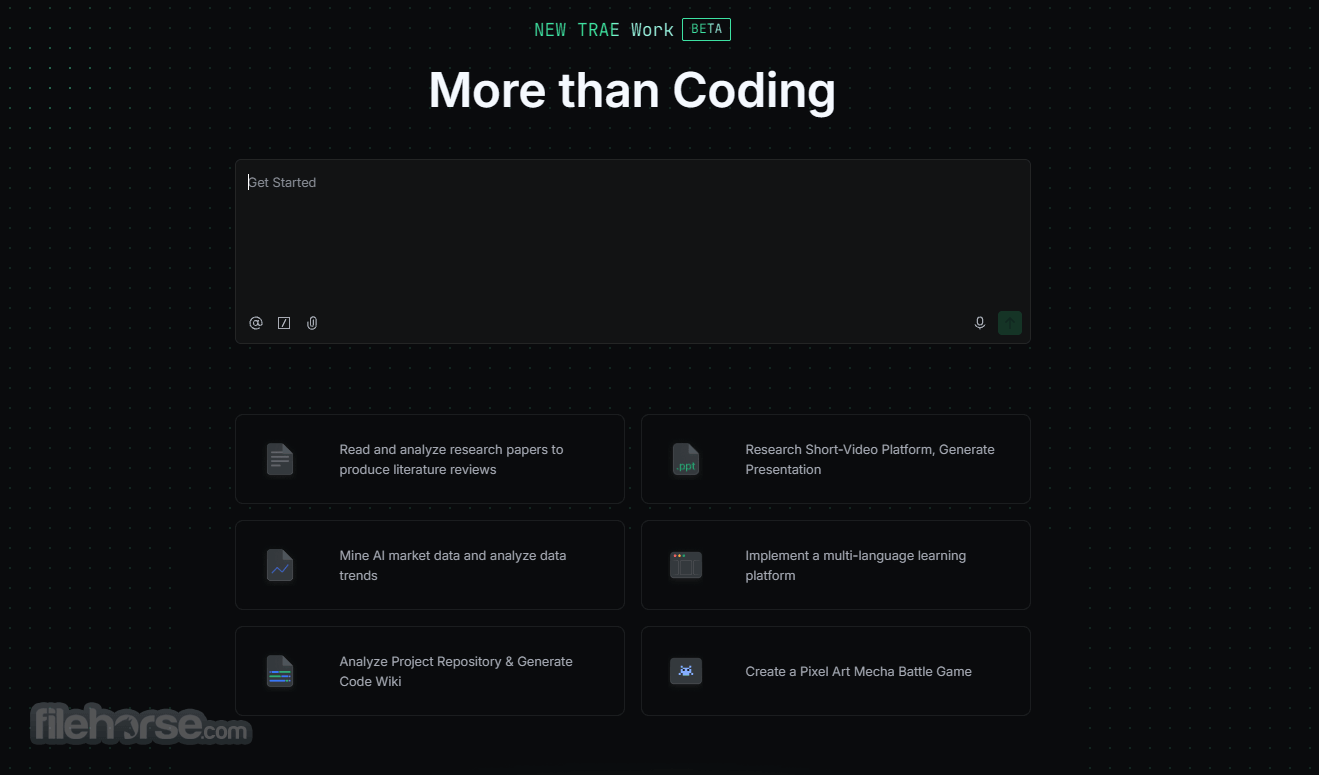
TRAE Work uses a clean, workspace-style interface built around tasks and outputs rather than traditional menus.
The main experience feels closer to an AI project dashboard than a classic Windows utility.
Users can keep project files together, ask the AI to perform multi-step work, review intermediate progress, and refine the final result.
The interface is modern and minimal, but new users may need a little time to understand the difference between a simple chat prompt and a full AI-driven workflow.
Once that concept is clear, the layout becomes practical for research-heavy and document-heavy jobs.
Installation and SetupDownload the Windows x64 installer from FileHorse. Run the setup file on Windows 10 or Windows 11. Follow the installation prompts. Launch TRAE Work from the desktop or Start Menu. Create an account or sign in. Choose the workspace or mode you want to use. Add files, notes, or instructions for your first project. Start with a simple task before moving to larger workflows. How to Use
Is TRAE Work only for developers?
No. TRAE IDE is mainly for developers, while TRAE Work is broader and can help with research, writing, documents, analysis, and general productivity.
Does TRAE Work work on Windows?
Yes. TRAE Work offers a Windows x64 desktop version for Windows 10 and Windows 11.
Can TRAE Work create documents and presentations?
Yes. It is designed to help users create professional deliverables such as reports, summaries, outlines, research notes, and presentation-style content.
Is TRAE Work the same as TRAE IDE?
No. TRAE Work is a general AI workspace, while TRAE IDE is focused on AI-powered coding, debugging, and software development.
Is TRAE Work good for business use?
Yes, especially for teams or professionals who handle research, documentation, planning, spreadsheets, and repeated content workflows.
Alternatives
Notion AI - A productivity workspace with AI writing and note organization.
ChatGPT Desktop - A general AI assistant for writing, coding, research, and brainstorming.
Microsoft Copilot - AI assistant integrated into Microsoft 365 and Windows workflows.
Cursor - AI coding editor for developers who want code generation and refactoring.
Google Gemini - AI assistant for research, writing, and Google ecosystem productivity.
Perplexity - AI research assistant focused on web-based answers and citations.
Claude - Strong AI assistant for long-form writing, reasoning, and document analysis.
Pricing
TRAE Work is currently promoted as a beta product in the TRAE ecosystem.
TRAE also offers FREE access and paid membership options depending on usage, models, and available AI capacity.
Paid plans may include larger usage limits, additional AI capabilities, or more advanced workflow support.
Since AI pricing changes often, users should review the in-app billing page before upgrading.
System Requirements
TRAE Work is a promising AI workspace for Windows users who want more than a simple chatbot.
It combines task planning, research, document creation, data analysis, and project context in one environment.
While some areas may still evolve, it is a strong choice for productivity-focused users and teams.
Download TRAE Work Latest Version Why is this app published on FileHorse? (More info)
Instead of acting only as a chatbot, it works more like an intelligent workspace where the user defines the goal, uploads or connects context, and lets the AI break the job into smaller steps.
The app is especially useful for professionals, students, researchers, content teams, analysts, and developers who need help with literature reviews, reports, document creation, Excel analysis, research summaries, planning, and technical workflows.
TRAE Work also connects naturally with the wider TRAE ecosystem, including TRAE IDE, which is focused more directly on AI-assisted coding and software development.
Features
- AI Workspace: Keeps documents, tasks, prompts, and outputs inside one organized working area.
- Task Breakdown: Converts large requests into smaller steps that are easier to manage and review.
- Research Assistance: Helps summarize web content, compare information, and prepare structured notes.
- Document Creation: Can help produce reports, outlines, drafts, summaries, and presentations.
- Data Analysis: Useful for reviewing spreadsheet-style data, extracting insights, and creating explanations.
- Context Handling: Works with the broader project context instead of treating every request as isolated.
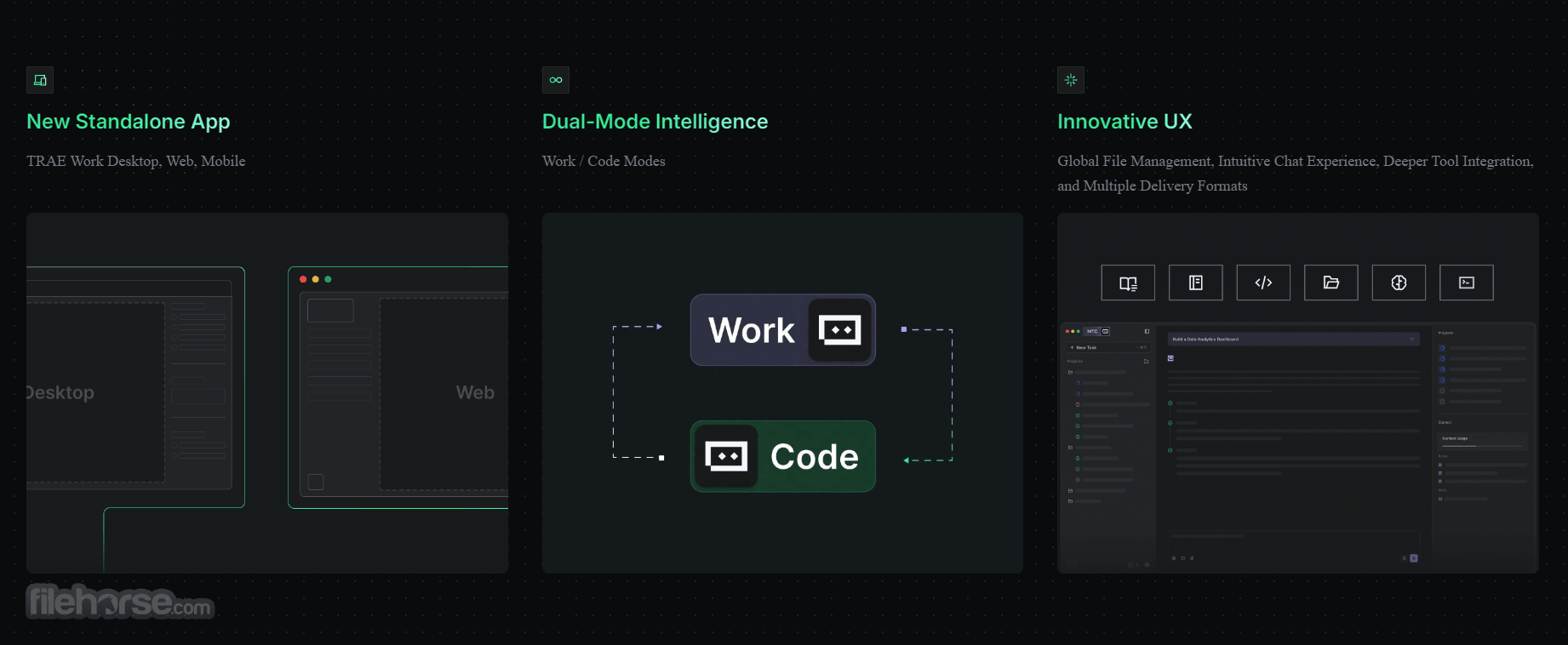
- Work and Code Modes: Supports general productivity work as well as coding-related workflows.
- Cross-Platform Access: Available through desktop, web, and mobile experiences depending on platform support.
- TRAE IDE Connection: Complements TRAE IDE for users who also need AI coding help.
TRAE Work uses a clean, workspace-style interface built around tasks and outputs rather than traditional menus.
The main experience feels closer to an AI project dashboard than a classic Windows utility.
Users can keep project files together, ask the AI to perform multi-step work, review intermediate progress, and refine the final result.
The interface is modern and minimal, but new users may need a little time to understand the difference between a simple chat prompt and a full AI-driven workflow.
Once that concept is clear, the layout becomes practical for research-heavy and document-heavy jobs.
Installation and Setup
- Step 1: Open TRAE Work on your Windows PC.
- Step 2: Sign in with your account.
- Step 3: Create a new workspace for your task or project.
- Step 4: Describe what you want the AI to complete.
- Step 5: Add supporting files, notes, links, or data if needed.
- Step 6: Let TRAE Work break the task into smaller actions.
- Step 7: Review the generated content, research, or analysis.
- Step 8: Ask for edits, rewrites, shorter versions, or deeper details.
- Step 9: Export, copy, or reuse the final output in your workflow.
Is TRAE Work only for developers?
No. TRAE IDE is mainly for developers, while TRAE Work is broader and can help with research, writing, documents, analysis, and general productivity.
Does TRAE Work work on Windows?
Yes. TRAE Work offers a Windows x64 desktop version for Windows 10 and Windows 11.
Can TRAE Work create documents and presentations?
Yes. It is designed to help users create professional deliverables such as reports, summaries, outlines, research notes, and presentation-style content.
Is TRAE Work the same as TRAE IDE?
No. TRAE Work is a general AI workspace, while TRAE IDE is focused on AI-powered coding, debugging, and software development.
Is TRAE Work good for business use?
Yes, especially for teams or professionals who handle research, documentation, planning, spreadsheets, and repeated content workflows.
Alternatives
Notion AI - A productivity workspace with AI writing and note organization.
ChatGPT Desktop - A general AI assistant for writing, coding, research, and brainstorming.
Microsoft Copilot - AI assistant integrated into Microsoft 365 and Windows workflows.
Cursor - AI coding editor for developers who want code generation and refactoring.
Google Gemini - AI assistant for research, writing, and Google ecosystem productivity.
Perplexity - AI research assistant focused on web-based answers and citations.
Claude - Strong AI assistant for long-form writing, reasoning, and document analysis.
Pricing
TRAE Work is currently promoted as a beta product in the TRAE ecosystem.
TRAE also offers FREE access and paid membership options depending on usage, models, and available AI capacity.
Paid plans may include larger usage limits, additional AI capabilities, or more advanced workflow support.
Since AI pricing changes often, users should review the in-app billing page before upgrading.
System Requirements
- Operating System: Windows 10 or Windows 11.
- Architecture: Windows x64.
- Processor: Modern dual-core or better CPU recommended.
- Memory: 8 GB RAM recommended.
- Storage: At least 1 GB of free disk space recommended.
- Internet: Required for AI features, account login, and cloud-based processing.
- Account: TRAE account required for full functionality.
- Modern AI-native workspace.
- Good for research and document workflows.
- Supports a broader context inside projects.
- Useful for reports, summaries, and analysis.
- Complements TRAE IDE for coding tasks.
- Clean and productivity-focused interface.
- Account login is required.
- Pricing and plan details can change.
- Advanced workflows need a learning curve.
- Not ideal for users who only need simple notes.
- AI results still require human review.
TRAE Work is a promising AI workspace for Windows users who want more than a simple chatbot.
It combines task planning, research, document creation, data analysis, and project context in one environment.
While some areas may still evolve, it is a strong choice for productivity-focused users and teams.
Download TRAE Work Latest Version Why is this app published on FileHorse? (More info)
##
畫面截圖