- 目前版本4.5
- 更新日期2026-02-11
- 檔案大小1.1 MB
- 檔案名稱VBCABLE_Driver_Pack45.zip
- 作業系統Windows XP64 / Vista64 / Windows 7 64 / Windows 8 64 / Windows 10 64 / Windows 11
- 支援語系English
- 授權型式免費軟體
- 開發商 Vincent Burel
- 軟體分類Windows 軟體 / 音訊軟體
##
翻譯排程處理中,以下暫以英文原文呈現
軟體介紹
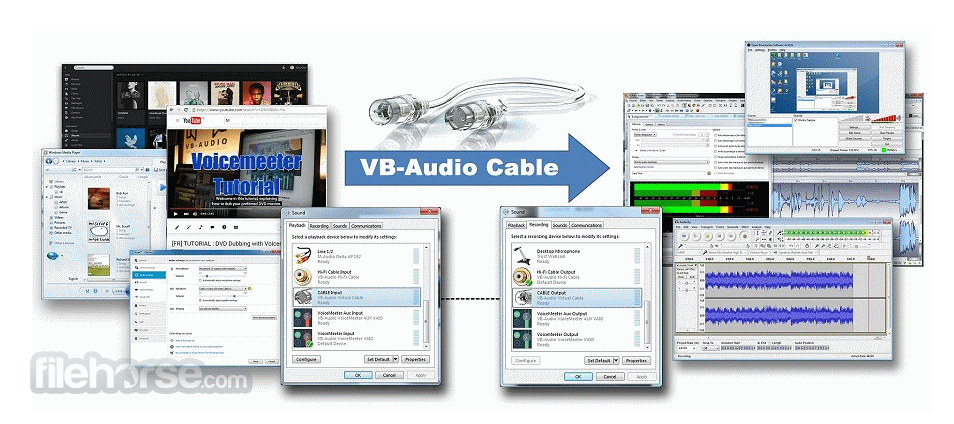
VB-Cable for Windows by VB-Audio Software (Vincent Burel) is a virtual audio driver for Windows 11/10 that functions as a virtual audio cable — connecting audio output from one application to audio input of another in real time.
With its simple yet powerful routing capabilities, it essentially creates a digital “cable” between apps, allowing system sound or application sound to be redirected wherever you need it.
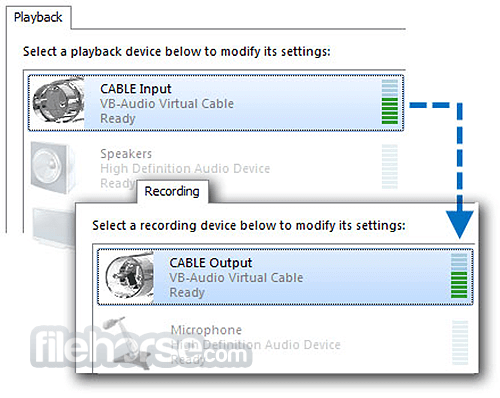
VB-Cable installs as a digital audio device and appears in the Windows audio device list, enabling flexible audio routing without requiring external hardware.
The software is distributed under a donationware model — FREE to use and fully functional before you decide to contribute.
Main Features
VB-Audio Virtual Cable: a virtual audio driver that acts as a digital cable linking audio streams between software.
Multi-Format Audio Engine: works with MME, KS, DX, WaveRT, and WASAPI audio interfaces.
System Audio Device: appears as a playback and recording device in Windows Sound settings.
Plug-and-Play: no complex configuration needed — ready to work with most applications right away.
Cross-Application Routing: route browsers, media players, VoIP calls, or game audio to recording or streaming tools.
Expansion Cables: possibility to add more virtual cables (A+B, C+D) for multi-app routing.
Donationware Licensing: free use with optional donation; pay what you want.
User Interface
VB-Cable doesn’t provide a traditional graphical user interface like typical desktop software. Instead, its presence appears in Windows’ system menus:
In Playback devices and Recording devices, the tool shows up as an audio driver that you can select as output or input.
Configuration is done through the Windows Sound Control Panel or audio settings within third-party applications like OBS, Audacity, or conferencing tools.
This minimal interface approach keeps the tool lightweight but requires users to understand Windows audio settings.
The FileHorse review team recommends it as an effective and efficient tool for basic to intermediate audio routing tasks on Windows.
Installation and Setup
Select VB-Cable as Output:
Open the application whose audio you want to route (e.g., YouTube, music player), and set its output device to VB-Audio Cable in its audio preferences.
Select VB-Cable as Input:
In the receiving application (e.g., recorder, streaming software), choose VB-Audio Cable as the input device.
Check Audio Flow:
Play audio from the source application and verify it appears in the destination application.
Adjust Levels:
Use the Windows Sound Control Panel or third-party audio tools to adjust volume or format if necessary.
Additional Cables:
To route multiple streams simultaneously, install additional VB-Cable drivers (A+B or C+D) and configure each separately.
FAQs
What does VB-Cable do?
It creates a virtual audio link between two applications, allowing audio from one to be sent to another.
Is VB-Cable free?
Yes — it’s free to use with a donationware model, so you can donate any amount after testing it.
Do I need any special audio interface?
No — It works with standard Windows audio protocols like MME, KS, WASAPI, and more.
Can I use it with streaming apps like OBS?
Yes — you can route audio to or from OBS, Zoom, Teams, or similar tools.
How do I add more virtual cables?
You can install VB-Cable A+B and C+D for extra virtual audio routes.
Alternatives
Virtual Audio Cable (VAC) – More advanced routing with multiple cables and extensive controls, but steeper learning curve.
VoiceMeeter – A full virtual mixer with audio mixing and routing tools beyond basic cabling.
Pricing
Virtual Audio Cable for PC uses a donationware model: users can download and test the software for FREE before choosing how much they wish to donate.
Suggested pricing starts around a low nominal amount, with higher options for professional or volume licensing.
System Requirements
Windows 10 or Windows 11 (32-bit/64-bit) – basic audio driver support.
Minimal disk space required.
Admin privileges for installation.
PROS
VB-Cable is a compact and powerful utility for routing audio between applications on a Windows PC. It sits quietly in the system as a virtual device, ready to bridge audio signals without the need for physical hardware or advanced setup.
While the lack of a traditional interface may pose a learning curve for new users, its simplicity, flexibility, and donationware model make it highly attractive for streamers, content creators, and anyone needing precise audio routing.
Also Available: Download VB-Cable for Mac
Download VB-Cable for PC Latest Version Why is this app published on FileHorse? (More info)
With its simple yet powerful routing capabilities, it essentially creates a digital “cable” between apps, allowing system sound or application sound to be redirected wherever you need it.
VB-Cable installs as a digital audio device and appears in the Windows audio device list, enabling flexible audio routing without requiring external hardware.
The software is distributed under a donationware model — FREE to use and fully functional before you decide to contribute.
Main Features
VB-Audio Virtual Cable: a virtual audio driver that acts as a digital cable linking audio streams between software.
Multi-Format Audio Engine: works with MME, KS, DX, WaveRT, and WASAPI audio interfaces.
System Audio Device: appears as a playback and recording device in Windows Sound settings.
Plug-and-Play: no complex configuration needed — ready to work with most applications right away.
Cross-Application Routing: route browsers, media players, VoIP calls, or game audio to recording or streaming tools.
Expansion Cables: possibility to add more virtual cables (A+B, C+D) for multi-app routing.
Donationware Licensing: free use with optional donation; pay what you want.
User Interface
VB-Cable doesn’t provide a traditional graphical user interface like typical desktop software. Instead, its presence appears in Windows’ system menus:
In Playback devices and Recording devices, the tool shows up as an audio driver that you can select as output or input.
Configuration is done through the Windows Sound Control Panel or audio settings within third-party applications like OBS, Audacity, or conferencing tools.
This minimal interface approach keeps the tool lightweight but requires users to understand Windows audio settings.
The FileHorse review team recommends it as an effective and efficient tool for basic to intermediate audio routing tasks on Windows.
Installation and Setup
- Installing VB-Audio Virtual Cable on a Windows PC is straightforward:
- Download the VB-Cable installer from the official VB-Audio website.
- Extract the ZIP file if necessary and run the setup executable as Administrator.
- Follow the on-screen prompts to complete installation.
- Restart your computer to ensure the virtual audio device is registered.
- Open Windows Sound Settings and verify that VB-Audio Cable appears in both Playback and Recording tabs.
Select VB-Cable as Output:
Open the application whose audio you want to route (e.g., YouTube, music player), and set its output device to VB-Audio Cable in its audio preferences.
Select VB-Cable as Input:
In the receiving application (e.g., recorder, streaming software), choose VB-Audio Cable as the input device.
Check Audio Flow:
Play audio from the source application and verify it appears in the destination application.
Adjust Levels:
Use the Windows Sound Control Panel or third-party audio tools to adjust volume or format if necessary.
Additional Cables:
To route multiple streams simultaneously, install additional VB-Cable drivers (A+B or C+D) and configure each separately.
FAQs
What does VB-Cable do?
It creates a virtual audio link between two applications, allowing audio from one to be sent to another.
Is VB-Cable free?
Yes — it’s free to use with a donationware model, so you can donate any amount after testing it.
Do I need any special audio interface?
No — It works with standard Windows audio protocols like MME, KS, WASAPI, and more.
Can I use it with streaming apps like OBS?
Yes — you can route audio to or from OBS, Zoom, Teams, or similar tools.
How do I add more virtual cables?
You can install VB-Cable A+B and C+D for extra virtual audio routes.
Alternatives
Virtual Audio Cable (VAC) – More advanced routing with multiple cables and extensive controls, but steeper learning curve.
VoiceMeeter – A full virtual mixer with audio mixing and routing tools beyond basic cabling.
Pricing
Virtual Audio Cable for PC uses a donationware model: users can download and test the software for FREE before choosing how much they wish to donate.
Suggested pricing starts around a low nominal amount, with higher options for professional or volume licensing.
System Requirements
Windows 10 or Windows 11 (32-bit/64-bit) – basic audio driver support.
Minimal disk space required.
Admin privileges for installation.
PROS
- Simple and lightweight.
- Works with most Windows audio apps.
- No complex setup.
- Free to use (donationware).
- Supports multiple audio interfaces.
- Expandable with extra cables.
- Enables flexible audio routing.
- Useful for streaming and recording workflows.
- No traditional GUI.
- Limited to one cable by default.
- Requires manual audio configuration.
- May be confusing for beginners.
- No official support beyond forums.
- Not ideal for complex audio mixing.
- Some reviews report mixed user perception of trustworthiness.
VB-Cable is a compact and powerful utility for routing audio between applications on a Windows PC. It sits quietly in the system as a virtual device, ready to bridge audio signals without the need for physical hardware or advanced setup.
While the lack of a traditional interface may pose a learning curve for new users, its simplicity, flexibility, and donationware model make it highly attractive for streamers, content creators, and anyone needing precise audio routing.
Also Available: Download VB-Cable for Mac
Download VB-Cable for PC Latest Version Why is this app published on FileHorse? (More info)
##
畫面截圖