
- 目前版本2.2.0
- 更新日期2009-04-09
- 檔案大小62.38MB
- 檔案名稱VirtualBox-2.2.0-45846-Win.exe
- 作業系統Windows 7 / Windows 8 / Windows 10 / Windows 11
- 支援語系English
- 授權型式開源軟體
- 開發商 Oracle
- 軟體分類Windows 軟體 / 開發者工具
編輯短評
VirtualBox 是 Oracle 推出的開源虛擬機器軟體,主要解決「在同一台電腦上同時運行多個作業系統」的需求。安裝後就像在電腦裡再變出一台虛擬電腦,可以放心把測試用的 Linux、Unix 等系統裝在裡面,即使弄壞了也不會影響主系統,直接移除重裝即可。它最大的辨識度在於免費開源、跨平台支援 Windows 與 macOS,且長期維護、更新活躍,在同類工具中屬於主流首選,評價普遍不錯。
這套軟體適合開發者、系統管理員,或是想學習 Linux/Unix 卻不想破壞現有環境的人。與 VMware Workstation Player 相比,VirtualBox 完全免費且開源,但進階功能與效能調校選項相對精簡;而 BlueStacks 這類模擬器則專注於 Android 應用,用途不同。使用上需留意介面僅提供英文,且虛擬機器運作時會佔用一定記憶體,建議主機至少具備 512MB 以上的可用空間再執行。
軟體介紹
這款跨平台軟體可安裝於 Windows、macOS、Linux 和 Solaris 主機上,並支援多種客端作業系統,包括 Windows、Linux 以及較舊版本的 macOS。
Oracle VM VirtualBox 特別受到開發人員、測試人員和 IT 專業人士的歡迎,他們需要建立和管理虛擬機器(VM)來測試軟體、模擬不同環境,或安全地隔離工作空間。
它讓使用者能在單一機器上執行幾乎任何作業系統,並可自由切換同時運行的作業系統實例。
這款程式是一款多功能的虛擬化軟體,專為 x86_64 硬體設計,支援多種裝置,包括筆記型電腦、桌上型電腦、伺服器和嵌入式系統。版本 7.1 也擴展了對 macOS/Arm 架構的相容性。
VirtualBox 不僅是功能極其豐富、高效能的企業級產品,也是唯一以開放原始碼軟體形式免費提供的專業解決方案。立即使用 VirtualBox 在 Windows 上免費執行 macOS!
主要功能
- 跨平台支援:支援多種主機和客端作業系統,使其成為不同平台使用者的多功能工具。
- 快照:使用者可以拍攝虛擬機器目前狀態的快照,以便在不會遺失資料的情況下還原到先前的設定。
- 虛擬網路:提供多種網路選項,包括 NAT、橋接網路和內部網路,可實現各種虛擬機器連線設定。
- 無縫模式:此功能讓使用者將客端應用程式整合到主機桌面,使其看起來就像原生執行一樣。
- 共用資料夾和剪貼簿:支援共用資料夾和剪貼簿功能,讓在主機與客端系統之間傳輸檔案和文字更加容易。
- USB 裝置支援:使用者可以將 USB 裝置連接到虛擬機器,直接與隨身碟、印表機和掃描器等周邊裝置互動。
- 命令列介面:進階使用者可以利用 CLI 進行指令碼編寫和自動化,更輕鬆地管理多個虛擬機器。
- 3D 圖形支援:此應用程式提供 3D 圖形加速,特別適合執行需要硬體圖形支援的應用程式。
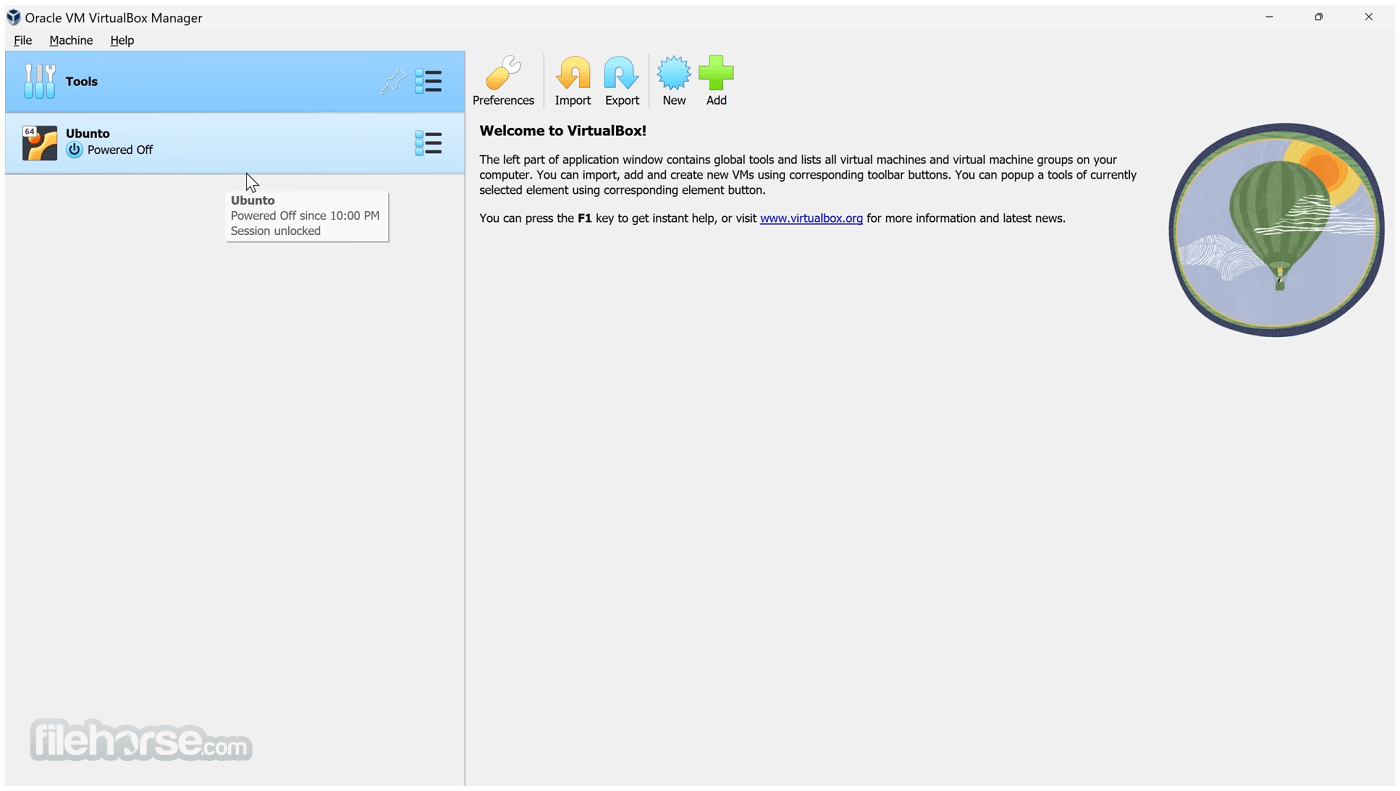
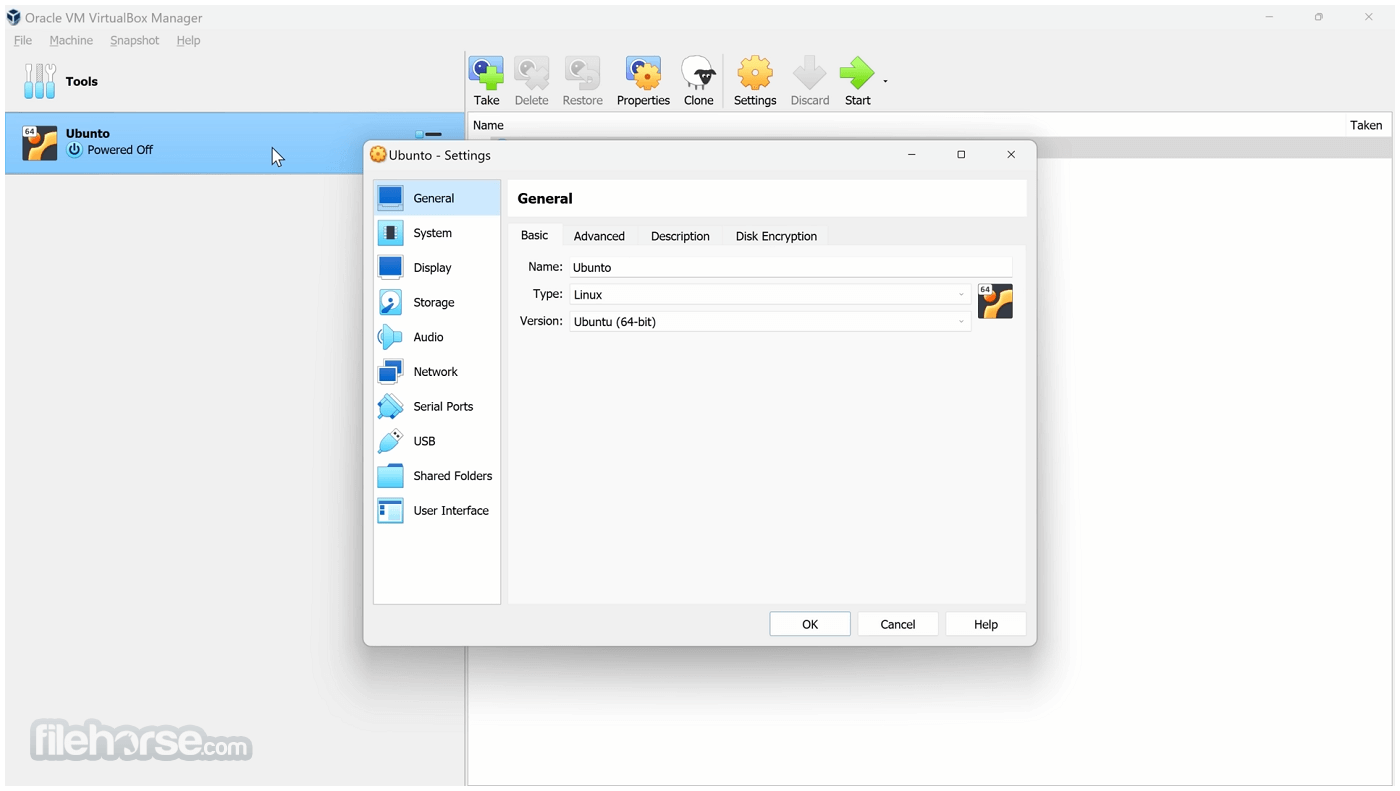
VirtualBox 的使用者介面簡單明瞭且易於使用。主視窗會顯示可用的虛擬機器清單,以及它們的狀態和設定。
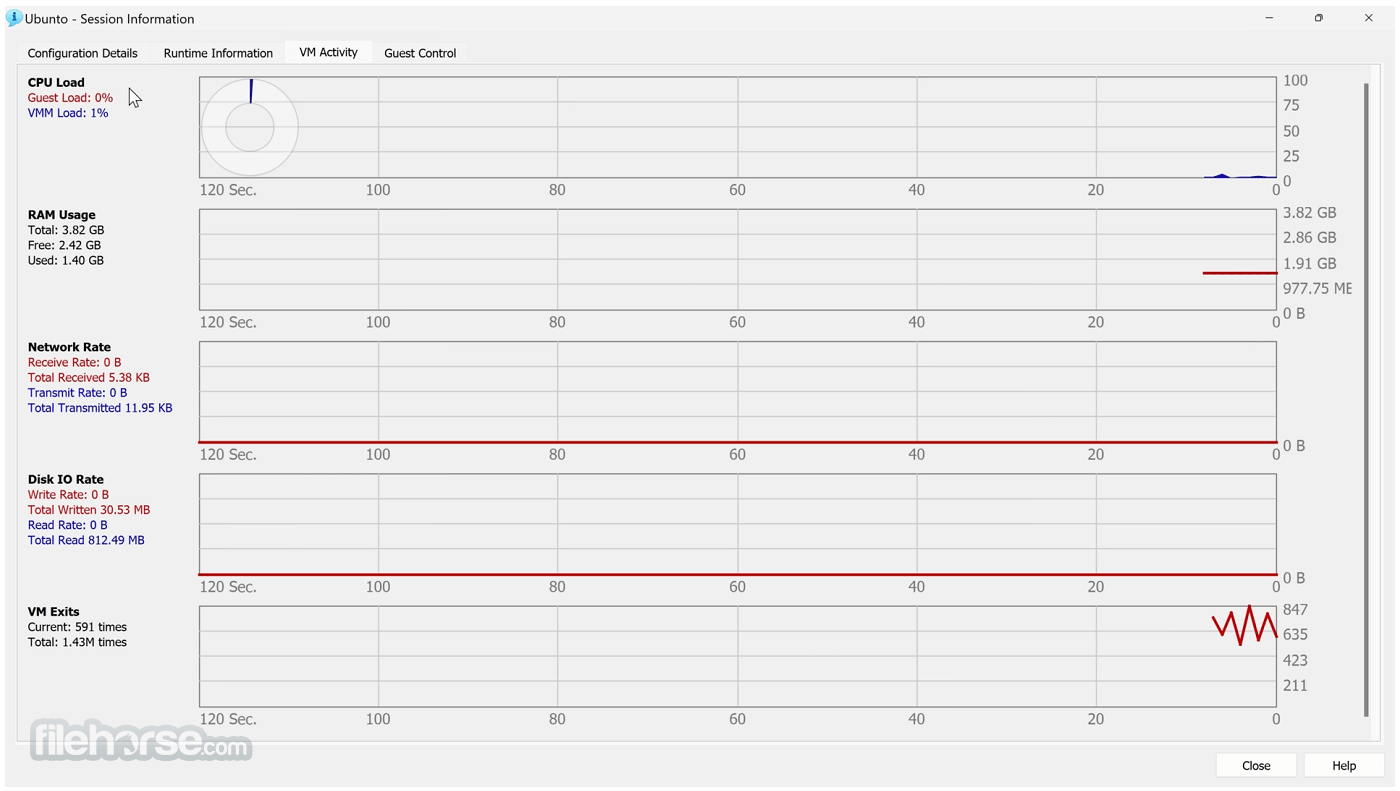
側邊欄提供建立、啟動和刪除虛擬機器等主要功能的快速存取。每個虛擬機器的設定選單非常詳細,讓使用者可以自訂從配置的 RAM 和 CPU 核心數量到網路介面卡和儲存選項的一切。
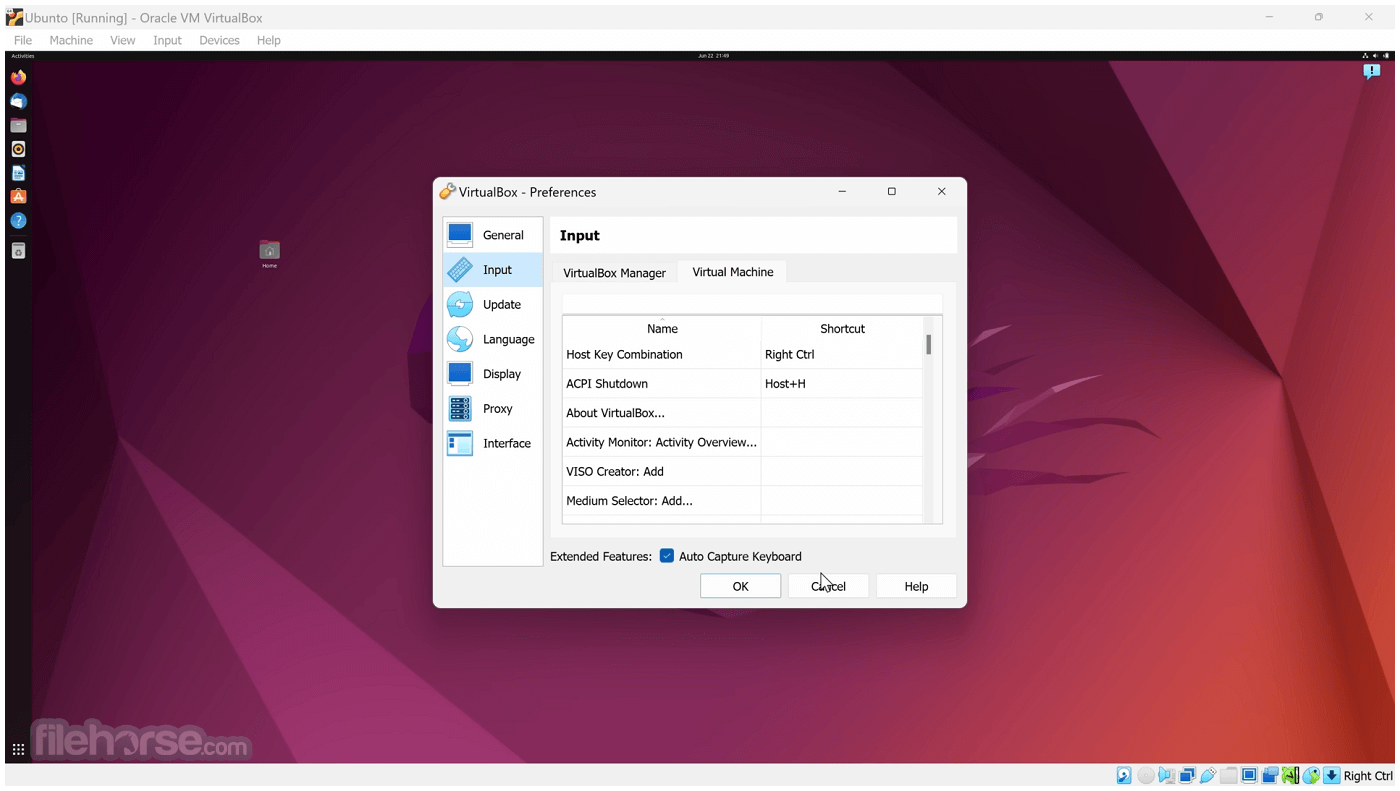
介面設計即使對初學者也很直觀,有清晰的標籤和工具提示來說明每個選項。虛擬機器主控台視窗提供客端作業系統的即時顯示,使用者可以輕鬆使用滑鼠和鍵盤與其互動。
安裝與設定
下載與安裝:可從 Oracle 官方網站或 FileHorse 下載。安裝過程簡單明瞭,幾乎不需要使用者輸入。安裝期間,軟體會提示安裝其他元件,例如網路介面卡,這對於橋接網路等功能是必要的。
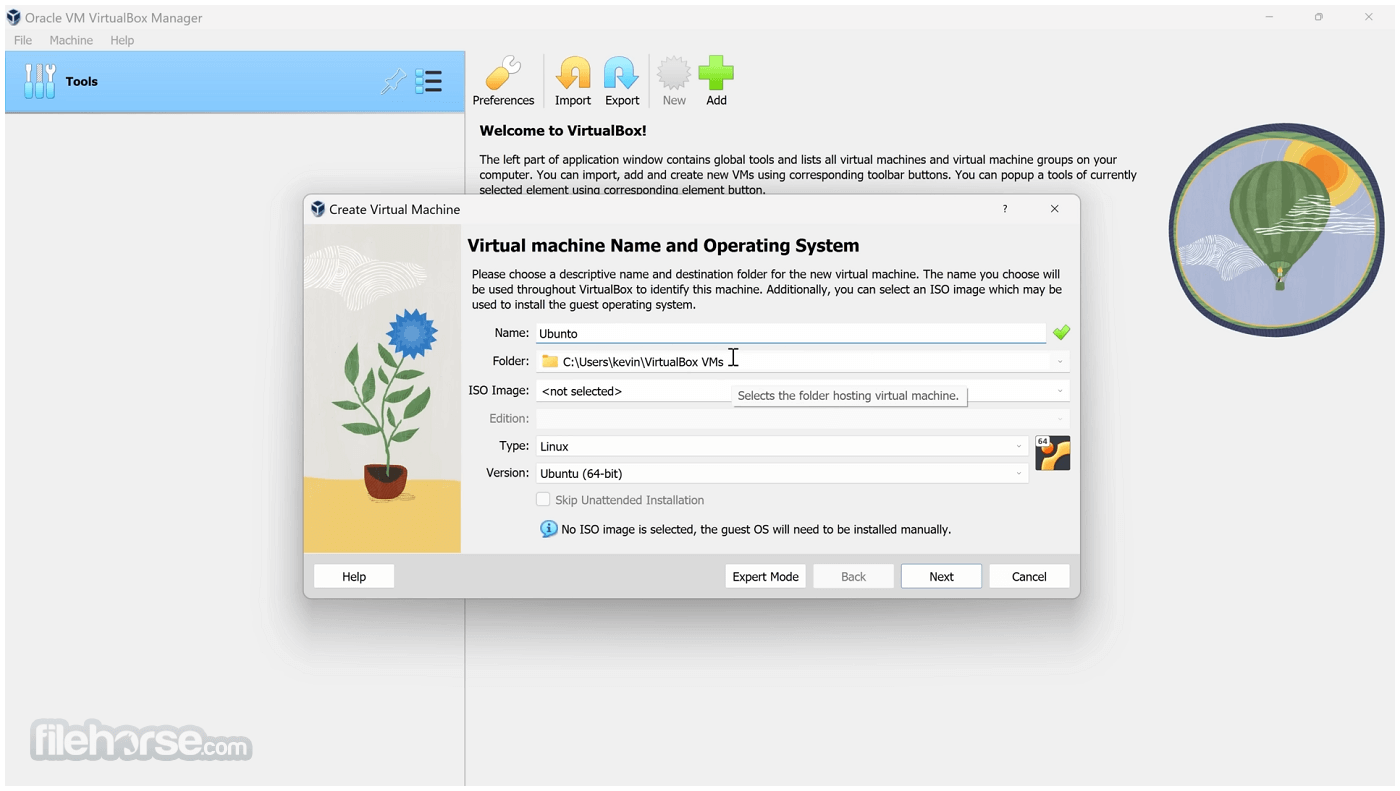
建立虛擬機器:安裝後,建立虛擬機器很簡單。「新增」按鈕會引導使用者透過精靈選擇客端作業系統類型、配置記憶體和儲存空間等資源,並設定初始選項。
安裝客端作業系統:建立虛擬機器後,使用者需要安裝客端作業系統。這可以使用 ISO 檔案或可開機 USB 隨身碟來完成。它提供了易於遵循的介面來附加安裝媒體並開始安裝程序。
客端額外功能:為了增強虛擬機器的功能,建議安裝客端額外功能。此套件包含驅動程式和系統應用程式,可改善主機與客端之間的整合,例如更好的視訊效能、共用資料夾和剪貼簿同步。
如何使用
啟動虛擬機器:啟動此程式,然後從清單中選擇所需的虛擬機器。按一下「啟動」按鈕來啟動它。虛擬機器會像實體機器一樣開機,使用者可以使用鍵盤和滑鼠與客端作業系統互動。
配置設定:在虛擬機器上按右鍵,然後選擇「設定」來修改記憶體、儲存空間和網路設定等配置。可以在虛擬機器關機時進行變更。
使用快照:若要拍攝快照,請選取虛擬機器,前往「快照」標籤,然後按一下「拍攝」按鈕。這可讓使用者儲存虛擬機器的目前狀態,並可隨時還原。
共用資料夾:若要設定共用資料夾,請前往虛擬機器的設定,瀏覽到「共用資料夾」區段,然後新增所需的主機目錄。此功能可輕鬆在主機與客端系統之間共用檔案。
網路:提供多種網路模式,例如 NAT、橋接和僅限主機。根據您的需求配置網路設定,無論是為了網際網路存取還是多個虛擬機器之間的通訊。
常見問題
我可以在 VirtualBox 上將 macOS 作為客端作業系統執行嗎?
雖然技術上可行,但在 VirtualBox 上執行 macOS 並未獲得官方支援,可能需要額外的配置和調整。此外,根據 Apple 的授權條款,也存在法律限制。
如何提高虛擬機器的效能?
為虛擬機器分配更多系統資源(CPU、RAM)、啟用 3D 加速,並安裝客端額外功能以改善效能。
我可以同時執行多少個虛擬機器?
這取決於主機系統的硬體能力,尤其是 CPU 和 RAM。VirtualBox 本身沒有嚴格限制。
我可以在主機和客端作業系統之間傳輸檔案嗎?
可以,透過共用資料夾和剪貼簿共用。如果正確配置,也可以使用網路共用。
如何將虛擬機器還原到先前的狀態?
使用快照功能。從「快照」標籤中選擇所需的快照,然後按一下「還原」按鈕。
替代方案
- VMware Workstation Player
- VMware Workstation Pro
- Parallels Desktop for ChromeOS
- Windows Virtual PC
- Docker
- Citrix Workspace App
此軟體在 GNU 通用公共授權(GPL)下免費供個人使用,並提供包含額外功能的擴充套件,例如 USB 2.0/3.0 支援和遠端桌面協定(RDP)功能。
擴充套件對個人使用免費,但企業部署需要授權。
系統需求
- 主機作業系統:Windows 11/10、macOS、Linux、Solaris
- CPU:Intel 或 AMD x86 處理器
- RAM:最低 512 MB,但建議 2 GB 或以上以獲得更好的效能
- 儲存空間:應用程式至少需要 500 MB,加上虛擬機器的額外空間
- 免費且開放原始碼
- 跨平台支援
- 豐富的功能集,包括快照、共用資料夾和無縫模式
- 支援多種客端作業系統
- 與某些商業替代方案相比,效能略低
- 進階功能需要手動配置
VirtualBox 是一款多功能且強大的虛擬化解決方案,適合初學者和進階使用者。其豐富的功能集、跨平台支援和開放原始碼特性,使其成為想要在單一機器上執行多個作業系統的理想選擇。
雖然進階使用案例可能需要一些手動配置,但它在靈活性和成本效益方面提供的優勢難以匹敵。
注意:若要擴展 VirtualBox 的功能,建議下載並安裝 VirtualBox Extension Pack。
也可取得:下載 VirtualBox for Mac
下載 VirtualBox 最新版本 為什麼此應用程式發佈在 FileHorse 上?(更多資訊)
畫面截圖
更新日誌
2.2.0 This version is a major update. The following major new features were added:
* OVF (Open Virtualization Format) appliance import and export (see chapter 3.8, Importing and exporting virtual machines, User Manual page 55)
* Host-only networking mode (see chapter 6.7, Host-only networking, User Manual page 88)
* Hypervisor optimizations with signi?cant performance gains for high context switching rates
* Raised the memory limit for VMs on 64-bit hosts to 16GB
* VT-x/AMD-V are enabled by default for newly created virtual machines
* USB (OHCI & EHCI) is enabled by default for newly created virtual machines (Qt GUI only)
* Experimental USB support for OpenSolaris hosts
* Shared folders for Solaris and OpenSolaris guests
* OpenGL 3D acceleration for Linux and Solaris guests (see chapter 4.8, Hardware 3D acceleration (OpenGL), User Manual page 70)
* Added C API in addition to C++, Java, Python and Web Services
In addition, the following items were ?xed and/or added:
* VMM: FreeBSD guest related ?x for V86 ?ags (bug #2342)
* VMM: ?xed guru meditation when booting an AsteriskNow Linux VM (bug #2342)
* VMM: ?xed PGMPOOLKIND_FREE guru meditation (bugs #3356, #3431)
* VMM: ?xed Windows XP boot hang (guest PAE + nested paging only)
* VMM: allow mixing of VT-x/AMD-V and software virtualization
* VMM: ?xed extremely slow safe mode booting in e.g. Windows 2008 (VT-x/AMD-V only)
* VMM: signi?cant speedup of certain GRUB boot loaders (e.g. Solaris) (VT-x/AMD-V only)
* VMM: real-mode IOPL ?x for DOS guests (VT-x only)
* VMM: ?xed VT-x detection with certain BIOSes that enable VT-x, but don’t set the lock bit in MSR_IA32_FEATURE_CONTROL
* VMM: ?xed hibernation issues on Windows XP hosts (VT-x only; bug #1794)
* VMM: properly emulate RDMSR from the TSC MSR, should ?x some NetBSD guests
* VMM: emulate RDPMC; ?xes Windows guests crashes when using the Kaspersky virus scanner (bug #1778)
* NAT: ?xed truncated downloads (FTP) (bug #3257)
* NAT: blocked UDP packets caused a crash (bug #3426)
* NAT: allow to con?gure the next server and the boot ?le via VBoxManage (bug #2759)
* IDE: ?xed hard disk upgrade from XML-1.2 settings (bug #1518)
* Hard disk: support more VMDK ?le variants (including ?xed-size ESX server images)
* Hard disks: refuse to start the VM if a disk image is not writable
* USB: further reduced host CPU utilization for OHCI and EHCI; the “VBoxInternal/Devices/usb-ohci/0/Con?g/FrameRate†CFG key is no longer necessary and no longer supported
* USB: ?xed BSOD on the host with certain USB devices (Windows hosts only; bug #1654)
* E1000: properly handle cable disconnects (bug #3421)
* VRDP: ?xed hangs when VRDP server is enabled or disabled in runtime
* Shared folders: respect umask settings on Linux, OSX and Solaris hosts when creating ?les
* X11 guests: prevented setting the locale in vboxmouse, as this caused problems with Turkish locales (bug #3563)
* X11 guests: show the guest mouse pointer at the right position if the virtual desktop is larger than the guest resolution (bug #2306)
* Linux additions: ?xed typo when detecting Xorg 1.6 (bug #3555)
* Solaris guests: added xpg4/xcu4 dependency to the guest additions installer (bug #3524)
* Windows guests: bind the VBoxMouse.sys ?lter driver to the correct guest pointing device (bug #1324)
* Windows hosts: ?xed BSOD when starting a VM with enabled host interface (bug #3414)
* Linux hosts: do proper reference counting to prevent unloading the vboxnet?t module as long as this code is in use (bug #3104)
* Linux hosts: do not leave zombies of VBoxSysInfo.sh (bug #3586)
* Linux installers: ?xes for Slackware, Arch Linux and Linux from Scratch systems
* Windows installers: combined installer executable which contains both (32- and 64-bit) architectures.
* VBoxManage: less cryptic command-line error messages
* VBoxManage list vms commands now default to compact format
* VBoxManage controlvm dvdattach did not work if the image was attached before
* VBoxManage: allow creation of all supported disk image variants
* VBoxManage showvminfo: don’t spam the release log if the additions don’t support statistics information (bug #3457)
* VBoxManage: big command line processing cleanup, the legacy single-dash options are deprecated and will be removed in the next major release, so switch to the new options now
* Hard disks: improved immutable disk support to auto-reset diff ?le at VM startup (related to bug #2772)
* GUI: enable the audio adapter by default for new VMs
* GUI: warn if VT-x/AMD-V is not operational when starting a 64-bit guest
* GUI: deactivate 64-bit guest support when the host CPU does not support VT-x/AMD-V
* GUI: removed ?oppy icon from the status bar
* GUI: show build revision in about dialog
* GUI: ?xed sticky status bar text
* GUI: improved error dialogs
* GUI: fail with an appropriate error message when trying to boot a read-only disk image (bug #1745)
* GUI/Mac OS X: ?xed disabled close button
* GUI/Windows: re-enabled support for copy and paste (Windows hosts 2.0 regression; bug #2065)
* 3D support: added OpenGL select/feedback support (bug #2920)
* 3D support: close OpenGL subsystem for terminated guest applications (bug #3243)
* 3D support: ?xed VM hangs when starting guests with 3D acceleration enabled (bug #3437)
* PXE: ?xed boot hangs when hardware virtualization is used (bug #2536)
* LsiLogic: ?xed problems with Solaris guests
* Main API: close machine settings XML ?le when unregistering machine (bug #3548)
- 2026-07-22 VirtualBox 7.2.14 Build 174565 170 MB
- 2026-07-01 VirtualBox 7.2.12 Build 174389 170 MB
- 2026-06-17 VirtualBox 7.2.10 Build 174163 170 MB
- 2026-04-21 VirtualBox 7.2.8 Build 173730 170 MB
- 2026-01-29 VirtualBox 7.2.6 Build 172322 116 MB
- 2025-10-21 VirtualBox 7.2.4 Build 170995 168 MB
- 2025-09-11 VirtualBox 7.2.2 Build 170484 168 MB
- 2025-08-15 VirtualBox 7.2.0 Build 170228 167 MB