- 目前版本6.3
- 更新日期2025-09-07
- 檔案大小1 MB
- 檔案名稱Windows Scan Installer.exe
- 作業系統Windows 10 / Windows 11
- 支援語系English
- 授權型式免費軟體
- 開發商 Microsoft Corporation
- 軟體分類Windows 軟體 / 辦公商務
##
翻譯排程處理中,以下暫以英文原文呈現
軟體介紹
Windows Scan is a scanning utility that brings Windows PC users the ability to detect, connect to, and control an incredible variety of Windows-compatible scanner devices.
The app comes in the form of a Windows Store application that can be easily deployed to any modern Windows PC, enabling users to take full control over their scanner device and manage numerous options that are available when scanning physical paper content.
However, this app has a significant drawback that makes it cumbersome to use in an office environment where the use of a scanner is a regular part of a daily workflow.
Windows Scan application is distributed online only via its official Windows Store page, enabling users of all knowledge levels to easily install it on their desktop and laptop PC.
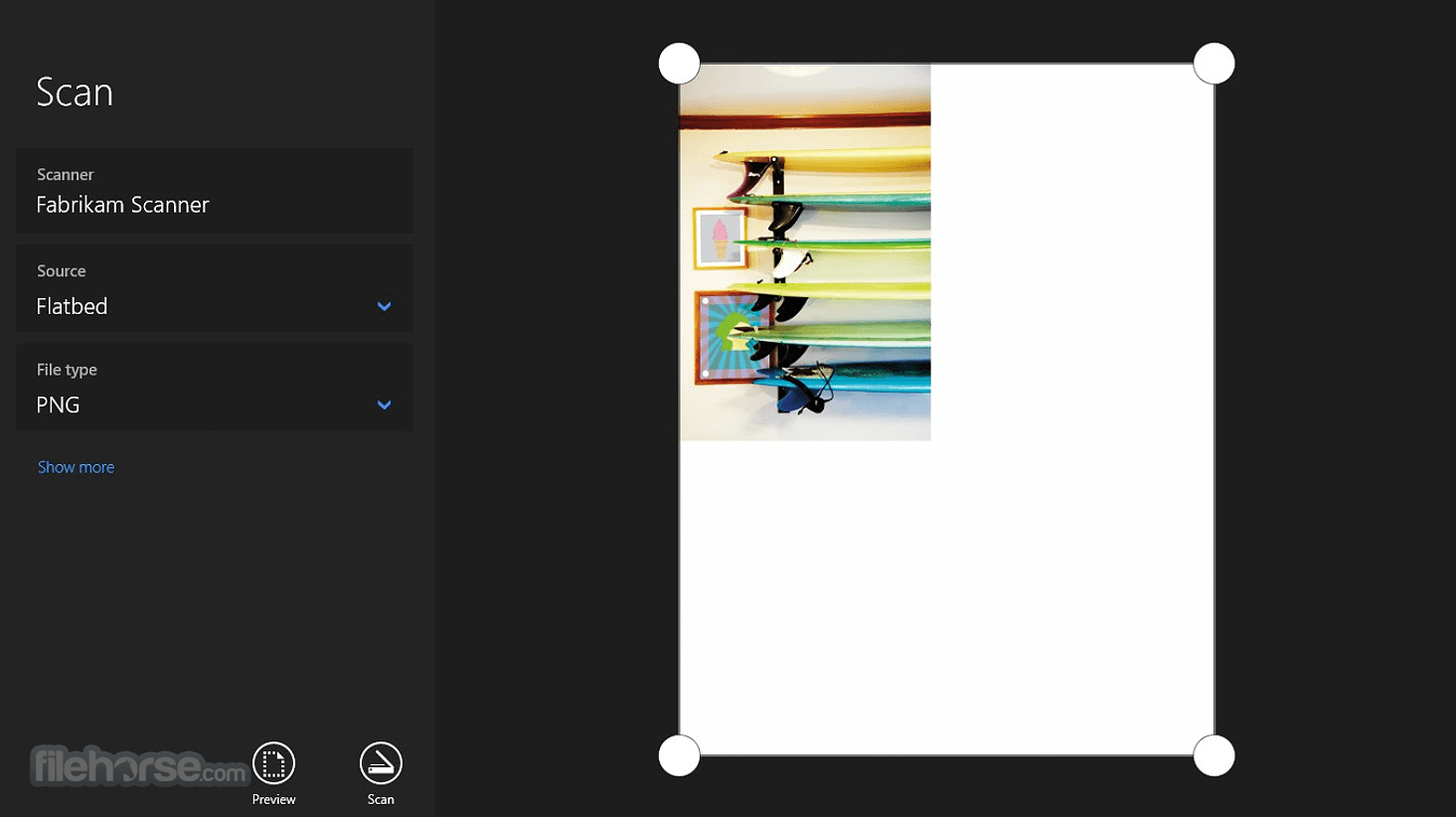
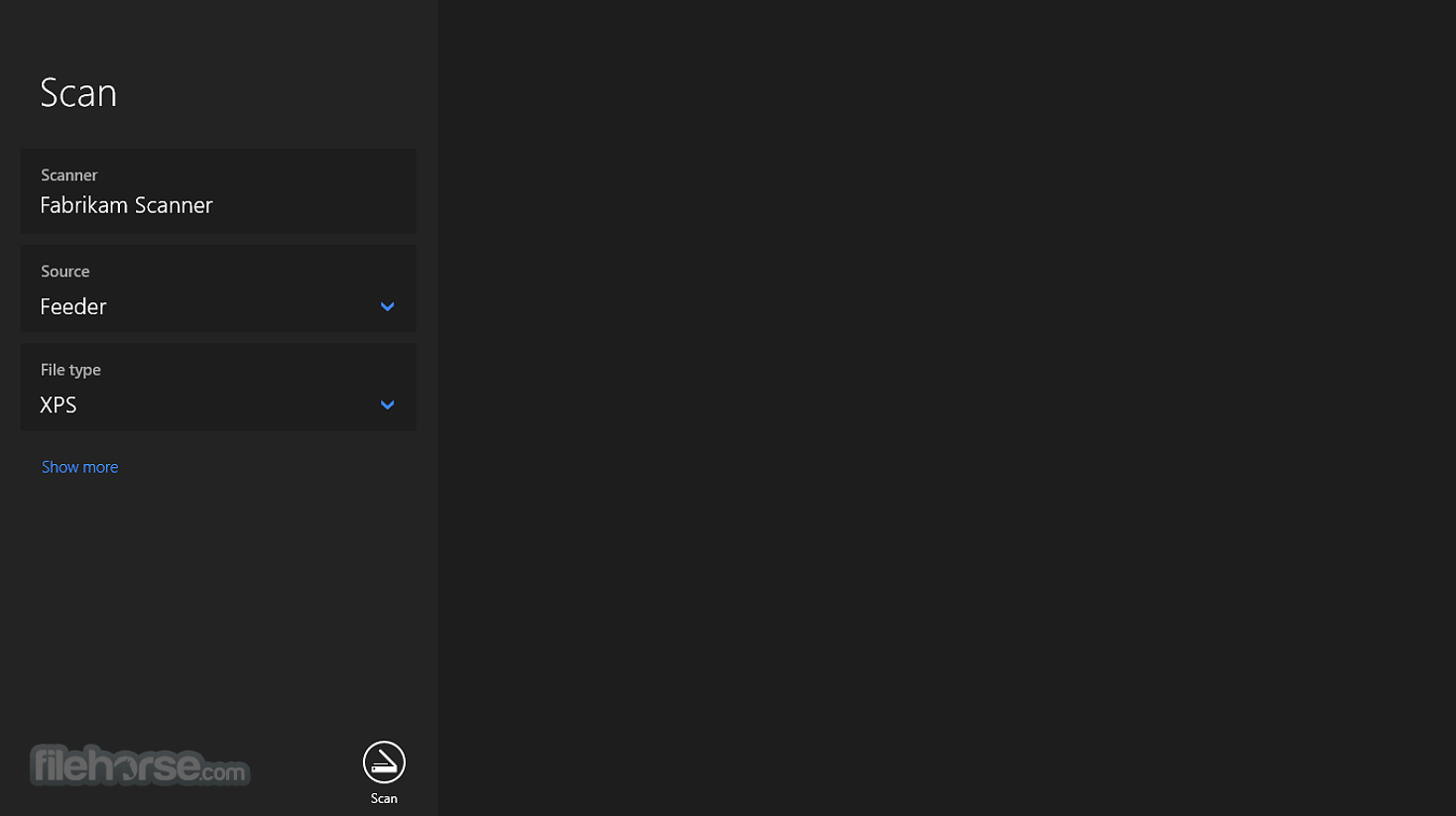
Once installed, the app starts as a black-themed dashboard that features a small set of controls on the far left side, and a large canvas on the right for showcasing the scanned content.
Before the first scan can be initiated, users first need to check that the app has properly detected a scanner device. This is shown in the first “Scanner” field, which will list the names of all detected scanner devices. If the desired scanner is not shown here, this means that Windows is encountering some driver conflict or that the driver package is not even installed.
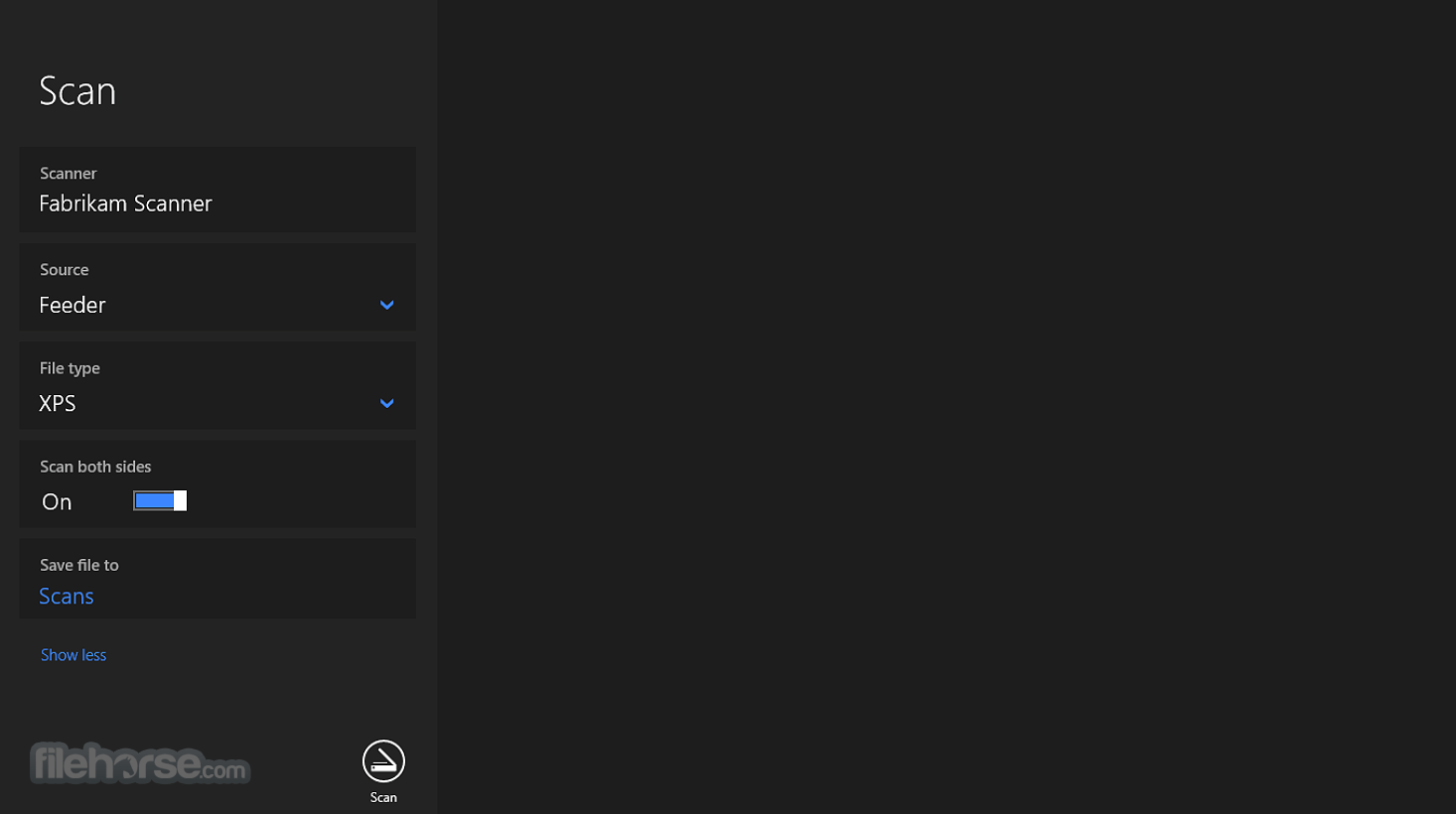
If the scanner is properly detected, users can set the scanning environment to their needs. They can pick file type, scanner orientation, scanner type, color mode, paper size, ability to scan both sides of the paper, auto-cropping tool, and default file-saving destination.
The content of the page placed on the scanner can be first previewed, or the full scan procedure can be started by simply clicking on a “Scan” button at the very bottom of the dashboard.
The duration and quality of the scan are managed by the capabilities of the scanner hardware, with the Windows Scan software being there just as a command support that can grab the collected scan data and create the final result in the form of a finished image file.
One of the biggest drawbacks of the Windows Scan app is that its users can only command it to scan one page at a time. In a busy office environment, scanners are often used to scan multiple pages at once, with the control application automatically detecting when the new pages are placed on the scan surface.
This app can sadly not do that, making it only usable in a home environment where users can manually scan pages one by one.
FAQ
How do you install Windows Scan on your PC?
You can install Windows Scan directly from the Microsoft Store by searching for "Windows Scan" or using its Store link, then clicking "Get" to download and install. Once installed, the app will automatically detect compatible scanners connected to your device.
Is Windows Scan recommended when other scanning software fails?
Yes, Windows Scan is often recommended as a reliable fallback when manufacturer scanner software malfunctions. For instance, one user resolved an Epson DS-510 compatibility issue under Windows 11 simply by installing and using this app instead of the official Epson software.
Which file formats does Windows Scan support when saving scans?
Windows Scan enables users to save scanned documents and images in commonly used formats, including JPEG, PNG, TIFF, BMP, and PDF, providing flexibility depending on whether high-quality images or compressed documents are needed.
PROS
Download Windows Scan Latest Version Why is this app published on FileHorse? (More info)
The app comes in the form of a Windows Store application that can be easily deployed to any modern Windows PC, enabling users to take full control over their scanner device and manage numerous options that are available when scanning physical paper content.
- Choose from a wide variety of file formats when deciding how scans should be saved.
- Preview the image and select the area you want to scan if you're using a flatbed scanner.
- Choose where you want scanned files to be saved.
However, this app has a significant drawback that makes it cumbersome to use in an office environment where the use of a scanner is a regular part of a daily workflow.
Windows Scan application is distributed online only via its official Windows Store page, enabling users of all knowledge levels to easily install it on their desktop and laptop PC.
Once installed, the app starts as a black-themed dashboard that features a small set of controls on the far left side, and a large canvas on the right for showcasing the scanned content.
Before the first scan can be initiated, users first need to check that the app has properly detected a scanner device. This is shown in the first “Scanner” field, which will list the names of all detected scanner devices. If the desired scanner is not shown here, this means that Windows is encountering some driver conflict or that the driver package is not even installed.
If the scanner is properly detected, users can set the scanning environment to their needs. They can pick file type, scanner orientation, scanner type, color mode, paper size, ability to scan both sides of the paper, auto-cropping tool, and default file-saving destination.
The content of the page placed on the scanner can be first previewed, or the full scan procedure can be started by simply clicking on a “Scan” button at the very bottom of the dashboard.
The duration and quality of the scan are managed by the capabilities of the scanner hardware, with the Windows Scan software being there just as a command support that can grab the collected scan data and create the final result in the form of a finished image file.
One of the biggest drawbacks of the Windows Scan app is that its users can only command it to scan one page at a time. In a busy office environment, scanners are often used to scan multiple pages at once, with the control application automatically detecting when the new pages are placed on the scan surface.
This app can sadly not do that, making it only usable in a home environment where users can manually scan pages one by one.
FAQ
How do you install Windows Scan on your PC?
You can install Windows Scan directly from the Microsoft Store by searching for "Windows Scan" or using its Store link, then clicking "Get" to download and install. Once installed, the app will automatically detect compatible scanners connected to your device.
Is Windows Scan recommended when other scanning software fails?
Yes, Windows Scan is often recommended as a reliable fallback when manufacturer scanner software malfunctions. For instance, one user resolved an Epson DS-510 compatibility issue under Windows 11 simply by installing and using this app instead of the official Epson software.
Which file formats does Windows Scan support when saving scans?
Windows Scan enables users to save scanned documents and images in commonly used formats, including JPEG, PNG, TIFF, BMP, and PDF, providing flexibility depending on whether high-quality images or compressed documents are needed.
PROS
- Easy to Use
- Multiple File Formats Supported
- Advanced Settings for Image Enhancement
- Can Save Scans Directly to Computer
- Integrated with Windows OS
- Limited Features Compared to Third-Party Scanners
- May Have Compatibility Issues with Some Scanners
Download Windows Scan Latest Version Why is this app published on FileHorse? (More info)
##
畫面截圖