- 目前版本1.21.13b
- 更新日期2026-08-10
- 檔案大小91.6 MB
- 檔案名稱zen.installer.exe
- 作業系統Windows 10 / Windows 11
- 支援語系English
- 授權型式免費軟體
- 開發商 Zen Team
- 軟體分類Windows 軟體 / 瀏覽器與外掛
##
翻譯排程處理中,以下暫以英文原文呈現
軟體介紹
Zen Browser is a free, open-source web browser built on the Mozilla Firefox (Gecko) engine, designed to deliver a modern, privacy-focused alternative to mainstream browsers like Chrome, Edge, and Arc.
Instead of relying on a Chromium base, Zen for PC uses Firefox’s engine, combining strong privacy protections with extensive customization and a calming browsing experience.
Its development began in 2024, and the project is actively progressing with regular updates, tab management enhancements, and UI refinements.
Key Features
Tab Sidebar: Vertical tab list for better organization and visibility.
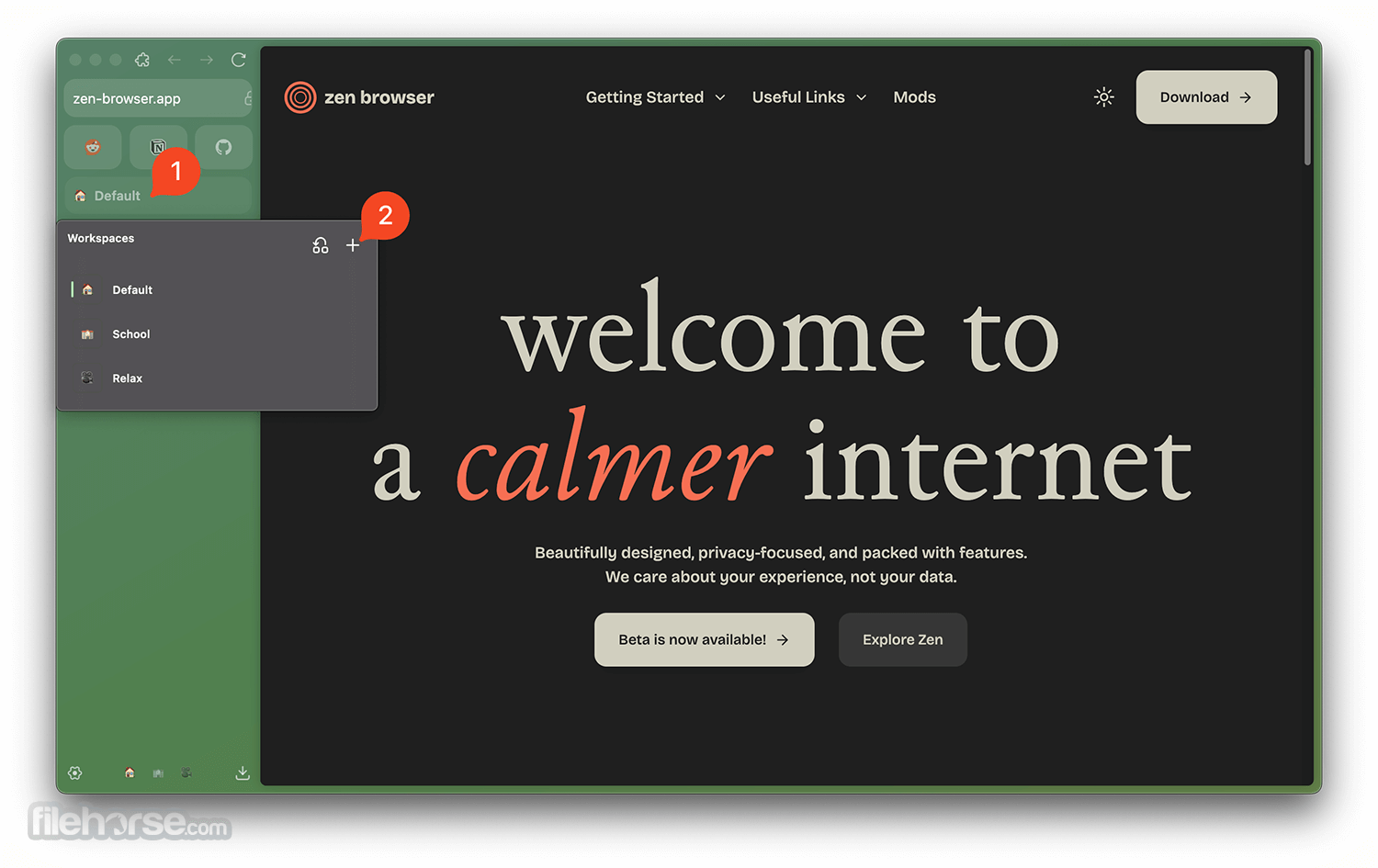
Workspaces: Split tabs into separate work contexts for more focused browsing.
Split View: Display multiple web pages side-by-side in tiled layouts.
Zen Glance: Quick preview of tabs without fully opening them.
Zen Mods: Custom themes and UI tweaks from community contributions.
Privacy Protection: Blocks trackers and doesn’t collect user data.
Firefox Extension Support: Compatible with most Firefox extensions.
User Interface
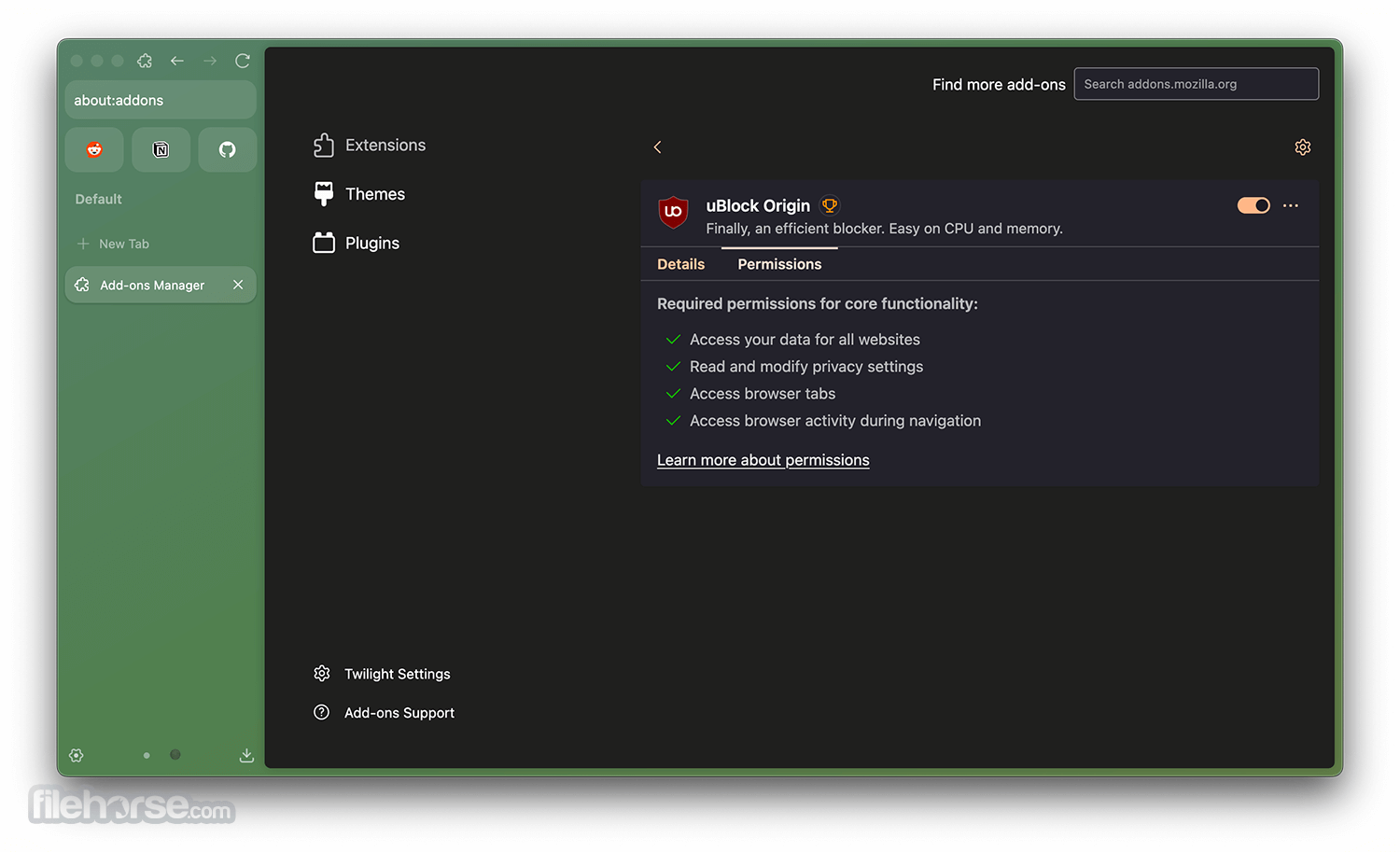
Zen Browser’s interface is clean and minimalist, with a strong emphasis on clarity and focus.
The most striking visual departure from traditional browsers is the vertical tab bar in a sidebar that can be placed on either side of the window or set to auto-hide in Compact Mode.
Navigation buttons and UI tools feel intuitive, with menus, bookmarks, and settings readily accessible but not overcrowded.
Custom themes from Zen Mods can change color schemes, textures, and toolbar layouts, giving users a highly personalized experience.
Installation and Setup
How to Use
Open and Navigate Tabs: Launch Zen and use the sidebar to open new tabs.
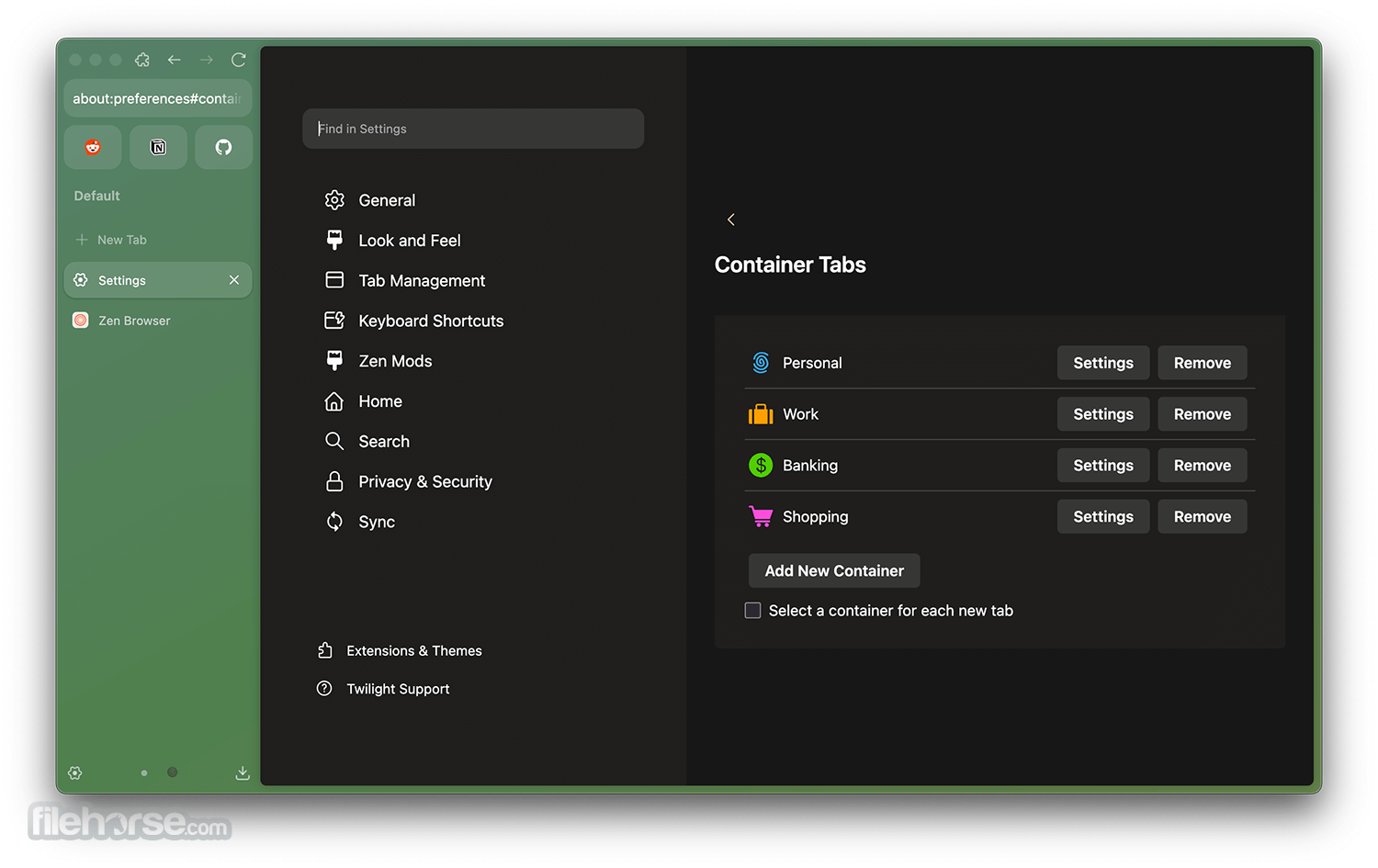
Organize into Workspaces: Click the workspace button in the sidebar and create categories like Work or Personal.
Split View: Select multiple tabs with Ctrl+click, then right-click and choose Split View for side-by-side browsing.
Use Zen Glance: Hold a modifier key while clicking a link to open a quick preview.
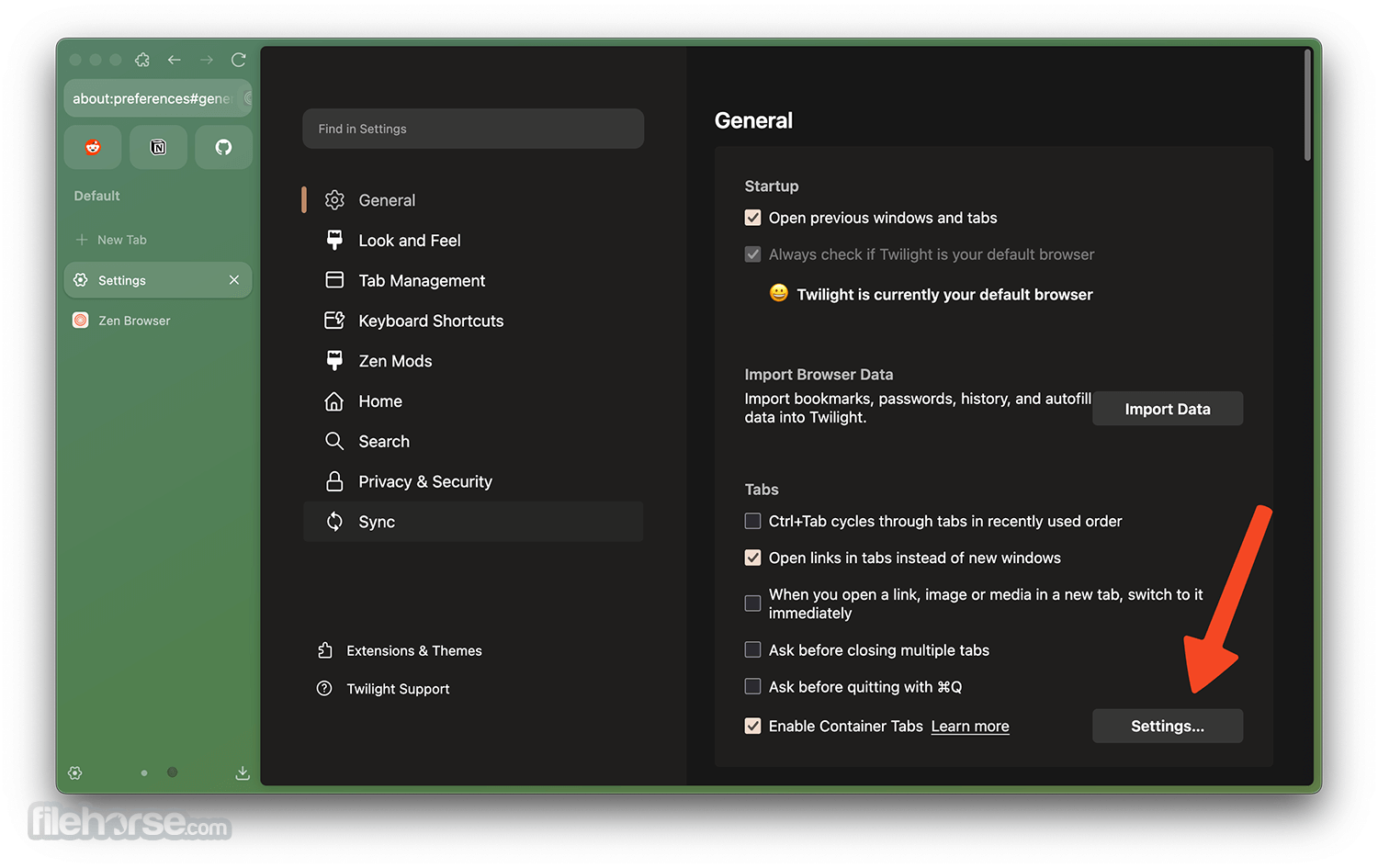
Install Mods: Access Zen Mods from the settings panel to apply UI enhancements and themes.
Adjust Privacy Settings: Go to Settings > Privacy to block trackers and manage security preferences.
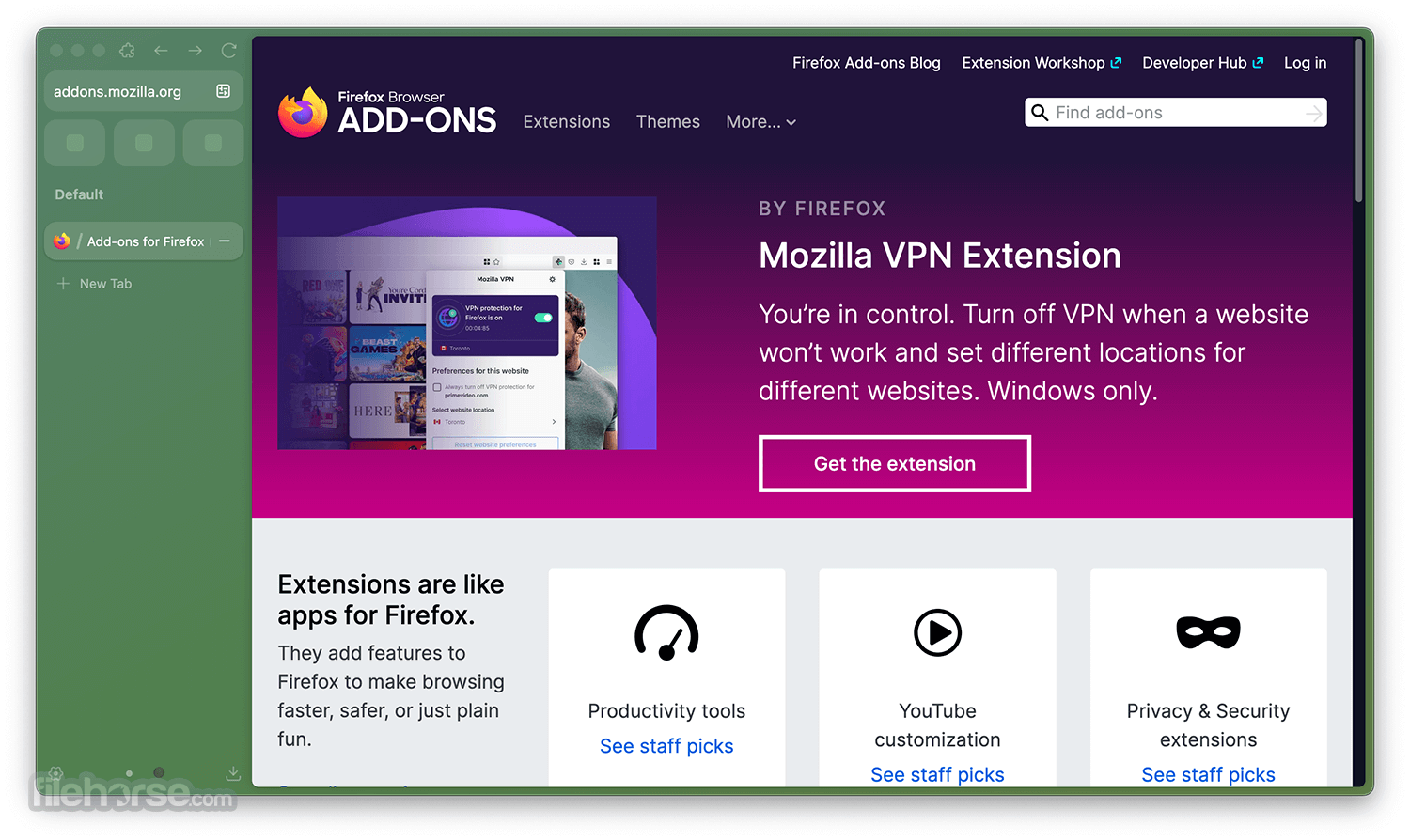
Install Extensions: Visit the Firefox Add-ons store to add favorite extensions.
FAQs
Is Zen Browser safe?
Zen is based on Firefox’s secure engine and includes tracking protection; it does not collect user data.
Can I use Chrome extensions?
No, Zen supports Firefox extensions, not Chrome/Chromium-only extensions.
Is Zen a Chromium browser?
No, it uses Mozilla’s Gecko rendering engine, not Chromium.
Does it have built-in ad blocking?
Zen doesn’t include its own ad blocker by default, but you can install add-ons like uBlock Origin.
Is the browser stable?
Zen is actively developed and frequently updated; occasional bugs may appear as it evolves.
Alternatives
Brave – Privacy-focused browser with built-in ad blocking and rewards system.
Comet Browser – A new and smart AI browser from Perplexity.
Vivaldi – Highly customizable browser with extensive UI personalization options.
Chrome – Google’s popular browser with broad extension support and performance.
Pricing
Zen Browser is completely FREE to download and use.
System Requirements
Zen Browser for PC is a compelling, modern alternative for users who value privacy, customization, and tab organization without tying themselves to Google’s ecosystem.
It blends Firefox’s secure engine with innovative UI ideas like vertical tabs, workspaces, and split view, making it ideal for power users and heavy multitaskers.
Although it still trails Chromium browsers in raw extension support and some performance areas, the FileHorse review team recommends Zen Browser for anyone looking to rethink their browsing experience and embrace a cleaner, more organized internet.
Download Zen Browser Latest Version Why is this app published on FileHorse? (More info)
Instead of relying on a Chromium base, Zen for PC uses Firefox’s engine, combining strong privacy protections with extensive customization and a calming browsing experience.
Its development began in 2024, and the project is actively progressing with regular updates, tab management enhancements, and UI refinements.
Key Features
Tab Sidebar: Vertical tab list for better organization and visibility.
Workspaces: Split tabs into separate work contexts for more focused browsing.
Split View: Display multiple web pages side-by-side in tiled layouts.
Zen Glance: Quick preview of tabs without fully opening them.
Zen Mods: Custom themes and UI tweaks from community contributions.
Privacy Protection: Blocks trackers and doesn’t collect user data.
Firefox Extension Support: Compatible with most Firefox extensions.
User Interface
Zen Browser’s interface is clean and minimalist, with a strong emphasis on clarity and focus.
The most striking visual departure from traditional browsers is the vertical tab bar in a sidebar that can be placed on either side of the window or set to auto-hide in Compact Mode.
Navigation buttons and UI tools feel intuitive, with menus, bookmarks, and settings readily accessible but not overcrowded.
Custom themes from Zen Mods can change color schemes, textures, and toolbar layouts, giving users a highly personalized experience.
Installation and Setup
- Visit the official website at zen-browser.app.
- Choose your OS version (Windows, macOS, Linux).
- Download the installer package (.exe, .dmg, Flatpak, AppImage, etc.).
- Run the installer and follow on-screen prompts (accept license, choose install path).
- Launch Zen Browser for Windows and sign in with a Mozilla account to sync bookmarks and settings if desired.
How to Use
Open and Navigate Tabs: Launch Zen and use the sidebar to open new tabs.
Organize into Workspaces: Click the workspace button in the sidebar and create categories like Work or Personal.
Split View: Select multiple tabs with Ctrl+click, then right-click and choose Split View for side-by-side browsing.
Use Zen Glance: Hold a modifier key while clicking a link to open a quick preview.
Install Mods: Access Zen Mods from the settings panel to apply UI enhancements and themes.
Adjust Privacy Settings: Go to Settings > Privacy to block trackers and manage security preferences.
Install Extensions: Visit the Firefox Add-ons store to add favorite extensions.
FAQs
Is Zen Browser safe?
Zen is based on Firefox’s secure engine and includes tracking protection; it does not collect user data.
Can I use Chrome extensions?
No, Zen supports Firefox extensions, not Chrome/Chromium-only extensions.
Is Zen a Chromium browser?
No, it uses Mozilla’s Gecko rendering engine, not Chromium.
Does it have built-in ad blocking?
Zen doesn’t include its own ad blocker by default, but you can install add-ons like uBlock Origin.
Is the browser stable?
Zen is actively developed and frequently updated; occasional bugs may appear as it evolves.
Alternatives
Brave – Privacy-focused browser with built-in ad blocking and rewards system.
Comet Browser – A new and smart AI browser from Perplexity.
Vivaldi – Highly customizable browser with extensive UI personalization options.
Chrome – Google’s popular browser with broad extension support and performance.
Pricing
Zen Browser is completely FREE to download and use.
System Requirements
- OS – Windows 10 or Windows 11.
- Processor – 64-bit CPU recommended.
- RAM – 4 GB minimum (8 GB+ recommended).
- Storage – ~500 MB free space.
- Vertical tab management.
- Workspaces for organization.
- Split-view multitasking.
- Strong privacy defaults.
- Highly customizable UI.
- Firefox extension compatibility.
- Open-source and free.
- May lack performance edge vs Chromium browsers.
- Some UI features still in beta.
- Fewer built-in tools (e.g., no native ad blocker).
- Smaller community than Chrome/Firefox.
- Limited developer tools compared to Chrome.
Zen Browser for PC is a compelling, modern alternative for users who value privacy, customization, and tab organization without tying themselves to Google’s ecosystem.
It blends Firefox’s secure engine with innovative UI ideas like vertical tabs, workspaces, and split view, making it ideal for power users and heavy multitaskers.
Although it still trails Chromium browsers in raw extension support and some performance areas, the FileHorse review team recommends Zen Browser for anyone looking to rethink their browsing experience and embrace a cleaner, more organized internet.
Download Zen Browser Latest Version Why is this app published on FileHorse? (More info)
##
畫面截圖