⚠ 這是歷史版本頁面 — 查看 Letos 最新版本 →

- 目前版本3.4.21
- 更新日期2026-01-24
- 檔案大小24.58 MB
- 檔案名稱SQLiteStudio-3.4.21-windows-x64-installer.exe
- 作業系統Windows 7 64 / Windows 8 64 / Windows 10 64 / Windows 11
- 支援語系English
- 授權型式開源軟體
- 開發商 SalSoft Pawel Salawa
- 軟體分類Windows 軟體 / 開發者工具
##
編輯短評
Letos 是一款專為 SQLite 資料庫設計的開源管理工具,前身是 SQLiteStudio。它提供直覺的圖形介面,讓開發者、資料分析師或資料庫管理員不必依賴繁瑣的命令列操作,就能建立、管理與操作 SQLite 資料庫。其最鮮明的特色是輕量且跨平台,在 Windows 與 macOS 上都能順暢運作,同時涵蓋從基本瀏覽到進階操作的多樣功能,對不同經驗層級的使用者都相當友善。此軟體目前仍持續活躍維護,近一年內更新頻繁,使用者評價普遍不錯,在同類工具中屬於穩健的熱門選擇。
這套工具特別適合需要頻繁處理 SQLite 資料庫、但不想被複雜指令綁住的開發者或資料分析師,無論是日常資料查詢、結構調整或資料匯出,都能在圖形介面中快速完成。與 BlueStacks、Turbo C++ 或 VMware Workstation Player 等不同用途的替代軟體相比,Letos 專注於 SQLite 單一資料庫引擎,功能更為聚焦,也因此在輕量與易用性上佔有優勢。需要注意的是,它目前僅提供英文介面,對中文使用者來說稍有門檻;不過軟體本身為開源授權,可免費下載使用,Windows 與 macOS 使用者都能直接取得。
##
翻譯排程處理中,以下暫以英文原文呈現
軟體介紹
Letos (formerly SQLiteStudio) is a free, open-source database management software designed specifically for SQLite databases.
It offers an intuitive, user-friendly environment for developers, data analysts, and database administrators to create, manage, and manipulate SQLite databases without the need for complex command-line operations.
Letos for PC is favored for its lightweight nature, simplicity, and wide range of features that allow users to handle SQLite databases efficiently, regardless of their skill level.
Key Features
Cross-Platform Compatibility: It works seamlessly across major operating systems, including Windows, macOS, and Linux, making it highly accessible.
Schema and Data Editing: Easily view and modify table schemas, indexes, and data entries with a few clicks.
Visual Query Builder: The built-in Visual Query Builder helps users construct SQL queries without manual coding, making it great for those who aren’t fluent in SQL.
Syntax Highlighting and Auto-completion: These features are especially useful when writing or editing SQL queries, improving readability and helping to minimize syntax errors.
Database Import and Export: It supports data import/export in multiple formats, such as CSV, SQL, XML, and JSON.
Multiple Database Tabs: Work on multiple databases simultaneously by opening them in separate tabs.
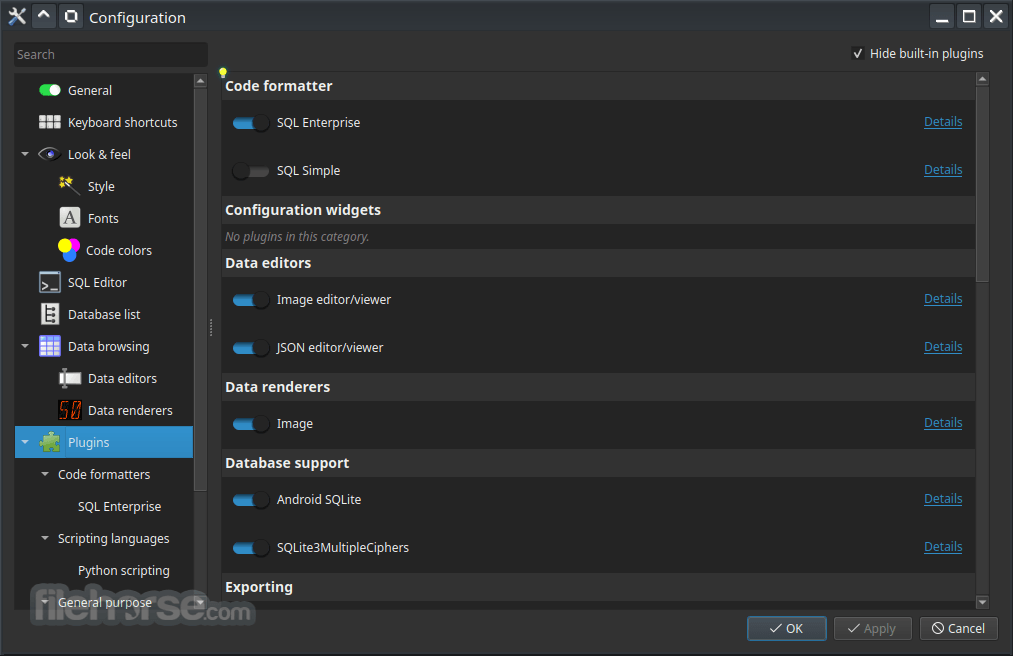
Extensible via Plugins: Users can extend Letos’s functionality by installing or developing plugins, making it highly customizable.
Database Comparison and Synchronization: It provides tools to compare databases, detect differences, and synchronize them.
Encryption Support: For enhanced security, it offers encryption options (requires SQLite Encryption Extension).
Comprehensive Error Logs: Detailed error logs make debugging easier and help users resolve issues faster.
What`s New
New Name & Home: Moved officially to letos.org starting with version 4.0
Modern Stack: Upgraded to Qt 6 with native ARM64 builds and high-DPI interface support
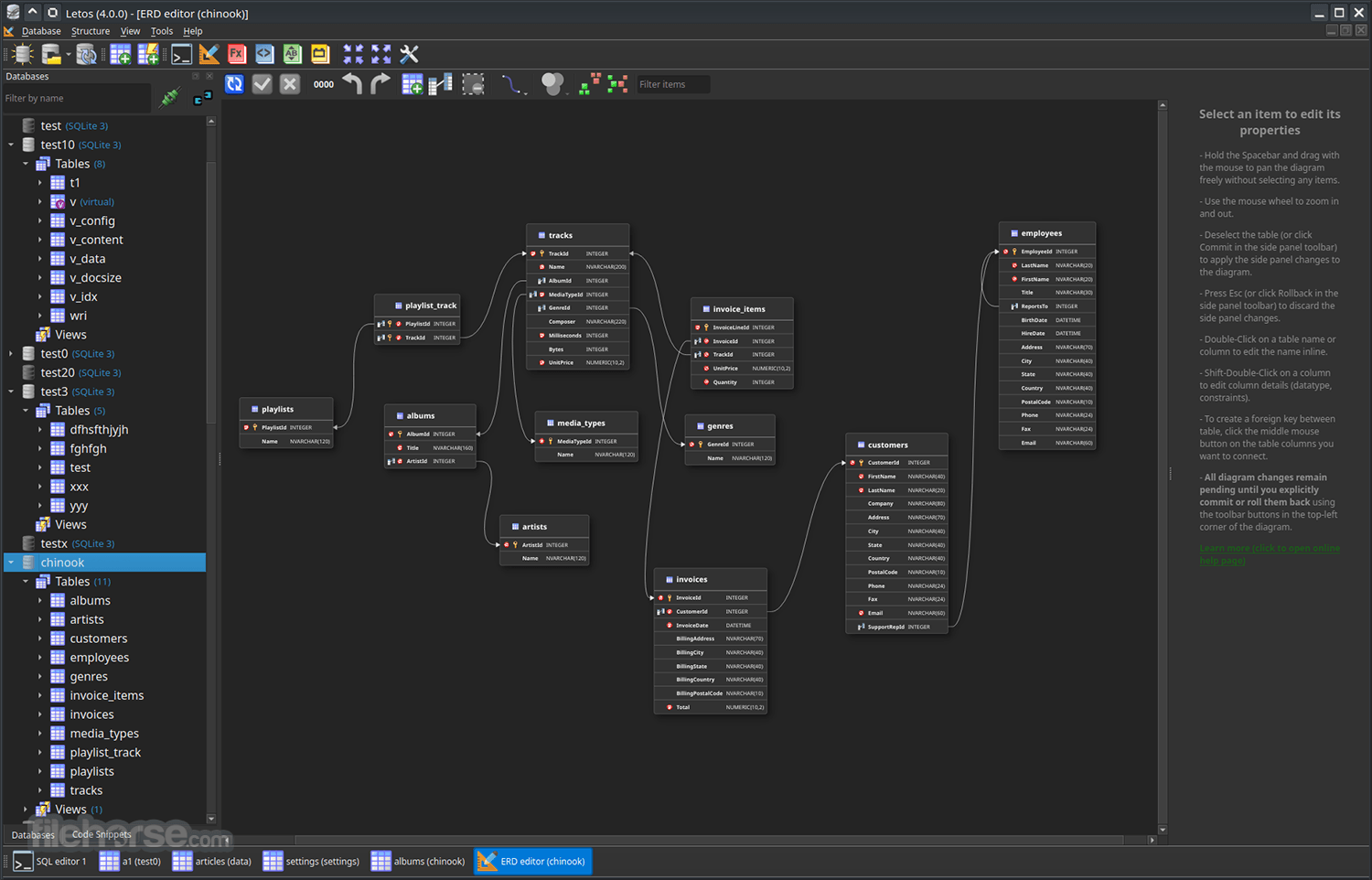
New Tools: Includes a built-in ERD (Entity Relationship Diagram) editor
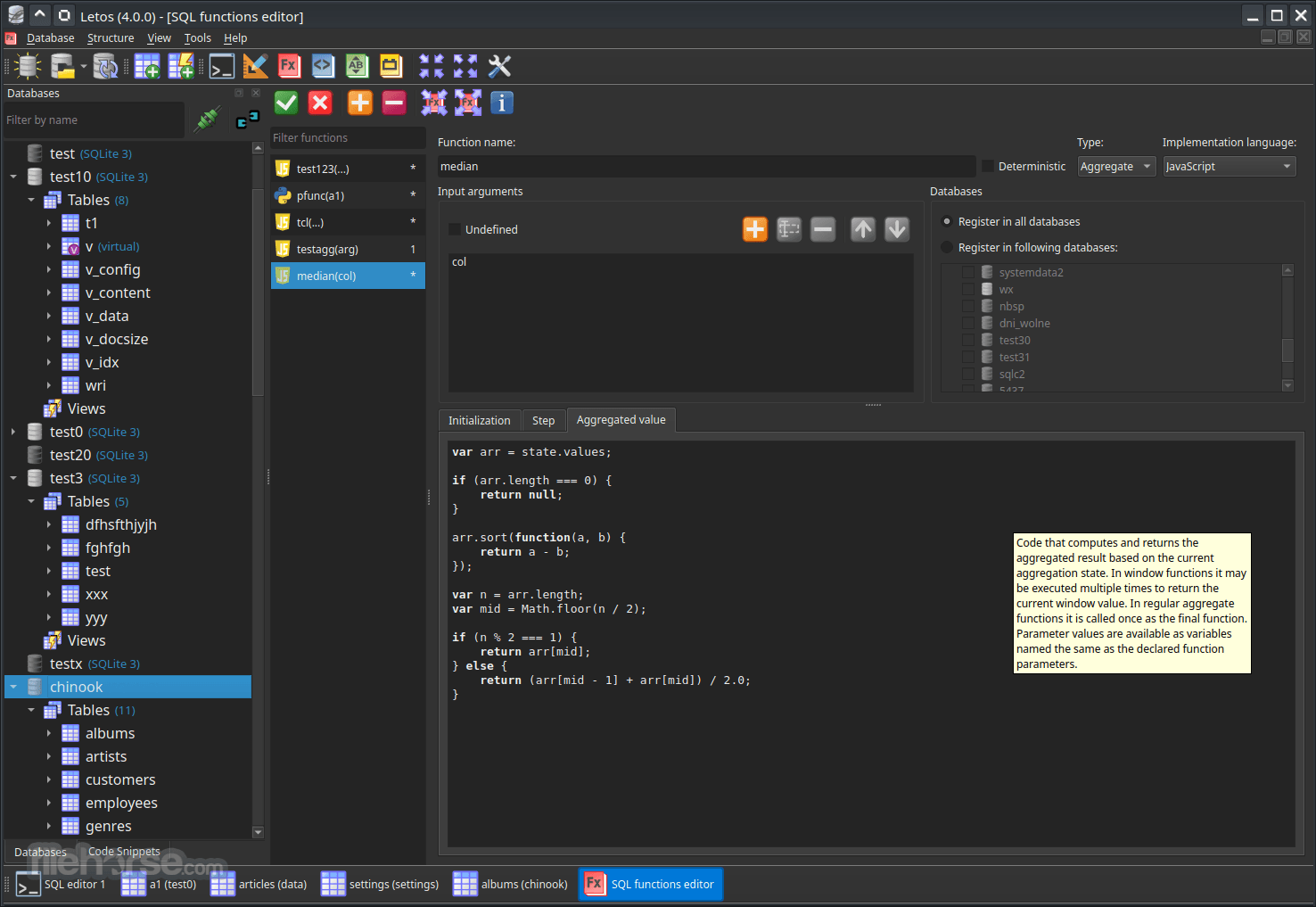
Core Toolset: Features an advanced SQL editor, custom scripting via Python/JavaScript/Tcl, and full cross-platform support for Windows, macOS, and Linux.
User Interface
It has a clean and minimalistic interface. It organizes various tools and utilities within a single-window layout, providing easy navigation.
On the left side, you’ll find a database explorer, where all open databases are displayed with their respective tables, views, triggers, and indexes in a tree structure.
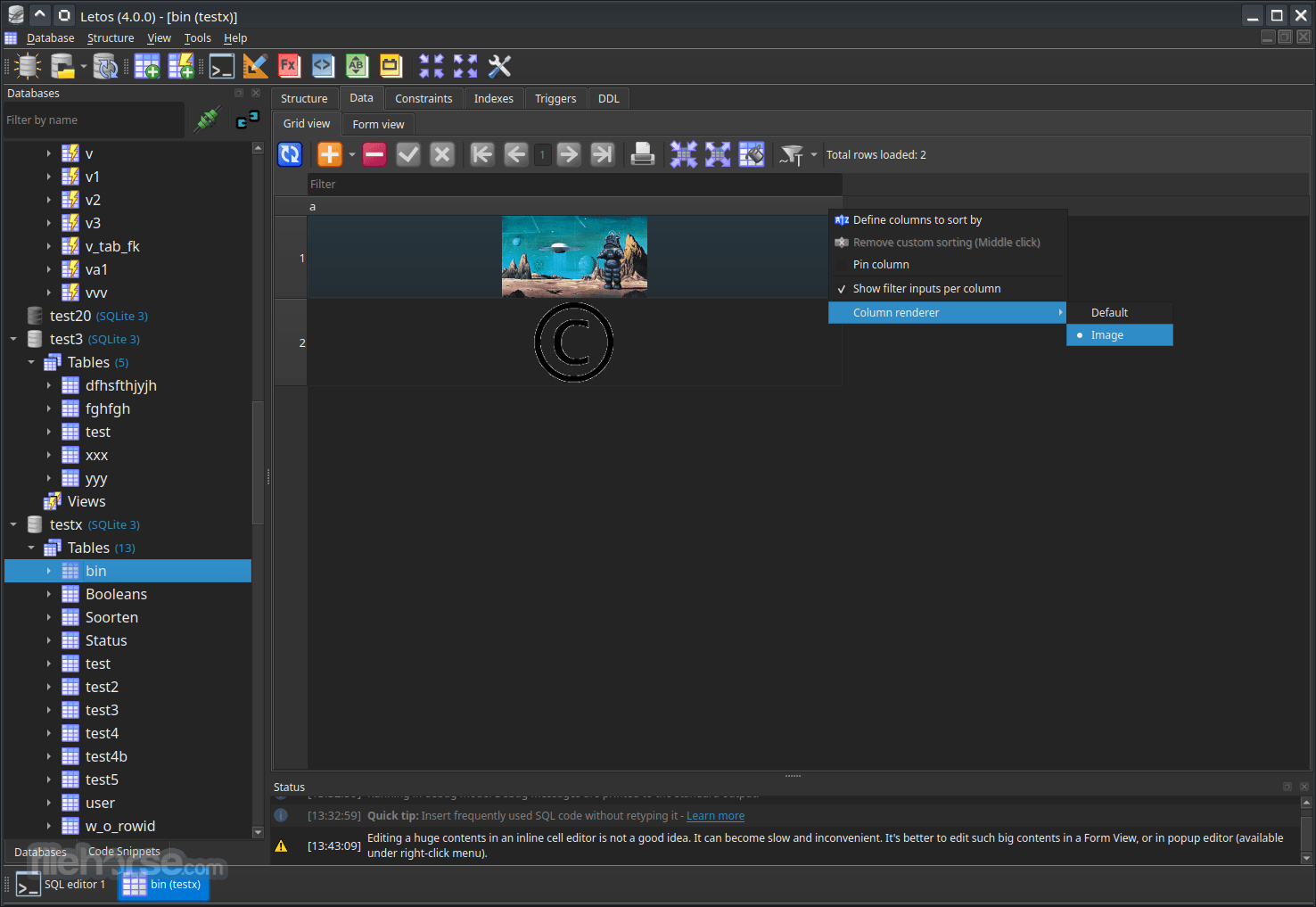
The main workspace is on the right, where users can open multiple tabs to edit tables, write queries, or browse data. The interface is highly intuitive and designed to cater to beginners and professionals alike.
Installation and Setup
Download the Software: Head to the official website or FileHorse and download the installer for your operating system.
Installation: Run the downloaded installer file and follow the on-screen instructions.
Launch the Program: Once installed, open the app. You’ll see a splash screen and be taken to the main interface.
Add a Database: To start working, click on the "Database" menu and select "Add a Database," then navigate to your SQLite database file or create a new one.
No additional configurations or dependencies are needed, making Letos an efficient tool that’s ready to use immediately after installation.
How to Use
Adding a Database: Click on "Database" > "Add a Database" and select your file to import an existing database or create a new one.
Exploring Database Structure: The database explorer shows tables, views, triggers, and indexes. Expand each section to view or modify the database structure.
Running SQL Queries: Go to the SQL Editor tab to write and run SQL queries. Syntax highlighting and autocomplete make the editor beginner-friendly.
Creating Tables: Right-click on the database in the explorer, select "Create Table," and define the columns and constraints. Click “OK” to save.
Data Import and Export: For importing data, go to “Tools” > “Import.” Choose the file format and configure import settings. For export, follow a similar path under “Export.”
Database Synchronization: Use the “Database Comparison” tool to detect and merge changes across databases.
FAQ
Can I use Letos to connect to other database types?
The program is exclusively designed for SQLite databases. For other database types, consider tools like DBeaver or MySQL Workbench.
How do I export my database in CSV format?
Right-click the table you want to export, select "Export," choose CSV, and configure your settings.
Does Letos support encryption?
Yes, but only if you use SQLite Encryption Extension (SEE) or an encrypted SQLite library.
Can I automate tasks in Letos?
The app doesn’t natively support task automation. However, you can use command-line SQLite or third-party scripts for automated tasks.
How do I resolve installation errors on Linux?
Ensure that you have the required permissions and dependencies. Check the Letos documentation for Linux-specific troubleshooting.
Alternatives
DB Browser for SQLite: A similar tool with a slightly simpler interface, focused on basic database operations.
DBeaver: A powerful database management tool that supports multiple databases, including SQLite. Ideal for users needing multi-database support.
dotConnect for SQLite: High-performance ADO.NET Data Provider for SQLite.
Pricing
This program is entirely FREE and open-source software (FOSS).
This accessibility makes it an excellent choice for users who need a high-quality SQLite database management tool without investing in a commercial license.
System Requirements
Letos (formerly SQLiteStudio) is a highly effective, user-friendly tool for managing SQLite databases.
Its combination of simplicity and functionality makes it an ideal choice for developers, analysts, and database administrators seeking a streamlined solution for SQLite database management.
With features like visual query building, multi-format import/export, and an easy-to-navigate interface, this tool is accessible even to users new to SQL.
Also Available: Download Letos for Mac
Download Letos Latest Version Why is this app published on FileHorse? (More info)
It offers an intuitive, user-friendly environment for developers, data analysts, and database administrators to create, manage, and manipulate SQLite databases without the need for complex command-line operations.
Letos for PC is favored for its lightweight nature, simplicity, and wide range of features that allow users to handle SQLite databases efficiently, regardless of their skill level.
Key Features
Cross-Platform Compatibility: It works seamlessly across major operating systems, including Windows, macOS, and Linux, making it highly accessible.
Schema and Data Editing: Easily view and modify table schemas, indexes, and data entries with a few clicks.
Visual Query Builder: The built-in Visual Query Builder helps users construct SQL queries without manual coding, making it great for those who aren’t fluent in SQL.
Syntax Highlighting and Auto-completion: These features are especially useful when writing or editing SQL queries, improving readability and helping to minimize syntax errors.
Database Import and Export: It supports data import/export in multiple formats, such as CSV, SQL, XML, and JSON.
Multiple Database Tabs: Work on multiple databases simultaneously by opening them in separate tabs.
Extensible via Plugins: Users can extend Letos’s functionality by installing or developing plugins, making it highly customizable.
Database Comparison and Synchronization: It provides tools to compare databases, detect differences, and synchronize them.
Encryption Support: For enhanced security, it offers encryption options (requires SQLite Encryption Extension).
Comprehensive Error Logs: Detailed error logs make debugging easier and help users resolve issues faster.
What`s New
New Name & Home: Moved officially to letos.org starting with version 4.0
Modern Stack: Upgraded to Qt 6 with native ARM64 builds and high-DPI interface support
New Tools: Includes a built-in ERD (Entity Relationship Diagram) editor
Core Toolset: Features an advanced SQL editor, custom scripting via Python/JavaScript/Tcl, and full cross-platform support for Windows, macOS, and Linux.
User Interface
It has a clean and minimalistic interface. It organizes various tools and utilities within a single-window layout, providing easy navigation.
On the left side, you’ll find a database explorer, where all open databases are displayed with their respective tables, views, triggers, and indexes in a tree structure.
The main workspace is on the right, where users can open multiple tabs to edit tables, write queries, or browse data. The interface is highly intuitive and designed to cater to beginners and professionals alike.
Installation and Setup
Download the Software: Head to the official website or FileHorse and download the installer for your operating system.
Installation: Run the downloaded installer file and follow the on-screen instructions.
Launch the Program: Once installed, open the app. You’ll see a splash screen and be taken to the main interface.
Add a Database: To start working, click on the "Database" menu and select "Add a Database," then navigate to your SQLite database file or create a new one.
No additional configurations or dependencies are needed, making Letos an efficient tool that’s ready to use immediately after installation.
How to Use
Adding a Database: Click on "Database" > "Add a Database" and select your file to import an existing database or create a new one.
Exploring Database Structure: The database explorer shows tables, views, triggers, and indexes. Expand each section to view or modify the database structure.
Running SQL Queries: Go to the SQL Editor tab to write and run SQL queries. Syntax highlighting and autocomplete make the editor beginner-friendly.
Creating Tables: Right-click on the database in the explorer, select "Create Table," and define the columns and constraints. Click “OK” to save.
Data Import and Export: For importing data, go to “Tools” > “Import.” Choose the file format and configure import settings. For export, follow a similar path under “Export.”
Database Synchronization: Use the “Database Comparison” tool to detect and merge changes across databases.
FAQ
Can I use Letos to connect to other database types?
The program is exclusively designed for SQLite databases. For other database types, consider tools like DBeaver or MySQL Workbench.
How do I export my database in CSV format?
Right-click the table you want to export, select "Export," choose CSV, and configure your settings.
Does Letos support encryption?
Yes, but only if you use SQLite Encryption Extension (SEE) or an encrypted SQLite library.
Can I automate tasks in Letos?
The app doesn’t natively support task automation. However, you can use command-line SQLite or third-party scripts for automated tasks.
How do I resolve installation errors on Linux?
Ensure that you have the required permissions and dependencies. Check the Letos documentation for Linux-specific troubleshooting.
Alternatives
DB Browser for SQLite: A similar tool with a slightly simpler interface, focused on basic database operations.
DBeaver: A powerful database management tool that supports multiple databases, including SQLite. Ideal for users needing multi-database support.
dotConnect for SQLite: High-performance ADO.NET Data Provider for SQLite.
Pricing
This program is entirely FREE and open-source software (FOSS).
This accessibility makes it an excellent choice for users who need a high-quality SQLite database management tool without investing in a commercial license.
System Requirements
- Operating System: Windows 11, 10, 8 or 7
- Processor: 1 GHz or faster
- Memory: 512 MB RAM (1 GB recommended)
- Storage: 50 MB for installation
- SQLite Version: Compatible with all recent SQLite versions
- Free and open-source
- Cross-platform compatibility
- Intuitive interface suitable for beginners
- Robust data import/export options
- Extensible via plugins
- Limited to SQLite databases
- Lacks automation features
- Limited data visualization tools
- Some advanced users may find the feature set basic
Letos (formerly SQLiteStudio) is a highly effective, user-friendly tool for managing SQLite databases.
Its combination of simplicity and functionality makes it an ideal choice for developers, analysts, and database administrators seeking a streamlined solution for SQLite database management.
With features like visual query building, multi-format import/export, and an easy-to-navigate interface, this tool is accessible even to users new to SQL.
Also Available: Download Letos for Mac
Download Letos Latest Version Why is this app published on FileHorse? (More info)
##
畫面截圖
- 2026-08-12 Letos 4.0.3 31.9 MB
- 2026-08-08 Letos 4.0.2 33.5 MB
- 2026-07-06 Letos 4.0.1 33.6 MB
- 2026-06-26 Letos 4.0.0 33.1 MB
- 2026-01-24 SQLiteStudio 3.4.21 24.58 MB
- 2026-01-06 SQLiteStudio 3.4.20 24.59 MB
- 2025-12-27 SQLiteStudio 3.4.19 24.58 MB
- 2025-12-06 SQLiteStudio 3.4.18 24.59 MB