
Microsoft Snipping Tool 11.2209.2
v 11.2209.2
Windows
免費軟體
10/10 (2)
- 目前版本11.2209.2
- 更新日期2026-02-16
- 檔案大小1 MB
- 檔案名稱Snipping Tool Installer.exe
- 作業系統Windows 10 / Windows 11
- 支援語系English
- 授權型式免費軟體
- 開發商 Microsoft Corporation
- 軟體分類Windows 軟體 / 影像設計
##
編輯短評
Microsoft Snipping Tool 是微軟內建於 Windows 10 與 11 的輕量截圖工具,讓使用者能快速擷取桌面任一區域並存成靜態圖片。它最大的辨識度在於支援滑鼠、觸控與觸控筆操作,擷取後可直接進行簡單編輯再分享。這套工具由微軟長期維護,近一年仍有更新,雖然使用者評分樣本不多,但獲得滿分肯定,屬於系統內建的實用工具。
它適合需要頻繁截圖的一般使用者、學生或辦公室人員,尤其在製作教學文件、回報問題或記錄畫面時相當方便。相較於 Photoshop 等專業影像軟體,它免費、免安裝且啟動快速,但功能僅限基本裁切與標註,無法處理複雜影像。授權為免費軟體,僅支援 Windows 平台,官方語系僅英文,使用時需留意介面語言。
##
軟體介紹
Microsoft Snipping Tool (Snip & Sketch) 是一款輕量級且非常實用的預載應用程式,內建於 Windows 10 和 Windows 11 作業系統中,讓所有年齡層的使用者都能快速且可靠地擷取桌面區域作為靜態螢幕截圖。
此外,您也可以將這款優秀且實用的應用程式當作一般程式,安裝在您的電腦、桌上型或筆記型電腦上!
使用 Windows 11 上最新的 Snipping Tool 應用程式,輕鬆擷取並編輯圖片或影片。
無論您偏好使用滑鼠、觸控螢幕或手寫筆,都能無縫擷取螢幕截圖,並在分享到各種平台前進行自訂調整。
請注意:升級版的 Snipping Tool 僅限 Windows 11 使用。如果您使用的是 Windows 10,Snip & Sketch 將是您電腦上可下載的工具。
支援多種擷取模式,並能將桌面或應用程式介面的擷取區域自動傳送到剪貼簿記憶體中,Microsoft Snip 是隨其熱門作業系統一同推出的最實用小工具之一。
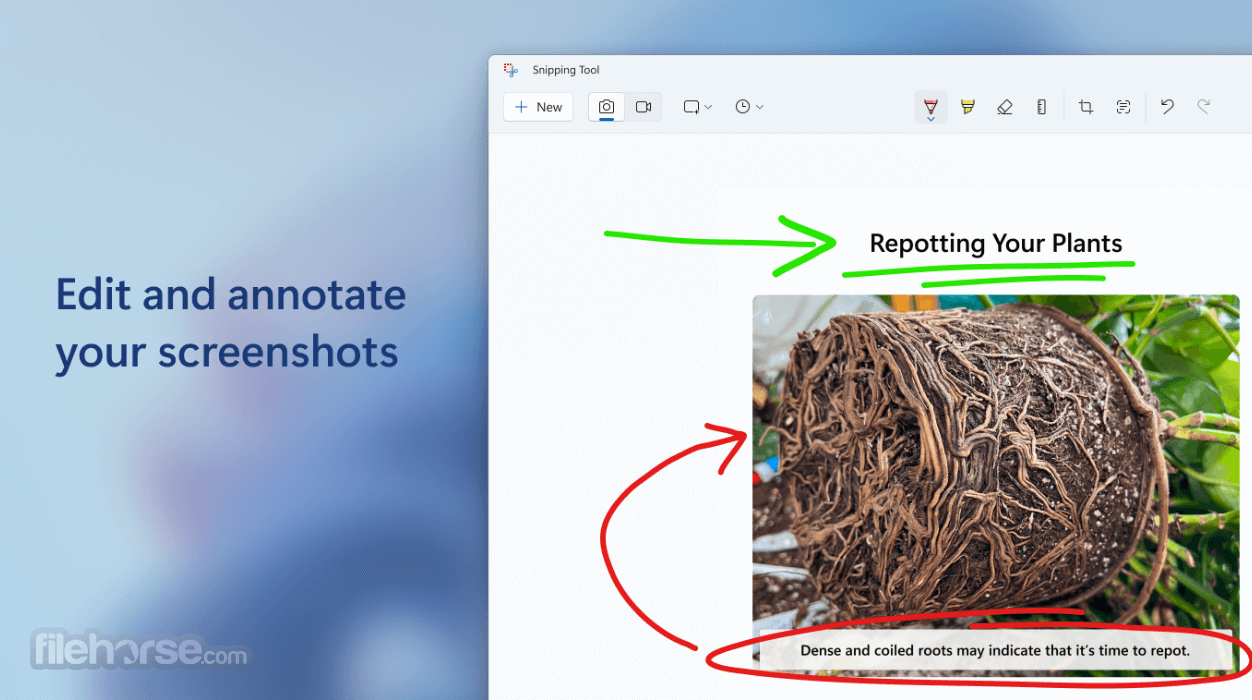
使用手寫筆、觸控或滑鼠快速標註螢幕截圖、照片及其他圖片,並可儲存、貼上或與其他應用程式分享。
不過,如果這個內建應用程式無法正常運作或出現不穩定的情況,Microsoft 的開發人員提供了獨立安裝檔,讓所有使用者都能在桌上型或筆記型電腦上重新安裝此應用程式。
預設情況下,Microsoft Snip Tool (Snip & Sketch) 可透過兩種操作模式使用。
由於它與 Windows 作業系統深度整合,每當使用者按下「Windows 標誌鍵 + Shift + S」鍵盤快捷鍵時,作業系統就會自動以快速模式啟動這個小應用程式。
螢幕會變暗,滑鼠游標會變成十字準星,使用者接著可以畫出想要擷取的矩形區域,並立即將其傳送到剪貼簿記憶體中。
第二種操作模式是透過開始功能表點擊應用程式,並在搜尋引擎中輸入 Snipping Tool 來啟動。這會開啟一個小型控制面板,使用者可以在其中設定想要執行的影像擷取模式,以及每次拍攝後出現的小型影像編輯器。
此外,您也可以將這款優秀且實用的應用程式當作一般程式,安裝在您的電腦、桌上型或筆記型電腦上!
使用 Windows 11 上最新的 Snipping Tool 應用程式,輕鬆擷取並編輯圖片或影片。
無論您偏好使用滑鼠、觸控螢幕或手寫筆,都能無縫擷取螢幕截圖,並在分享到各種平台前進行自訂調整。
請注意:升級版的 Snipping Tool 僅限 Windows 11 使用。如果您使用的是 Windows 10,Snip & Sketch 將是您電腦上可下載的工具。
支援多種擷取模式,並能將桌面或應用程式介面的擷取區域自動傳送到剪貼簿記憶體中,Microsoft Snip 是隨其熱門作業系統一同推出的最實用小工具之一。
使用手寫筆、觸控或滑鼠快速標註螢幕截圖、照片及其他圖片,並可儲存、貼上或與其他應用程式分享。
不過,如果這個內建應用程式無法正常運作或出現不穩定的情況,Microsoft 的開發人員提供了獨立安裝檔,讓所有使用者都能在桌上型或筆記型電腦上重新安裝此應用程式。
預設情況下,Microsoft Snip Tool (Snip & Sketch) 可透過兩種操作模式使用。
由於它與 Windows 作業系統深度整合,每當使用者按下「Windows 標誌鍵 + Shift + S」鍵盤快捷鍵時,作業系統就會自動以快速模式啟動這個小應用程式。
螢幕會變暗,滑鼠游標會變成十字準星,使用者接著可以畫出想要擷取的矩形區域,並立即將其傳送到剪貼簿記憶體中。
第二種操作模式是透過開始功能表點擊應用程式,並在搜尋引擎中輸入 Snipping Tool 來啟動。這會開啟一個小型控制面板,使用者可以在其中設定想要執行的影像擷取模式,以及每次拍攝後出現的小型影像編輯器。
##
畫面截圖
4 張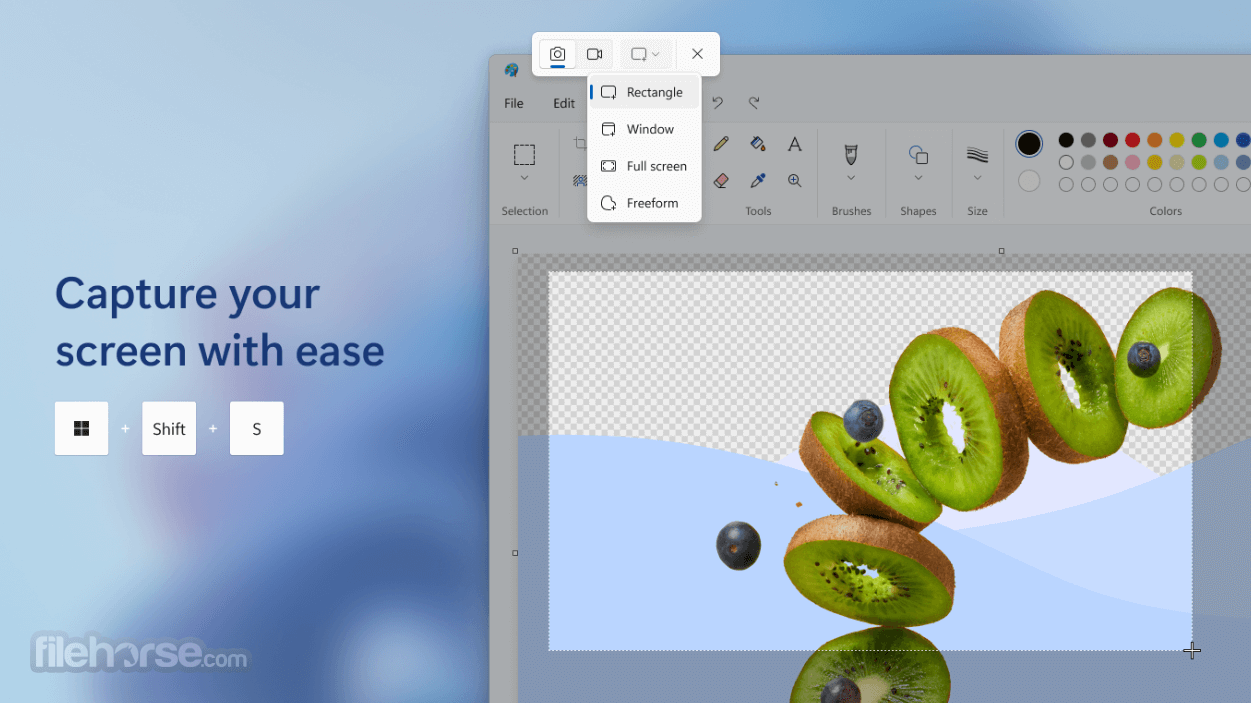

##
更新日誌
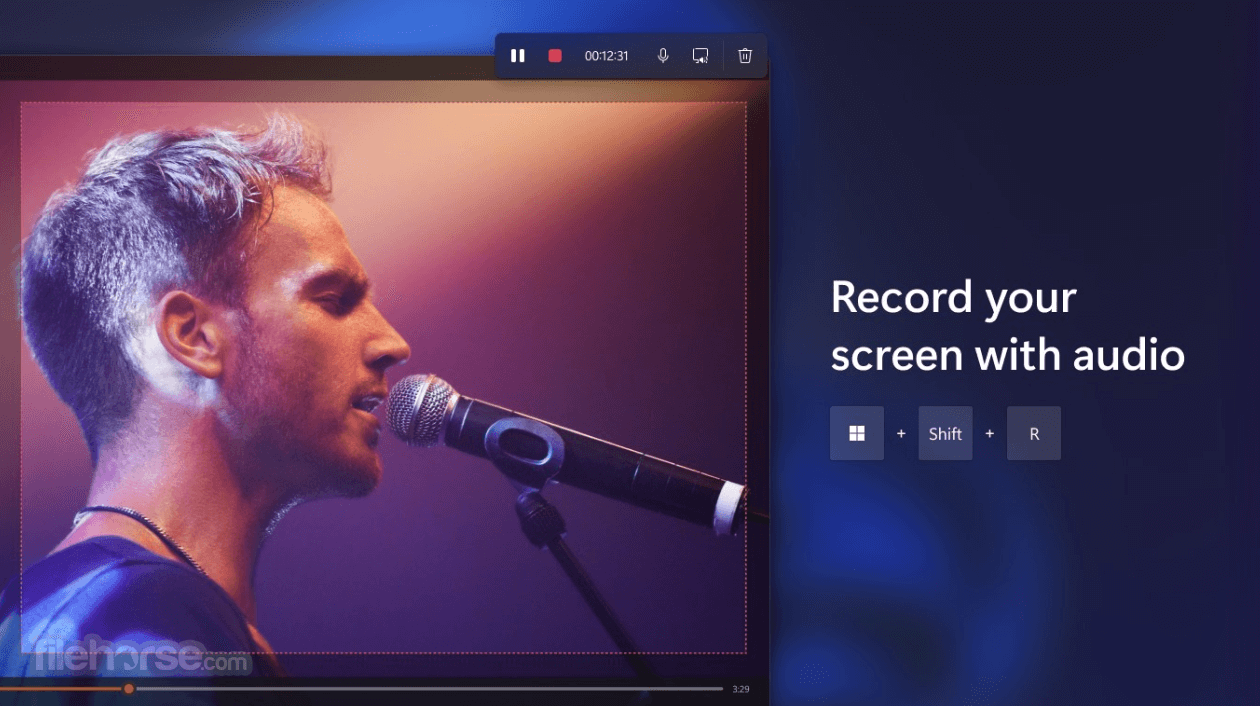
11.2209.2- Record your screen with audio from your computer or record your own.
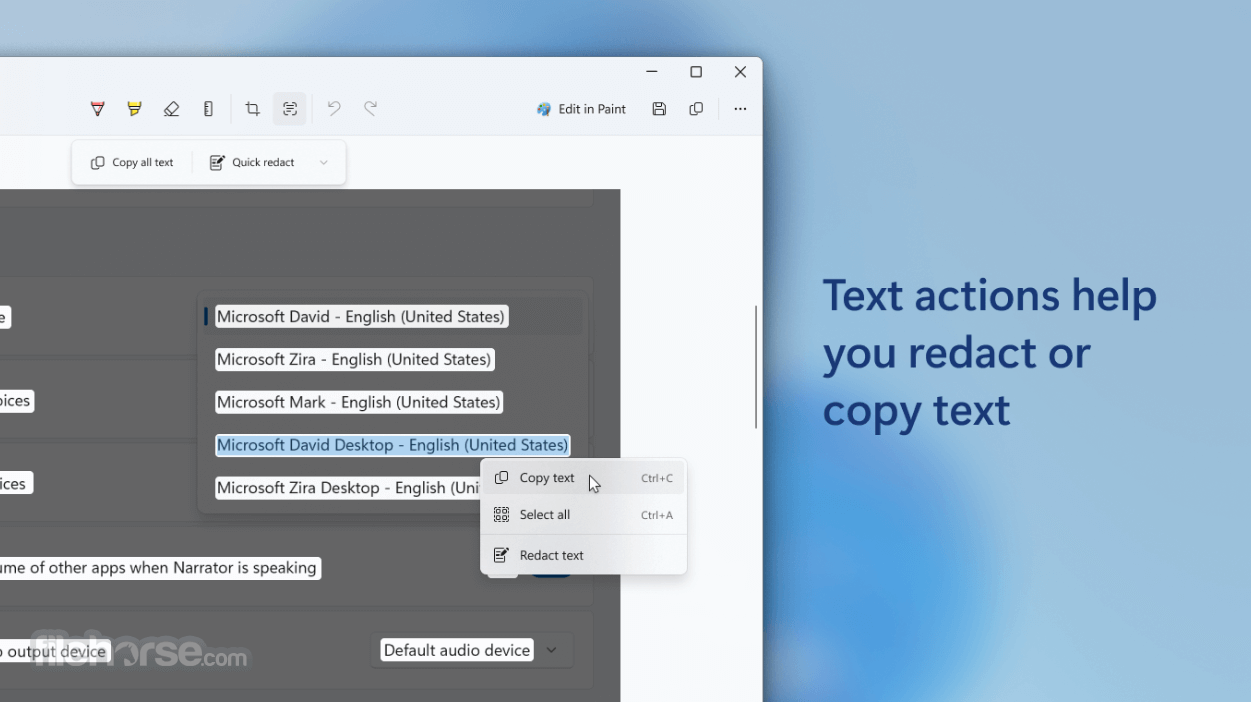
- Text actions now allows you to copy or redact text from a screen capture.
- Improved screen recording with more stable capture and smoother playback.
- Enhanced text extraction (OCR) for copying text directly from screenshots.
- Refined annotation tools with better pen/highlighter responsiveness.
- Improved capture delay and window-snipping reliability.
- New quick edit options like crop, rotate, and mark-up shortcuts.
- Better multi-monitor support with more accurate region selection.
- Improved sharing flow with faster save, copy, and share actions.
- Updated UI styling aligned with Windows 11 Fluent design.
- Accessibility improvements for keyboard navigation and screen readers.
- Bug fixes and overall stability improvements.
The Options button allows users to customize several aspects of the app behavior and look.
The post-capture editor allows users to annotate captured images with a pen or highlighter tool, save the image, send it via email, or automatically transfer the captured shot into the Paint 3D app.
FAQ
How do I take a screenshot using Snipping Tool?
Open the Snipping Tool, choose a snip mode (Rectangular, Freeform, Window, or Fullscreen), and click "New" to capture your screen.
Where are my screenshots saved?
By default, screenshots are copied to the clipboard and can be saved manually, or automatically saved to the "Pictures > Screenshots" folder if enabled.
How do I delay a screenshot to capture a menu?
Use the Delay option to set a timer (3–5 seconds), then open the menu or item you want before the capture begins.
Alternatives
ShareX - Open-source tool for screenshots and screen recording.
Free Snipping Tool - Take a snapshot to copy words or images.
Greenshot - Lightweight screenshot tool with annotation features.
Lightshot - Easy-to-use tool for quick screenshots and sharing.
PicPick - All-in-one screenshot and graphic design tool.
Snagit - Advanced screenshot and screen recording software.
Snipaste - Screenshot and image pasting tool for productivity.
TechSmith Capture (Jing) - Free way to capture basic screenshots
Nimbus Capture - Screenshots, annotations, and screen recording.
PROS
- Easy to use
- Built-in Windows app
- Multiple snipping options
- Simple annotation tools
- Saves to clipboard or file
- Limited editing capabilities
- No cloud or online storage options
Download Microsoft Snipping Tool Latest Version Why is this app published on FileHorse? (More info)