⚠ 這是歷史版本頁面 — 查看 UltraViewer 最新版本 →

UltraViewer 6.6.28
v 6.6.28
Windows
免費軟體
8.62/10 (34)
- 目前版本6.6.28
- 更新日期2023-05-10
- 檔案大小3.68 MB
- 檔案名稱UltraViewer_setup_6.6_en.exe
- 作業系統Windows 7 / Windows 8 / Windows 10 / Windows 11
- 支援語系English
- 授權型式免費軟體
- 開發商 DucFabulous Research
- 軟體分類Windows 軟體 / 檔案傳輸與網路
##
編輯短評
UltraViewer 是一套遠端控制工具,主要用來協助對方解決電腦問題,操作時就像直接坐在對方螢幕前一樣。它最特別的地方是內建即時聊天與檔案傳輸功能,在控制過程中可以邊打字邊傳檔,而且對方隨時能接管控制權,安全性相對有保障。這套軟體在遠端協助同類工具中算是熱門選擇,評價普遍不錯,更新不算頻繁但仍在持續維護。
它適合需要幫親友或客戶排除電腦狀況的人,尤其是非專業 IT 背景的使用者,因為介面簡單、免安裝即可執行。與 TeamViewer 或 AnyDesk 等替代軟體相比,UltraViewer 功能較精簡,但換來的是更低的學習門檻。需要注意的是,它目前僅提供英文介面,且只支援 Windows 平台,免費授權對個人使用來說相當足夠,但若用於商業場合,建議先確認授權範圍。
##
翻譯排程處理中,以下暫以英文原文呈現
軟體介紹
UltraViewer helps you control your partner's computer to support them as if you were sitting in front of their screen.
UltraViewer for Windows is designed to support customers and partners remotely. Your clients can observe all you do on their screen and take control whenever they want.
Conveniently chat with your partner while controlling their machine. You can toggle chat on/off when controlling by pressing the default hotkey F1 or any hotkey you set.
You can send and receive files to/ from your partner easily from the chat window. All under the safe control of your partner. You can control multiple computers simultaneously or share your screen with multiple computers.
In the past, before remote control software had been invented, technicians from software companies usually needed to go to customers' premises to support them.
This was an inconvenience, cost time, and money for both customers and supporters. Nowadays, it helps you support your clients quickly and remotely, making your work easier, faster, and more convenient.
Key Features
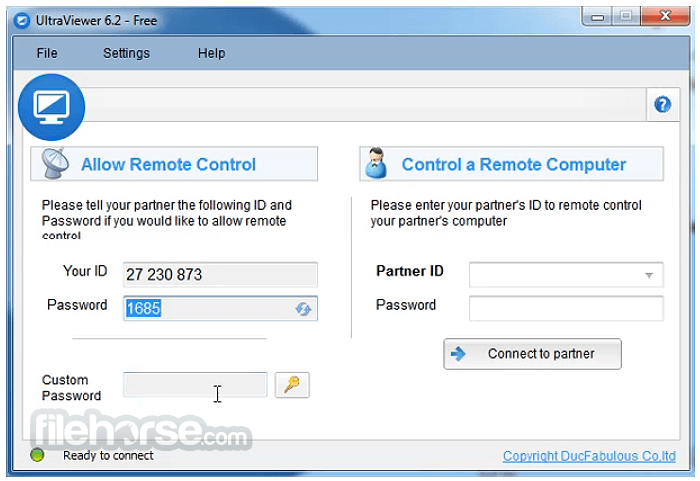
UltraViewer features a simple interface designed for quick remote connections. The main window displays two key sections: your ID and password for sharing access, and a field to enter a partner’s ID to connect to their computer.
Additional controls for chat, file transfer, and session management appear once a connection is established. The layout is minimal and beginner-friendly, allowing users to start or manage remote support sessions with very little setup.
How to Use
How to install UltraViewer?
The installation is very simple, just download, run the Setup, and install normally like any other software.
How to uninstall UltraViewer?
If you want to uninstall the software, just go to Start -> Control Panel -> Add or Remove Programs and choose to uninstall the software named Ultra Viewer
How to remotely access other computers?
You ask your customer to send you the ID and password displayed on their software. Input that ID and Password into the software and press 'Connect'.
How to allow other people to remotely control my computer?
You send the ID and Password displayed on Ultra Viewer to your partner and ask them to connect to that ID and Password.
How to chat with people that I'm remotely controlling?
While remotely controlling your partner's computer, you can press F1 (default hotkey), the chat window will pop up, and you can chat very conveniently. When you do not use the chat window, you can press F1 again to toggle it off.
How to stop the remote session while my partner is remoting my computer
Very simple, just close Ultra Viewer, and your partner will not be able to control your computer anymore.
Alternatives
TeamViewer - One of the most widely used remote desktop software, TeamViewer offers more advanced features, but it comes at a high cost and potential privacy concerns.
AnyDesk - It offers a broader feature set, but the free version comes with limitations, and users have to rely on their servers.
Splashtop - Secure Remote Access & Remote Support Software.
Chrome Remote Desktop - While this tool is user-friendly and free, it lacks some advanced features like file transfer and custom server options.
VNC Connect - VNC offers secure remote access with custom server support, but it can be more complex for novice users and requires a paid subscription for all features.
Pricing
Lite - $3.99 /month (one user, one device)
Everything in Lite, plus:
Everything in Professional, plus:
Download UltraViewer Latest Version Why is this app published on FileHorse? (More info)
UltraViewer for Windows is designed to support customers and partners remotely. Your clients can observe all you do on their screen and take control whenever they want.
Conveniently chat with your partner while controlling their machine. You can toggle chat on/off when controlling by pressing the default hotkey F1 or any hotkey you set.
You can send and receive files to/ from your partner easily from the chat window. All under the safe control of your partner. You can control multiple computers simultaneously or share your screen with multiple computers.
In the past, before remote control software had been invented, technicians from software companies usually needed to go to customers' premises to support them.
This was an inconvenience, cost time, and money for both customers and supporters. Nowadays, it helps you support your clients quickly and remotely, making your work easier, faster, and more convenient.
Key Features
- Secure Remote Access – UltraViewer allows remote support while letting clients monitor and take control as needed.
- Integrated Chat – Chat with your partner while controlling their machine, with an option to toggle chat using hotkeys.
- File Sharing – Easily send and receive files through the chat window under secure control.
- Multi-Computer Control – Manage multiple computers or share your screen across different devices.
- Introduced an advanced Quick Screenshot tool with drawing capabilities such as arrows, text annotations, and numbered indicators.
- Added a keyboard shortcut for Quick Screenshot to speed up capture and annotation workflows.
- Improved the screenshot interface by using a transparent text box for smoother interaction while editing captures.
- Expanded multi-language support for the Quick Screenshot feature.
- Reduced memory usage when connecting to multiple PCs, improving performance and stability.
- Fixed several issues affecting Excel integration, file transfers, and keyboard input conflicts.
- Resolved multiple crashes and stability problems, including memory errors with multi-monitor setups.
UltraViewer features a simple interface designed for quick remote connections. The main window displays two key sections: your ID and password for sharing access, and a field to enter a partner’s ID to connect to their computer.
Additional controls for chat, file transfer, and session management appear once a connection is established. The layout is minimal and beginner-friendly, allowing users to start or manage remote support sessions with very little setup.
How to Use
- Install the software by following the setup instructions
- Open UltraViewer and share your ID and password
- Connect to a remote PC using the provided credentials
- Control the remote computer as needed
- Chat with the remote user using the built-in chat feature
- Transfer files between computers easily
- Adjust settings for optimized performance
- Disconnect when finished with the remote session
How to install UltraViewer?
The installation is very simple, just download, run the Setup, and install normally like any other software.
How to uninstall UltraViewer?
If you want to uninstall the software, just go to Start -> Control Panel -> Add or Remove Programs and choose to uninstall the software named Ultra Viewer
How to remotely access other computers?
You ask your customer to send you the ID and password displayed on their software. Input that ID and Password into the software and press 'Connect'.
How to allow other people to remotely control my computer?
You send the ID and Password displayed on Ultra Viewer to your partner and ask them to connect to that ID and Password.
How to chat with people that I'm remotely controlling?
While remotely controlling your partner's computer, you can press F1 (default hotkey), the chat window will pop up, and you can chat very conveniently. When you do not use the chat window, you can press F1 again to toggle it off.
How to stop the remote session while my partner is remoting my computer
Very simple, just close Ultra Viewer, and your partner will not be able to control your computer anymore.
Alternatives
TeamViewer - One of the most widely used remote desktop software, TeamViewer offers more advanced features, but it comes at a high cost and potential privacy concerns.
AnyDesk - It offers a broader feature set, but the free version comes with limitations, and users have to rely on their servers.
Splashtop - Secure Remote Access & Remote Support Software.
Chrome Remote Desktop - While this tool is user-friendly and free, it lacks some advanced features like file transfer and custom server options.
VNC Connect - VNC offers secure remote access with custom server support, but it can be more complex for novice users and requires a paid subscription for all features.
Pricing
Lite - $3.99 /month (one user, one device)
- 1 Concurrent Remote Session
- 3 devices /month
- Up to 2 GB/file
- No Ads
- Prevent Windows from Sleeping
- Allow a computer to be remotely
Everything in Lite, plus:
- Unlimited Remote Endpoints
- Up to 4 GB/file
- Address Book
- PC Sound
Everything in Professional, plus:
- Unlimited Concurrent Remote Sessions
- Up to 8 GB/file
- Custom Client (create a version with your own logo)
- Higher FPS/speed; Try a different connection route
- Record Video
- Operating System: Windows 7, 8, 10, 11
- Processor: Intel or AMD, 1 GHz or faster
- RAM: Minimum 512 MB (1 GB or more recommended)
- Storage: At least 50 MB of free disk space
- Internet Connection: Required for remote access
- Free for personal use
- Simple and user-friendly interface
- Secure remote connections
- Fast file transfer support
- Lightweight and low resource usage
- Limited features in the free version
- No multi-monitor support
- Occasional connection lag
- No Mac or Linux support
- Lacks advanced security features
Download UltraViewer Latest Version Why is this app published on FileHorse? (More info)
##
畫面截圖
- 2026-03-17 UltraViewer 6.6.124 3.48 MB
- 2024-12-24 UltraViewer 6.6.113 3.48 MB
- 2024-11-27 UltraViewer 6.6.110 3.48 MB
- 2024-03-02 UltraViewer 6.6.80 3.46 MB
- 2024-01-12 UltraViewer 6.6.68 3.45 MB
- 2023-12-29 UltraViewer 6.6.63 3.42 MB
- 2023-07-05 UltraViewer 6.6.41 3.39 MB
- 2023-05-10 UltraViewer 6.6.28 3.68 MB