⚠ 這是歷史版本頁面 — 查看 Universal USB Installer 最新版本 →

Universal USB Installer 2.0.2.4
v 2.0.2.4
Windows
免費軟體
7.96/10 (161)
- 目前版本2.0.2.4
- 更新日期2024-07-23
- 檔案大小19.28 MB
- 檔案名稱Universal-USB-Installer-2.0.2.4.exe
- 作業系統Windows 7 / Windows 8 / Windows 10 / Windows 11
- 支援語系English
- 授權型式免費軟體
- 開發商 Pen Drive Linux
- 軟體分類Windows 軟體 / 系統優化
##
編輯短評
Universal USB Installer 是一套專為製作可開機 USB 隨身碟設計的輕量工具,主要解決把 Linux 發行版、防毒救援光碟或其他 ISO 映像檔寫入隨身碟的繁瑣流程。它最大的辨識度在於內建龐大的發行版清單,選好系統再指向 ISO 就能直接製作,免安裝、單檔執行,對常接觸多種開機映像的使用者來說相當直覺。這套軟體由 Pen Drive Linux 開發,更新相當頻繁,在系統工具類別中算是熱門選擇,評價普遍不錯。
如果你經常安裝不同 Linux 發行版、需要製作救援隨身碟,或想試用各類免安裝的系統工具,這套工具會很實用。與 Rufus 這類更精簡的替代軟體相比,UUI 的優勢是支援的發行版清單更廣,操作上多一步選單引導,但相對沒那麼極簡。要注意的是它僅提供英文介面,且為免費軟體,Windows 平台適用;若你只需要單純寫入單一 ISO,Rufus 可能更輕快,但若想涵蓋更多冷門發行版,UUI 的相容性清單會是值得留意的取捨。
##
翻譯排程處理中,以下暫以英文原文呈現
軟體介紹
Universal USB Installer (UUI) by PenDriveLinux is a lightweight yet powerful Windows-based utility that simplifies the process of creating bootable USB drives.
Ideal for users who frequently work with Linux distributions, antivirus utilities, or other bootable ISOs, this tool offers a quick and efficient method for writing ISO files to USB flash drives.
Universal USB Installer for Windows is a standalone executable that allows users to create bootable USB drives with a wide variety of Linux distributions, system tools, and utility ISOs.
Whether you're installing Ubuntu, running a live antivirus rescue disk, or testing operating systems, this tool streamlines the process with an easy-to-navigate interface and minimal setup requirements.
Key Features
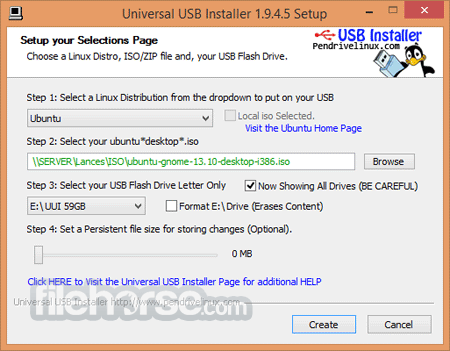
The user interface is minimalistic and functional. It consists of a step-by-step layout (hence the tagline "Easy as 1 2 3") where users:
Installation and Setup
No installation is required. Simply download the executable file from the official PenDriveLinux website and run it. The program is portable and doesn’t clutter your system with registry changes or background services.
How to Use
Download the ISO: Obtain the ISO file of the operating system or tool you wish to use.
Launch UUI: Open the downloaded executable.
Select Distribution: Choose from the dropdown list or opt for “Try Unlisted ISO” for unsupported ISOs.
Locate ISO File: Browse and select the ISO file from your PC.
Choose USB Drive: Select the appropriate USB drive letter.
Format and Create: Optionally format the USB and click “Create” to begin.
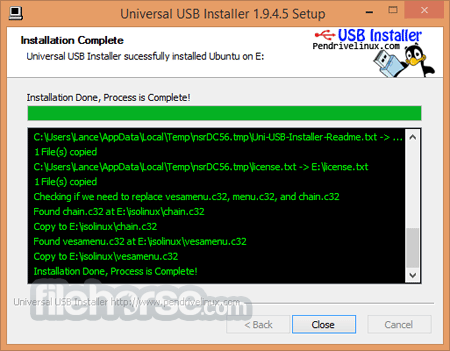
The process usually takes a few minutes depending on the size of the ISO and the speed of your USB drive.
FAQs
Can I use this to install Windows from a USB?
Yes, Universal USB Installer supports Windows installation ISOs.
What is persistence and which distributions support it?
Persistence allows you to save data between sessions. Distributions like Ubuntu and Linux Mint support persistence.
Does it support UEFI?
Some ISOs created with UUI may not boot in UEFI mode. Legacy boot is more reliably supported.
Is formatting my USB required every time?
No, formatting is optional unless you're experiencing issues or switching distributions.
Can I use it on macOS or Linux?
No, UUI is Windows-only.
Alternatives
Rufus – Popular and faster ISO-to-USB tool with UEFI support.
Balena Etcher – Cross-platform and user-friendly but lacks advanced features.
YUMI – Also from PenDriveLinux, supports multiboot USB creation.
Ventoy – Allows booting multiple ISO files without reformatting.
System Requirements
OS: Windows 11, 10, 8 or 7
USB flash drive (4GB minimum recommended)
Administrative privileges
Internet connection (for ISO download feature)
PROS
Universal USB Installer remains a reliable, no-frills solution for creating bootable USB drives. While newer tools like Ventoy offer additional flexibility, UUI’s straightforward design, broad compatibility, and optional persistence feature make it an excellent choice for users looking to install or test operating systems quickly.
Note: Requires Fat32 Formatted Flash Drive.
Download Universal USB Installer Latest Version Why is this app published on FileHorse? (More info)
Ideal for users who frequently work with Linux distributions, antivirus utilities, or other bootable ISOs, this tool offers a quick and efficient method for writing ISO files to USB flash drives.
Universal USB Installer for Windows is a standalone executable that allows users to create bootable USB drives with a wide variety of Linux distributions, system tools, and utility ISOs.
Whether you're installing Ubuntu, running a live antivirus rescue disk, or testing operating systems, this tool streamlines the process with an easy-to-navigate interface and minimal setup requirements.
Key Features
- Support for hundreds of Linux distributions and system tools
- Persistence storage (for select Linux distributions)
- FAT32 and NTFS formatting options
- Simple ISO-to-USB creation
- Drag-and-drop ISO support
- Bootable rescue disk and Windows installer options
- Option to download ISO directly from within the app
The user interface is minimalistic and functional. It consists of a step-by-step layout (hence the tagline "Easy as 1 2 3") where users:
- Select a distribution
- Choose the ISO file
- Pick the USB drive
Installation and Setup
No installation is required. Simply download the executable file from the official PenDriveLinux website and run it. The program is portable and doesn’t clutter your system with registry changes or background services.
How to Use
Download the ISO: Obtain the ISO file of the operating system or tool you wish to use.
Launch UUI: Open the downloaded executable.
Select Distribution: Choose from the dropdown list or opt for “Try Unlisted ISO” for unsupported ISOs.
Locate ISO File: Browse and select the ISO file from your PC.
Choose USB Drive: Select the appropriate USB drive letter.
Format and Create: Optionally format the USB and click “Create” to begin.
The process usually takes a few minutes depending on the size of the ISO and the speed of your USB drive.
FAQs
Can I use this to install Windows from a USB?
Yes, Universal USB Installer supports Windows installation ISOs.
What is persistence and which distributions support it?
Persistence allows you to save data between sessions. Distributions like Ubuntu and Linux Mint support persistence.
Does it support UEFI?
Some ISOs created with UUI may not boot in UEFI mode. Legacy boot is more reliably supported.
Is formatting my USB required every time?
No, formatting is optional unless you're experiencing issues or switching distributions.
Can I use it on macOS or Linux?
No, UUI is Windows-only.
Alternatives
Rufus – Popular and faster ISO-to-USB tool with UEFI support.
Balena Etcher – Cross-platform and user-friendly but lacks advanced features.
YUMI – Also from PenDriveLinux, supports multiboot USB creation.
Ventoy – Allows booting multiple ISO files without reformatting.
System Requirements
OS: Windows 11, 10, 8 or 7
USB flash drive (4GB minimum recommended)
Administrative privileges
Internet connection (for ISO download feature)
PROS
- Free and portable
- Easy-to-use interface
- Supports a wide range of distributions
- Built-in ISO download links
- Persistence feature available
- Windows-only
- Limited UEFI support
- No multiboot (use YUMI instead)
Universal USB Installer remains a reliable, no-frills solution for creating bootable USB drives. While newer tools like Ventoy offer additional flexibility, UUI’s straightforward design, broad compatibility, and optional persistence feature make it an excellent choice for users looking to install or test operating systems quickly.
Note: Requires Fat32 Formatted Flash Drive.
Download Universal USB Installer Latest Version Why is this app published on FileHorse? (More info)
##
畫面截圖
- 2026-07-27 Universal USB Installer 2.0.3.9 19.29 MB
- 2026-07-14 Universal USB Installer 2.0.3.8 19.29 MB
- 2026-06-13 Universal USB Installer 2.0.3.7 19.35 MB
- 2026-06-10 Universal USB Installer 2.0.3.6 19.35 MB
- 2026-05-03 Universal USB Installer 2.0.3.5 19.35 MB
- 2026-04-10 Universal USB Installer 2.0.3.4 19.35 MB
- 2026-03-20 Universal USB Installer 2.0.3.3 19.36 MB
- 2026-02-10 Universal USB Installer 2.0.3.2 19.36 MB