⚠ 這是歷史版本頁面 — 查看 AOMEI Partition Assistant Standard Edition 最新版本 →

AOMEI Partition Assistant Standard Edition 8.7
v 8.7
Windows
免費軟體
7.8/10 (214)
- 目前版本8.7
- 更新日期2020-03-25
- 檔案大小23.48 MB
- 檔案名稱PAssist_Std.exe
- 作業系統Windows 7 64 / Windows 8 64 / Windows 10 64 / Windows 11
- 支援語系English
- 授權型式免費軟體
- 開發商 AOMEI Technology
- 軟體分類Windows 軟體 / 系統優化
##
編輯短評
AOMEI Partition Assistant Standard Edition 是一套專為 Windows 設計的磁碟分割管理工具,主要解決硬碟分割區調整、合併、分割與複製等日常需求。它的介面設計相當直覺,無論是新手或進階使用者都能快速上手,最顯著的特點是提供完整的硬碟克隆功能,可將系統或資料完整遷移到另一顆磁碟。這套軟體自收錄以來持續有版本更新,屬於長期維護的免費工具,在同類軟體中評價普遍不錯,是個人與家庭用戶的熱門選擇。
這套軟體適合需要管理多顆硬碟、想調整分割區大小卻不想重灌系統的使用者,例如更換新硬碟時要搬移系統、或空間分配不均需要重新調配。與 Rufus、Glary Utilities 等替代工具相比,它專注在磁碟分割領域,功能更為深入,但相對地不涵蓋系統清理或開機碟製作。需要注意的是,免費版僅供個人與家庭使用,且目前僅提供英文介面,沒有中文版,對不熟悉英文操作介面的使用者來說,可能需要花點時間適應。
##
翻譯排程處理中,以下暫以英文原文呈現
軟體介紹
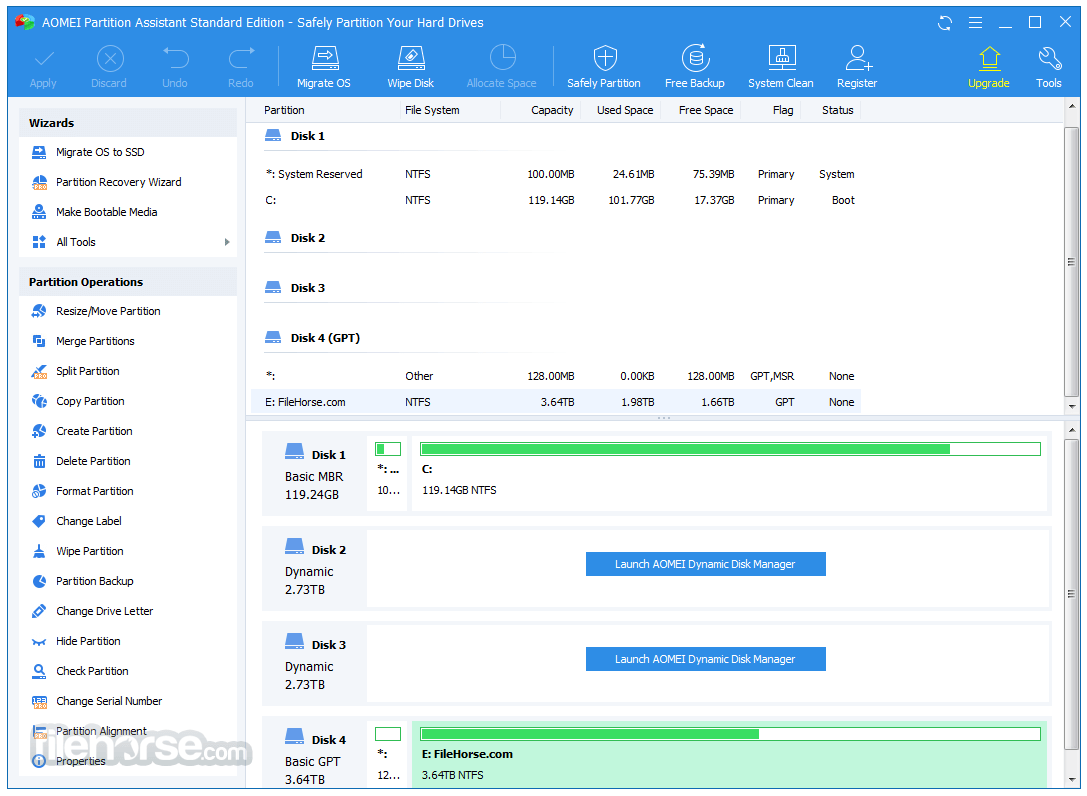
AOMEI Partition Assistant Standard is a versatile disk partition management software designed for Windows users. Known for its user-friendly interface and robust functionality, it caters to both novice and advanced users.
Whether you're looking to resize, merge, split, or clone partitions, AOMEI Partition Assistant Standard simplifies the process.
Key Features
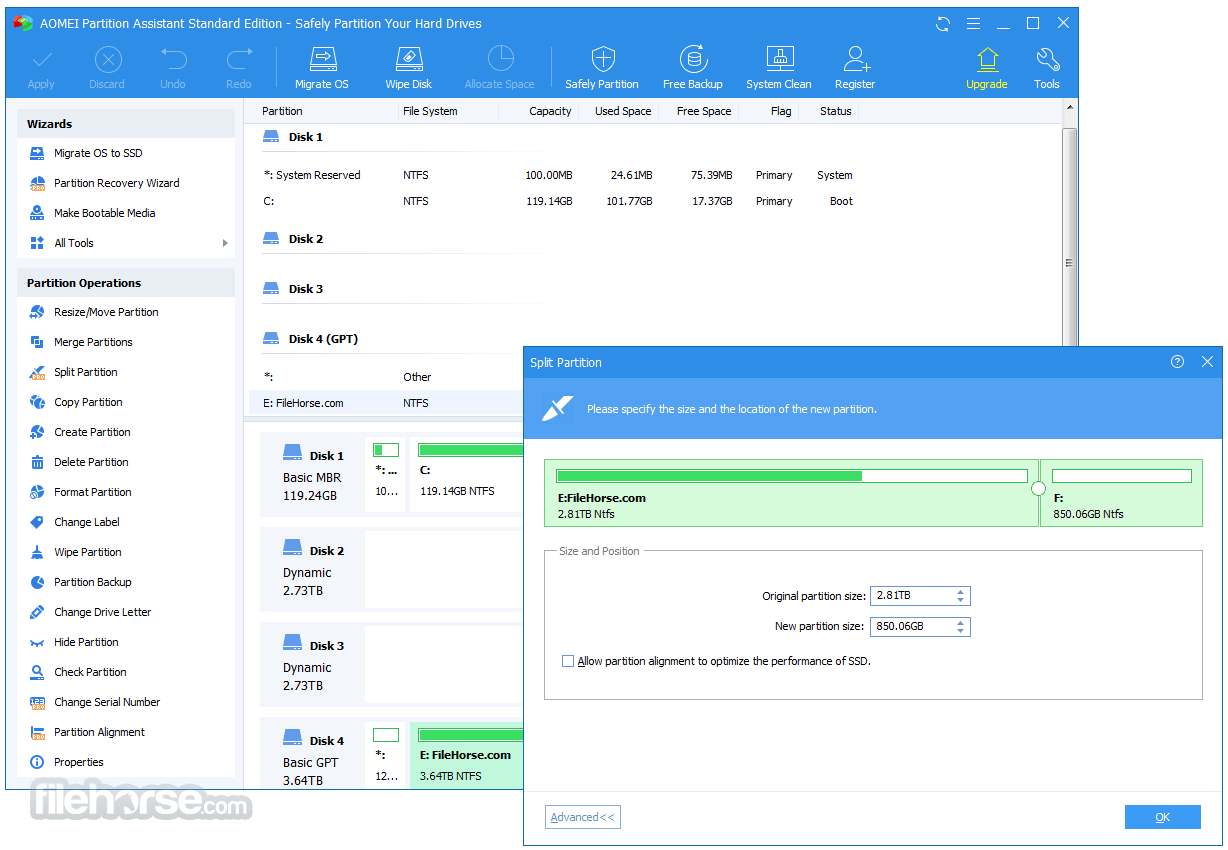
Partition Resizing and Splitting: Easily increase or decrease partition sizes or split a large partition into smaller ones without losing data.
Merge Partitions: Combine adjacent partitions to create a larger storage space seamlessly.
Disk Cloning: Transfer data from one disk to another, including system migration to SSD or HDD.
File System Conversion: Convert file systems between NTFS and FAT32 without formatting the drive.
Bootable Media Creation: Create bootable USB drives to troubleshoot unbootable systems.
Bad Sector Checking: Detect and repair bad sectors to improve disk health.
Convert MBR to GPT: Easily switch between MBR and GPT disk formats without data loss.
Extend Partition Wizard: Extend the system drive or other partitions when you run out of space.
Full Features
Download: Visit the official AOMEI website or FileHorse.com to download the installer.
Run the Installer: Double-click the downloaded file and follow the step-by-step instructions.
Accept the Terms: Agree to the license terms and choose your preferred installation directory.
Complete Installation: Click "Install" and wait for the process to complete.
Launch the Software: Start the application and explore its features with a quick tutorial available on the first run.
How to Use
Resizing a Partition:
Can AOMEI Partition Assistant resize system partitions without data loss?
Yes, it can resize system partitions without losing data. However, creating a backup before making any changes is recommended.
Is it safe to convert MBR to GPT with this software?
Absolutely. AOMEI Partition Assistant performs the conversion without data loss, but it's prudent to back up critical data beforehand.
Does the software support dynamic disks?
The Standard version has limited support for dynamic disks. For full functionality, consider upgrading to AOMEI Partition Assistant Professional.
Can I create a bootable USB for any Windows version?
Yes, the bootable media feature supports all major Windows versions, including Windows 7, 8, 10, and 11.
What is the difference between the Standard and Professional versions?
The Professional version offers advanced features like dynamic disk management, command-line operations, and allocation of free space from one partition to another.
Alternatives
4DDiG Partition Manager: An All-in-One Disk Partition Manager Software for PC.
MiniTool Partition Wizard Free: Another robust free tool with similar functionalities.
GParted: An open-source partition editor primarily for Linux but supports Windows via Live CD.
Paragon Hard Disk Manager: Provides modern partitioning tools with a modern interface.
Disk Management (Windows Built-in): A basic tool for users needing minimal functionality.
Pricing
Standard Version
Everything in Standard plan, plus:
Traditional hard disk drives, solid-state drives (SSD) and SSHD, etc.
External hard drives (USB drives), PC cards, all Flash Drives and Thumb Drives and other removable media.
All storage devices recognized by Windows, such as RAID, etc
Support MBR disk and GPT disks over 16TB.
Support UEFI/EFI boot.
System Requirements
AOMEI Partition Assistant Standard is a reliable and efficient tool for managing disk partitions. Its ease of use and comprehensive feature set make it an excellent choice for personal and professional use.
While the free version is powerful enough for most users, those requiring advanced functionalities might find value in upgrading to the Professional edition. If you’re looking for a trustworthy disk management solution, it deserves a spot on your shortlist.
Download AOMEI Partition Assistant Latest Version Why is this app published on FileHorse? (More info)
Whether you're looking to resize, merge, split, or clone partitions, AOMEI Partition Assistant Standard simplifies the process.
- Free partition manager software designed for personal and home use.
- An all-in-one hard disk management tool to ensure optimal performance.
- Easily clone a hard drive to migrate data completely from one disk to another.
- Seamlessly convert data disks between MBR and GPT formats without data loss.
Key Features
Partition Resizing and Splitting: Easily increase or decrease partition sizes or split a large partition into smaller ones without losing data.
Merge Partitions: Combine adjacent partitions to create a larger storage space seamlessly.
Disk Cloning: Transfer data from one disk to another, including system migration to SSD or HDD.
File System Conversion: Convert file systems between NTFS and FAT32 without formatting the drive.
Bootable Media Creation: Create bootable USB drives to troubleshoot unbootable systems.
Bad Sector Checking: Detect and repair bad sectors to improve disk health.
Convert MBR to GPT: Easily switch between MBR and GPT disk formats without data loss.
Extend Partition Wizard: Extend the system drive or other partitions when you run out of space.
Full Features
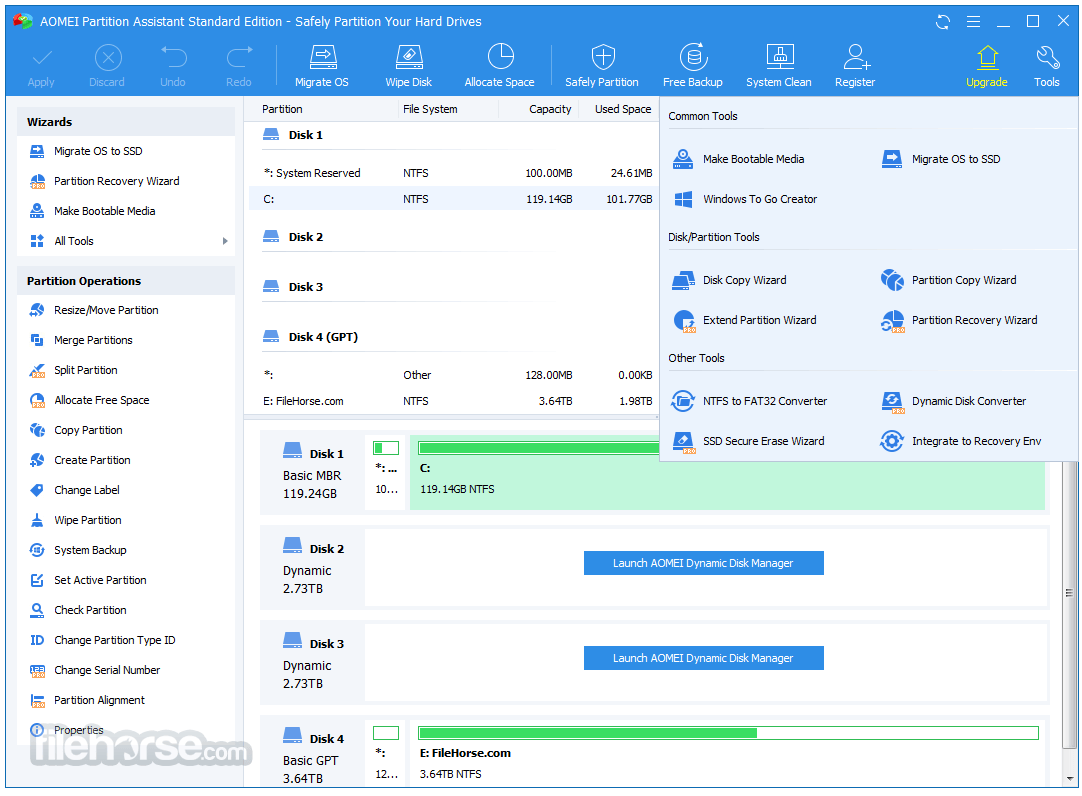
- Resize/Move Partition - Change partition size without losing data.
- Extend Partition Wizard - Extend NTFS partition without restarting the computer.
- Allocate Free Space - Reallocate free space from one partition to another.
- Merge Partitions - Merge two adjacent partitions to one.
- Split Partition - Split a big partition into two small ones.
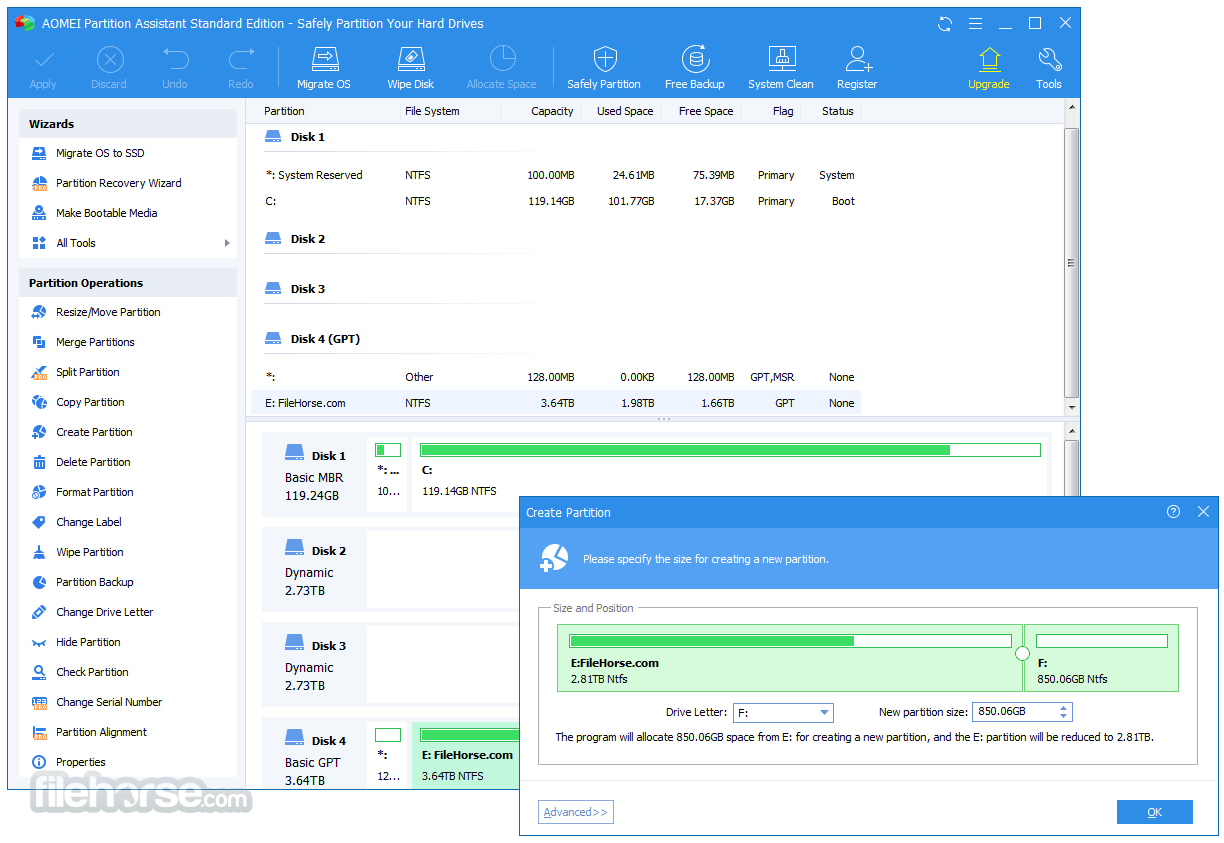
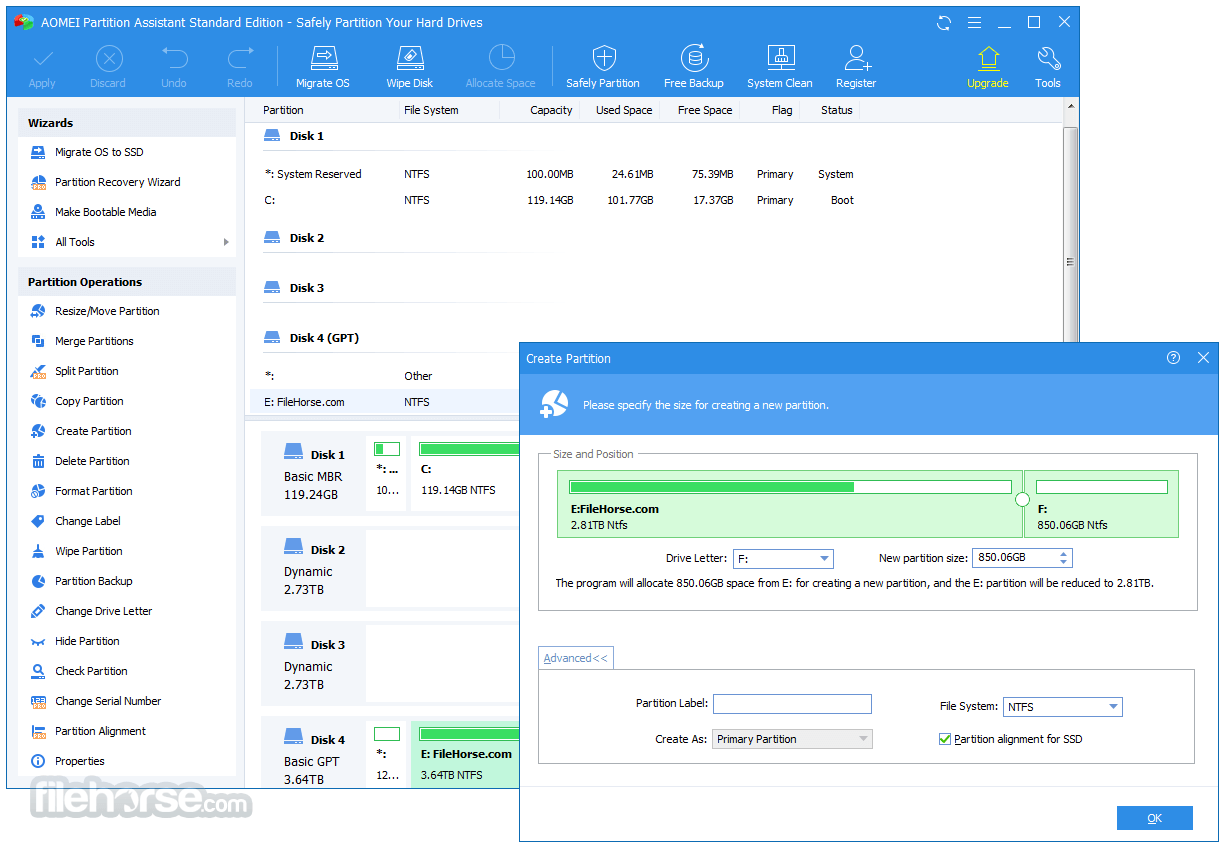
- Create Partition - Make a new partition to store various data.
- Delete Partition - Delete unnecessary and useless partition.
- Format Partition - Empty all data on a partition.
- System Migration - Migrate system to a solid-state drive (OS to SSD).
- Copy Disk - Clone a disk from one to another.
- Copy Partition - Clone a partition to other locations.
- Dynamic to Basic Disk Conversion - Convert dynamic disk to basic without losing data.
- MBR and GPT Conversion - Convert between MBR disk and GPT disk without loss of data.
- NTFS and FAT32 Conversion - Convert NTFS to FAT32 partition with no data loss and vice versa.
- Second Ext2/Ext3 partition - Create second partition Ext2/Ext3 on SD cards and USB flash drives without formatting.
- Primary and Logical Conversion - Convert between primary partition and logical partition safely.
- Create Bootable Disc - Create Windows PE bootable media without having to install AIK/WAIK.
- Windows to Go Creator - Install Windows OS to an external disk or removable flash drive.
- SSD Secure Erase Wizard - The way to write data on an SSD is entirely different from that on an HDD (hard disk drive).
Download: Visit the official AOMEI website or FileHorse.com to download the installer.
Run the Installer: Double-click the downloaded file and follow the step-by-step instructions.
Accept the Terms: Agree to the license terms and choose your preferred installation directory.
Complete Installation: Click "Install" and wait for the process to complete.
Launch the Software: Start the application and explore its features with a quick tutorial available on the first run.
How to Use
Resizing a Partition:
- Select the partition to resize.
- Click "Resize/Move Partition."
- Drag the slider to adjust the size and click "OK."
- Confirm changes and apply them by clicking "Apply."
- Select the source and target partitions.
- Click "Merge Partitions" and follow the prompts.
- Apply the changes to complete the process.
- Navigate to "Utilities" and select "Create Bootable Media."
- Choose a USB drive and follow the wizard to make it bootable.
- Select the disk, click "Convert to GPT," and confirm the operation.
- Apply the changes to finalize the conversion.
Can AOMEI Partition Assistant resize system partitions without data loss?
Yes, it can resize system partitions without losing data. However, creating a backup before making any changes is recommended.
Is it safe to convert MBR to GPT with this software?
Absolutely. AOMEI Partition Assistant performs the conversion without data loss, but it's prudent to back up critical data beforehand.
Does the software support dynamic disks?
The Standard version has limited support for dynamic disks. For full functionality, consider upgrading to AOMEI Partition Assistant Professional.
Can I create a bootable USB for any Windows version?
Yes, the bootable media feature supports all major Windows versions, including Windows 7, 8, 10, and 11.
What is the difference between the Standard and Professional versions?
The Professional version offers advanced features like dynamic disk management, command-line operations, and allocation of free space from one partition to another.
Alternatives
4DDiG Partition Manager: An All-in-One Disk Partition Manager Software for PC.
MiniTool Partition Wizard Free: Another robust free tool with similar functionalities.
GParted: An open-source partition editor primarily for Linux but supports Windows via Live CD.
Paragon Hard Disk Manager: Provides modern partitioning tools with a modern interface.
Disk Management (Windows Built-in): A basic tool for users needing minimal functionality.
Pricing
Standard Version
- Support Windows 11, 10, 8.1/8, 7
- Create, Extend, Shrink, Move, Delete, Format, Merge, Clone Partitions
- Convert Data Disk to MBR/GPT, Convert to NTFS/FAT32
- Defrag Disk, Clean up Junk Files, Shred Files, Wipe Data
- Check Bad Sectors, Check Disk Health Status, Test Disk Speed
Everything in Standard plan, plus:
- Migrate OS from HDD to SSD, Clone System Disk to Another
- Recover Lost or Deleted Files/Partitions
- Move Apps and Folders from One Drive to Another
- Convert System Disk between MBR and GPT
- Convert Dynamic Disk to Basic Disk, Dynamic Disk Management
- Allocate Free Space from One Partition to Another
- BitLocker Encryption & Decryption
- Create Windows PE Bootable Media
- Repair Boot Files
- UEFI BIOS Boot Options Manager
- Reset Windows Password
- Business Use
- NTFS
- FAT32/FAT16/FAT12
- exFAT/ReFS
- Ext2/Ext3/Ext4
Traditional hard disk drives, solid-state drives (SSD) and SSHD, etc.
External hard drives (USB drives), PC cards, all Flash Drives and Thumb Drives and other removable media.
All storage devices recognized by Windows, such as RAID, etc
Support MBR disk and GPT disks over 16TB.
Support UEFI/EFI boot.
System Requirements
- Operating System: Windows 11, 10, 8.1, 8, 7 (both 32-bit and 64-bit versions).
- Processor: 1 GHz or faster.
- RAM: 512 MB minimum (1 GB recommended).
- Disk Space: 100 MB of free space for installation.
- User-friendly interface.
- Robust partition management features.
- Free version with comprehensive capabilities.
- Supports a wide range of storage devices.
- Reliable data protection during operations.
- Limited features for dynamic disks in the free version.
- Advanced functionalities require a paid upgrade.
AOMEI Partition Assistant Standard is a reliable and efficient tool for managing disk partitions. Its ease of use and comprehensive feature set make it an excellent choice for personal and professional use.
While the free version is powerful enough for most users, those requiring advanced functionalities might find value in upgrading to the Professional edition. If you’re looking for a trustworthy disk management solution, it deserves a spot on your shortlist.
Download AOMEI Partition Assistant Latest Version Why is this app published on FileHorse? (More info)
##
畫面截圖
- 2026-08-13 AOMEI Partition Assistant Standard Edition 10.12.0 81.3 MB
- 2021-05-27 AOMEI Partition Assistant Standard Edition 9.2.1 31.29 MB
- 2021-04-22 AOMEI Partition Assistant Standard Edition 9.2 31.23 MB
- 2020-12-25 AOMEI Partition Assistant Standard Edition 9.1 29.28 MB
- 2020-11-18 AOMEI Partition Assistant Standard Edition 9.0 29.02 MB
- 2020-09-15 AOMEI Partition Assistant Standard Edition 8.10 28.93 MB
- 2020-08-14 AOMEI Partition Assistant Standard Edition 8.9 28.9 MB
- 2020-05-06 AOMEI Partition Assistant Standard Edition 8.8 23.54 MB