⚠ 這是歷史版本頁面 — 查看 Dell Display Manager (DDM) 最新版本 →

Dell Display Manager (DDM) 1.50.0 Build 1996
v 1.50.0 Build 1996
Windows
免費軟體
7.4/10 (59)
- 目前版本1.50.0 Build 1996
- 更新日期2020-07-22
- 檔案大小1.3 MB
- 檔案名稱ddmsetup1996.exe
- 作業系統Windows 10 (64-bit) / Windows 11
- 支援語系English
- 授權型式免費軟體
- 開發商 Dell
- 軟體分類Windows 軟體 / 桌面強化
##
編輯短評
Dell Display Manager(DDM)是戴爾官方推出的顯示器管理工具,主要用來搭配自家螢幕,提供視窗分割、顯示模式切換與多螢幕配置等功能,讓日常多工操作更順手。它最特別的地方在於深度整合 Dell 螢幕的硬體能力,例如 Easy Arrange 可快速排列應用程式視窗,並支援最多十六台螢幕的設定,且相容於 Nvidia、AMD 與 Intel 等主流顯示卡。這套軟體長期由原廠維護,更新頻率不算高但持續有在釋出,在戴爾用戶之間屬於特定族群會關注的工具,整體評價中等,不過評分人數不多,參考價值有限。
這套軟體適合使用 Dell 螢幕、尤其是多螢幕工作環境的使用者,例如需要同時開啟多個文件或程式的辦公場景,能省下不少手動調整視窗的時間。與其他通用型的顯示器管理工具相比,DDM 的優勢是與 Dell 硬體搭配最完整,但缺點是只支援 2013 年以後生產的 Dell 螢幕,且不包含 D 系列與 Nvidia G-SYNC 機型,購買前需確認相容性。軟體本身免費,但僅提供英文介面,沒有中文版,對不熟悉英文的使用者來說可能稍有門檻;另外它需要安裝才能使用,沒有免安裝版本,下載時也請留意官方來源。
##
翻譯排程處理中,以下暫以英文原文呈現
軟體介紹
Dell Display Manager - DDM is a comprehensive management tool giving you optimal front of screen experience, efficient display management, easy and effortless multitasking, helping you increase everyday productivity.
This software works only on Dell monitors produced from 2013 and beyond, with the exception of Dell D-Series and Nvidia G-SYNC based models.
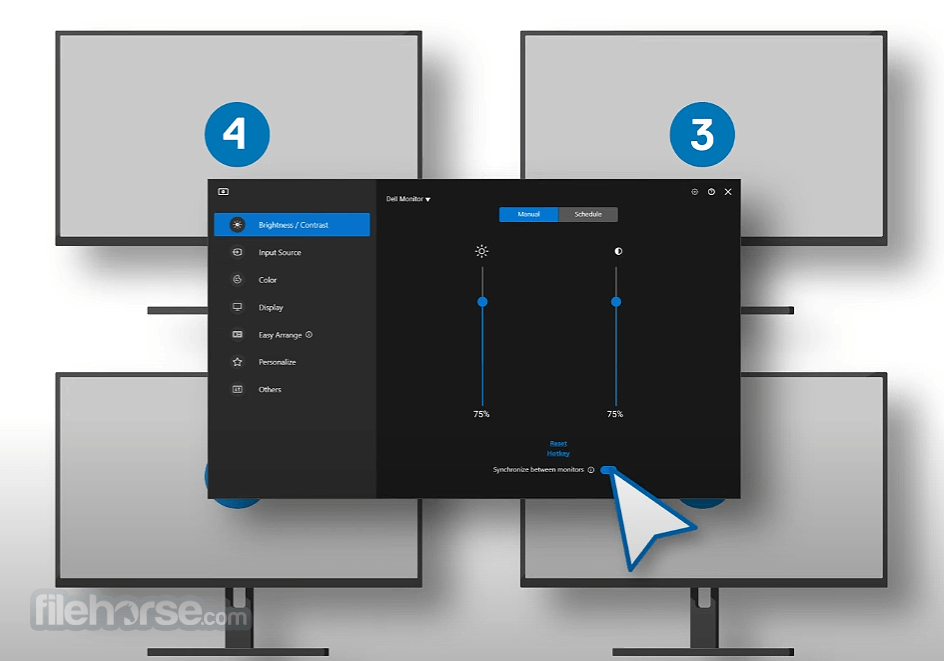
This software can support up to 16 monitor setups and is compatible with all major graphics vendors like Nvidia, AMD, and Intel.
Multitask redefined
With the Easy Arrange feature, you can organize multiple application windows on your screen and snap their positions and sizes into a template of your choice and then reuse it when needed.
You can split screen horizontally or vertically, or in various other patterns, making it easier to use the full potential of your large Dell monitor when having the need to work in more than one window at the same time.
In the case of a dual monitor setup, Easy Arrange can also be used to expand desktop space across two monitors.
The auto-restore feature remembers where you left off and restores application windows as they were.
Input Manager
Enables easy switching of inputs without the need to click on any Monitor hardware buttons and go through its OSD screens. A great feature if you want to switch the input video source from VGA to HDMI in a single click.
In case you use the same monitor for your PC and for your laptop, this feature allows you to switch easily between them. You can even assign names to each input and define a shortcut key, making it even easier to switch between input screens.
The DDM tool for PC is very useful for programmers or gamers.
Manual or Automatic
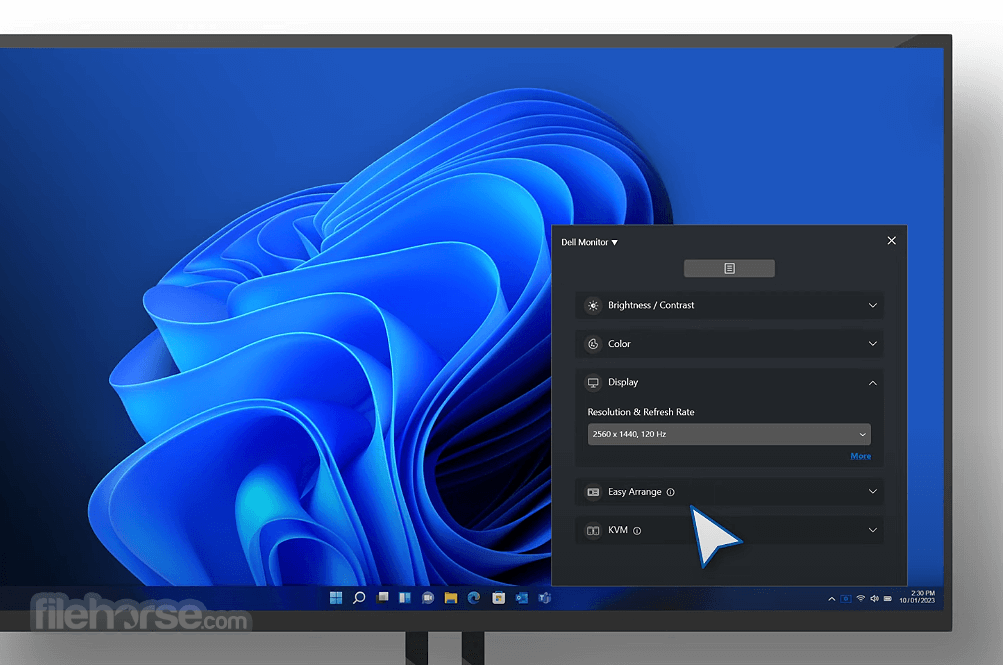
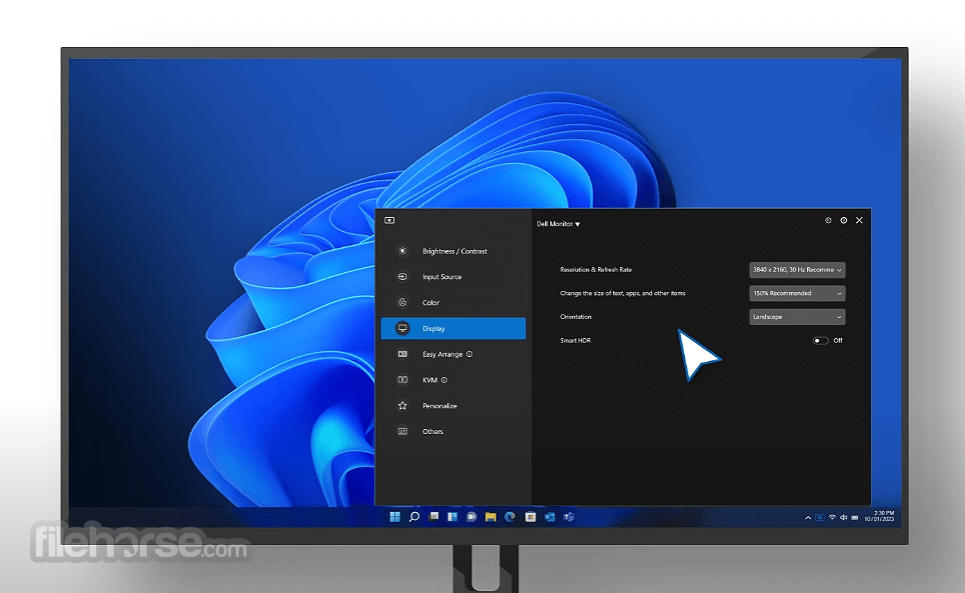
Adjusting monitor brightness, contrast, or resolution can now be done directly through the Dell Display Monitor DDM software.
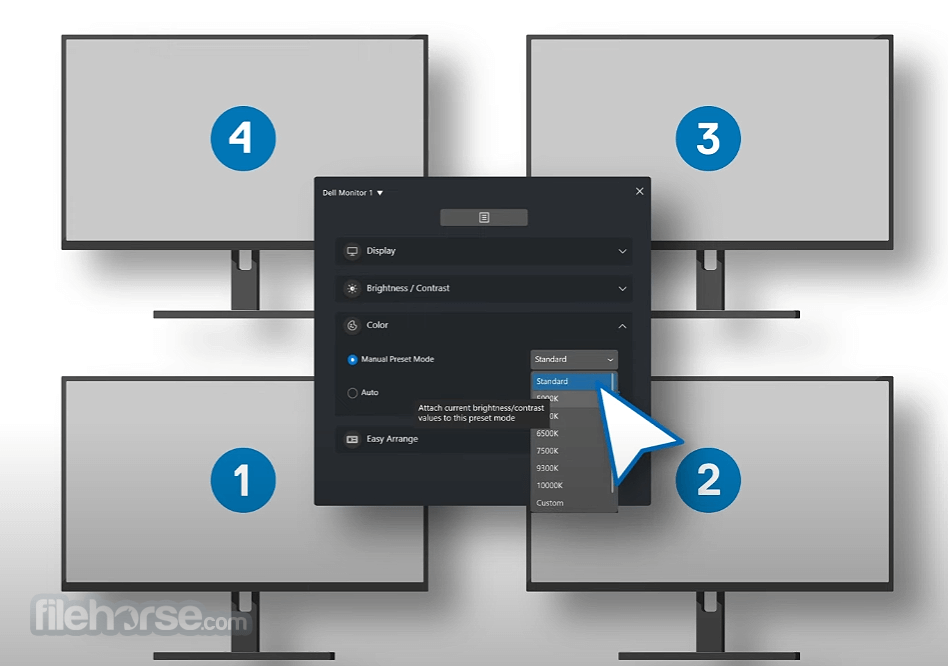
These settings can then be saved as presets and used again when writing a document, playing games, or watching movies, all within the application.
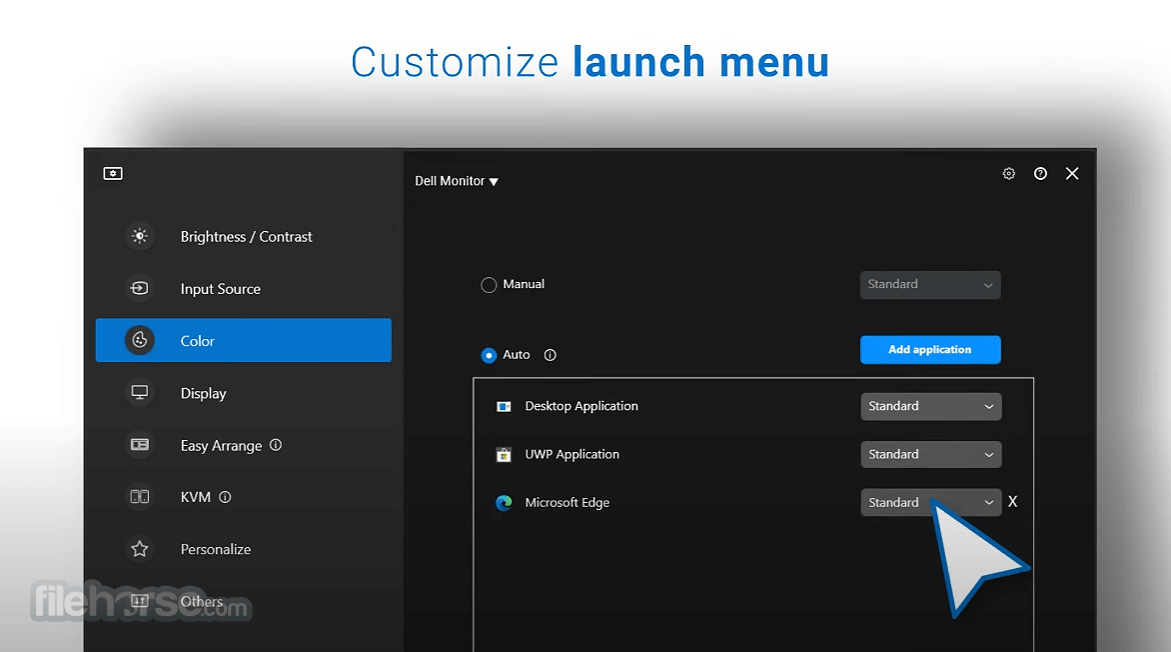
To make things even better, Auto Mode allows you to assign presets to applications you use: so once you launch VLC Player, a movie preset will get auto-applied, and you can enjoy the video without the need to switch modes manually.
Efficient and Eco-friendly
Making an asset report document is a one-click process, allowing IT managers to save and monitor asset information documents with just one click.
Saving energy is an important PowerNap function that allows power consumption management.
Putting your monitor to sleep when you’re not using it saves energy.
To download and install Dell Display Manager for your Dell monitor:
Figure 1: Connecting your monitor to a desktop
Figure 2: Connecting your monitor to a laptop
Figure 3: Enabling DDC/CI in the OSD menu of the Dell Monitor before using DDM2.x
Figure 4: The App Display Menu
Figure 5: Manual Mode for Brightness or Contrast
Figure 6: Schedule Mode for Brightness or Contrast
Figure 7: Scheduling Time for Brightness or Contrast Settings in Schedule Mode
Figure 8: Auto Mode for Brightness or Contrast
Figure 9: Easy Arrange Layout
Figure 10: Customized Layout
And many more!
FAQs
What operating systems and processors does Dell Display Manager (DDM) support?
DDM 2.x is compatible with Windows 11 (x64-based) and Windows 10 (x64-based), starting from build 17763. For ARM-based computers, it supports Windows 11 (arm64-based) with Qualcomm Snapdragon X-Elite/X-Plus and higher chipsets from version 2.3.2 onward. This tool does not support certain chipsets as detailed in Table 7.
Does the DDM application vary for each Dell monitor?
No, DDM 1.x and 2.x versions are consistent across all Dell monitor models. However, the specific features available may vary depending on the monitor model.
Can Dell Display Manager (DDM) support more than two monitors?
Yes, it can support up to 16 monitors. Some high-end graphics cards allow up to four external monitors, and with four such cards, DDM can manage up to 16 monitors.
Is DDM supported on a VDI desktop?
No, the app does not support VDI desktops or other virtualized environments.
Does Dell Display Manager support remote updates for both Windows and macOS?
Remote firmware updates are available only for Windows.
PROS
Download Dell Display Manager (DDM) Latest Version Why is this app published on FileHorse? (More info)
This software works only on Dell monitors produced from 2013 and beyond, with the exception of Dell D-Series and Nvidia G-SYNC based models.
This software can support up to 16 monitor setups and is compatible with all major graphics vendors like Nvidia, AMD, and Intel.
Multitask redefined
With the Easy Arrange feature, you can organize multiple application windows on your screen and snap their positions and sizes into a template of your choice and then reuse it when needed.
You can split screen horizontally or vertically, or in various other patterns, making it easier to use the full potential of your large Dell monitor when having the need to work in more than one window at the same time.
In the case of a dual monitor setup, Easy Arrange can also be used to expand desktop space across two monitors.
The auto-restore feature remembers where you left off and restores application windows as they were.
Input Manager
Enables easy switching of inputs without the need to click on any Monitor hardware buttons and go through its OSD screens. A great feature if you want to switch the input video source from VGA to HDMI in a single click.
In case you use the same monitor for your PC and for your laptop, this feature allows you to switch easily between them. You can even assign names to each input and define a shortcut key, making it even easier to switch between input screens.
The DDM tool for PC is very useful for programmers or gamers.
Manual or Automatic
Adjusting monitor brightness, contrast, or resolution can now be done directly through the Dell Display Monitor DDM software.
These settings can then be saved as presets and used again when writing a document, playing games, or watching movies, all within the application.
To make things even better, Auto Mode allows you to assign presets to applications you use: so once you launch VLC Player, a movie preset will get auto-applied, and you can enjoy the video without the need to switch modes manually.
Efficient and Eco-friendly
Making an asset report document is a one-click process, allowing IT managers to save and monitor asset information documents with just one click.
Saving energy is an important PowerNap function that allows power consumption management.
Putting your monitor to sleep when you’re not using it saves energy.
To download and install Dell Display Manager for your Dell monitor:
- Go to the Dell Display Manager page.
- Click the Download button next to this desktop Application.
- See the list of Dell monitors that support Dell Display Manager to find the supported version of Dell Display Manager.
- Using File Explorer (also known as Windows Explorer), browse to the location where the downloaded file is saved.
- Double-click the .exe driver installation file that you downloaded and follow the on-screen instructions to complete the installation process.
- After the installation is complete, restart the computer.
Figure 1: Connecting your monitor to a desktop
Figure 2: Connecting your monitor to a laptop
Figure 3: Enabling DDC/CI in the OSD menu of the Dell Monitor before using DDM2.x
Figure 4: The App Display Menu
Figure 5: Manual Mode for Brightness or Contrast
Figure 6: Schedule Mode for Brightness or Contrast
Figure 7: Scheduling Time for Brightness or Contrast Settings in Schedule Mode
Figure 8: Auto Mode for Brightness or Contrast
Figure 9: Easy Arrange Layout
Figure 10: Customized Layout
And many more!
FAQs
What operating systems and processors does Dell Display Manager (DDM) support?
DDM 2.x is compatible with Windows 11 (x64-based) and Windows 10 (x64-based), starting from build 17763. For ARM-based computers, it supports Windows 11 (arm64-based) with Qualcomm Snapdragon X-Elite/X-Plus and higher chipsets from version 2.3.2 onward. This tool does not support certain chipsets as detailed in Table 7.
Does the DDM application vary for each Dell monitor?
No, DDM 1.x and 2.x versions are consistent across all Dell monitor models. However, the specific features available may vary depending on the monitor model.
Can Dell Display Manager (DDM) support more than two monitors?
Yes, it can support up to 16 monitors. Some high-end graphics cards allow up to four external monitors, and with four such cards, DDM can manage up to 16 monitors.
Is DDM supported on a VDI desktop?
No, the app does not support VDI desktops or other virtualized environments.
Does Dell Display Manager support remote updates for both Windows and macOS?
Remote firmware updates are available only for Windows.
PROS
- Easy Multi-Monitor Management
- Customizable Display Presets
- Quick Access to Settings
- Improved Workflow Efficiency
- Seamless Window Snap Feature
- Limited Compatibility with Non-Dell Displays
- Occasional Software Glitches
- Lack of Advanced Color Calibration
- Limited Multi-OS Support
Download Dell Display Manager (DDM) Latest Version Why is this app published on FileHorse? (More info)
##
影片介紹
##
畫面截圖
- 2025-11-20 Dell Display Manager (DDM) 2.3.2.18 71.46 MB
- 2023-03-02 Dell Display Manager (DDM) 1.56.0 Build 2110 979.41 KB
- 2020-07-22 Dell Display Manager (DDM) 1.50.0 Build 1996 1.3 MB
- 2020-01-20 Dell Display Manager (DDM) 1.50.0 Build 1995 1.3 MB
- 2019-12-27 Dell Display Manager (DDM) 1.50.0 Build 1986 1.3 MB
- 2019-10-29 Dell Display Manager (DDM) 1.40.0 Build 1943 1.35 MB
- 2019-03-01 Dell Display Manager (DDM) 1.40.0 Build 1942 1.2 MB
- 2019-01-20 Dell Display Manager (DDM) 1.40.0 Build 1924 1.1 MB