
- 目前版本5.2.4
- 更新日期2026-04-29
- 檔案大小2.7 MB
- 檔案名稱recexperts.exe
- 作業系統Windows 7 / Windows 8 / Windows 10 / Windows 11
- 支援語系English
- 授權型式試用版
- 開發商 EaseUS
- 軟體分類Windows 軟體 / 影片軟體
##
編輯短評
EaseUS RecExperts 是一款輕量級的螢幕錄影工具,主要解決在 Windows 上捕捉全螢幕、指定區域、網路攝影機與音訊的需求。它內建簡易的影片編輯器與媒體播放器,並導入 AI 技術來降噪、增強畫質與自動化錄製,是少數同時具備錄影與後製功能的選擇。這款軟體自推出以來更新步調較慢,但仍有持續維護,在影片軟體分類中屬於小眾工具,不過使用者評價普遍不錯。
適合需要快速錄製教學影片、遊戲過程或線上會議的使用者,尤其重視輕量與整合編輯功能的人。相較於同分類常見的播放工具如 KMPlayer 或 K-Lite Codec Pack,它更專注於錄製與後製,但需注意它僅提供英文介面,且為試用版,長期使用可能需考慮授權費用。平台方面有 Windows 與 macOS 版本,但此處介紹的是 Windows 版,使用前建議確認是否符合需求。
##
翻譯排程處理中,以下暫以英文原文呈現
軟體介紹
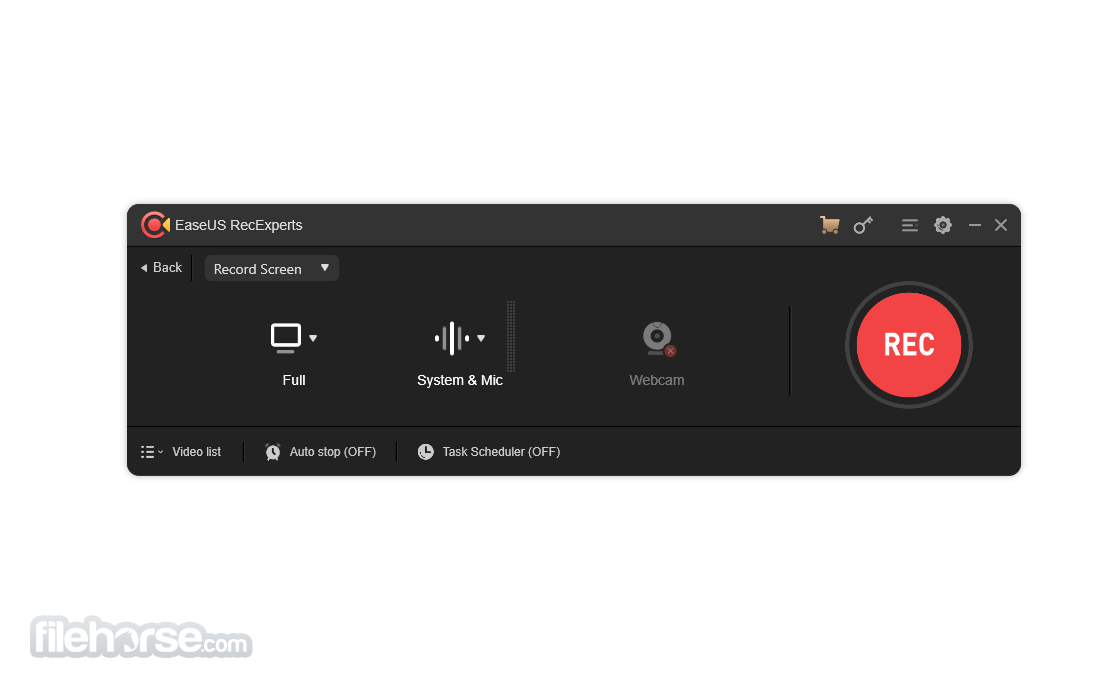
EaseUS RecExperts is an easy and intuitive Windows PC screen recorder app to capture full screen and webcam for any occasion. Full-featured but lightweight free screen recorder to make professional-looking videos on your PC.
You can capture what's happening on your entire screen or just a selected Windows and even create a scheduled recording task to record screen and webcam at a specific time automatically. A handy and effective screen recording tool to export your videos in the best results.
Features and Highlights
Flexible Capture Any Area of Your Screen
Flexible capture a full screen, a selected area of the screen, or a single window.
Record Video and Audio Simultaneously
You can record the background sounds and a voice with your microphone at the same time.
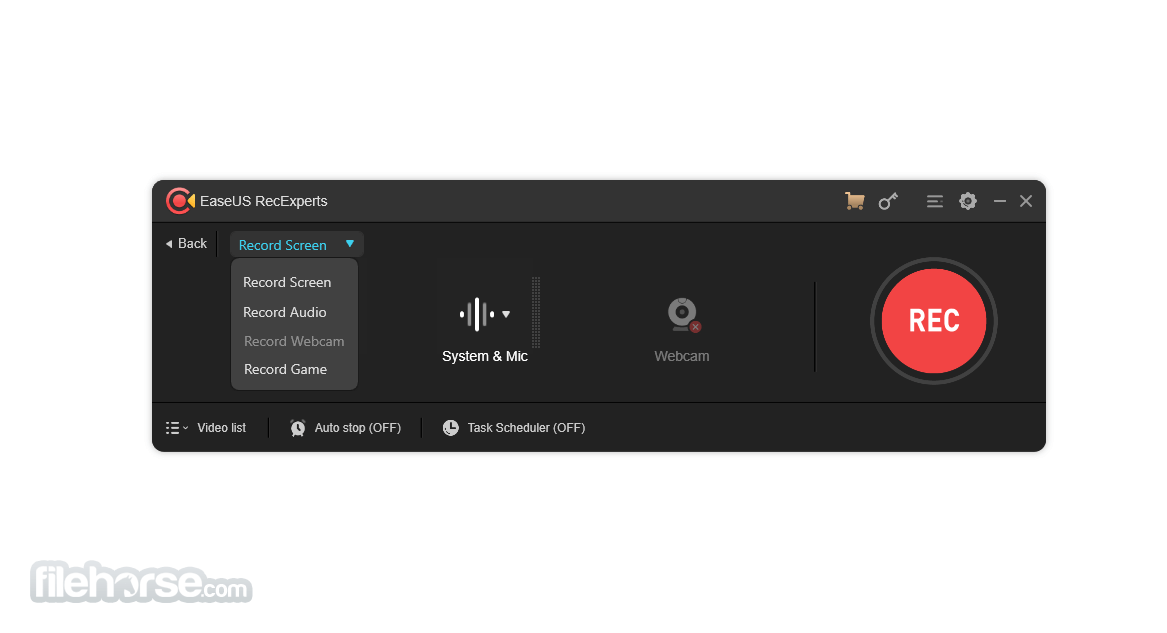
Record Webcam
Record webcam or as a webcam overlay to increase engagement and help viewers connect with your content.
Game Recording Mode
Record various high-quality and popular 2D/3D games in 4K UHD resolution.
Task Scheduler
EaseUS RecExperts Screen Recorder supports to create of recording tasks automatically. Start Recording at a specific time. What's more, it allows you to schedule multiple tasks simultaneously conveniently.
Advanced Editing
Add texts, lines, arrows, and other real-time editing works. Trim video length, add a watermark and another advanced editing
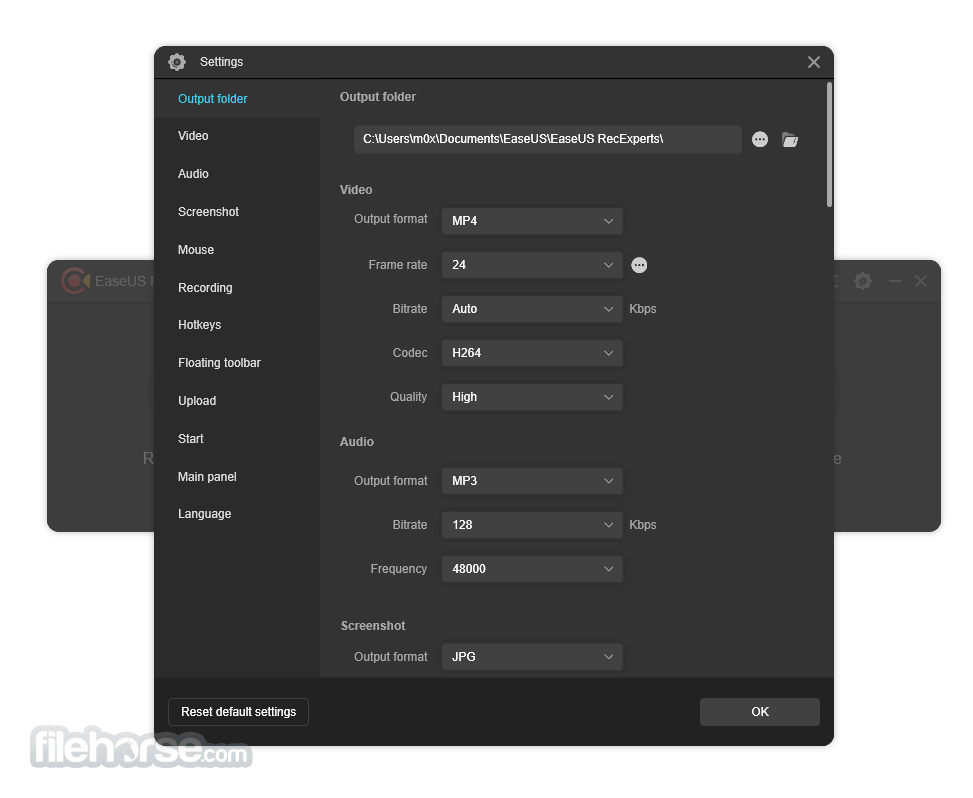
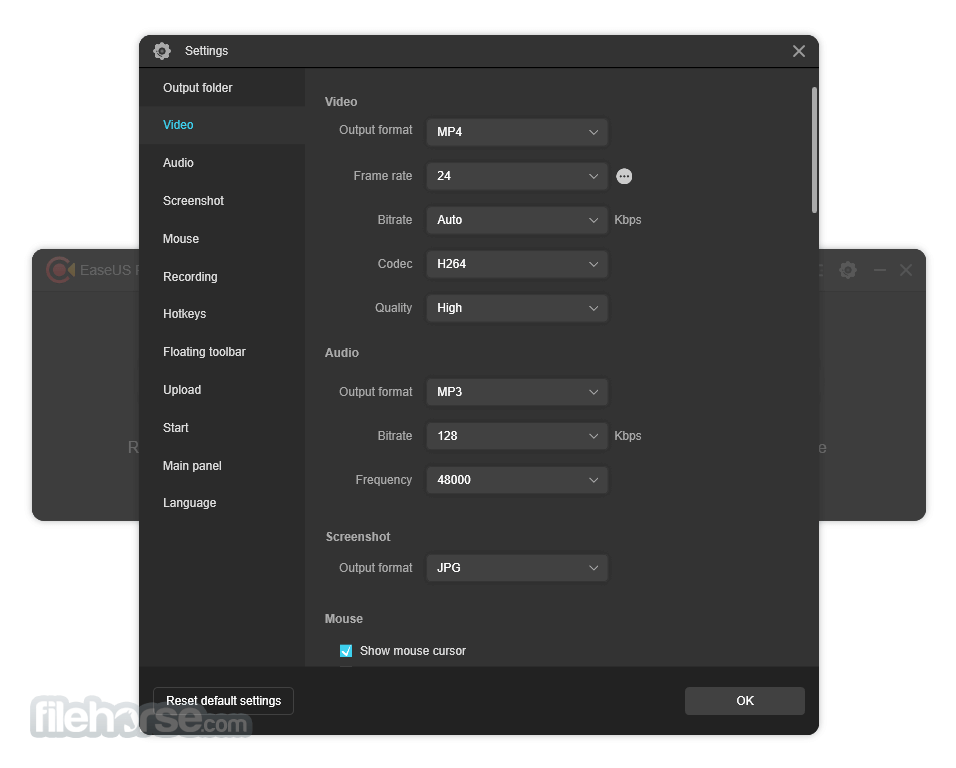
Save as multiple formats
Save the recorded footage for more than 10 formats, like MP4, WMV, AVI, MOV, FLV, ASF, etc.
Share to Youtube
Export your recording to popular video platforms like YouTube directly.
Remove background noise and boost your audio
Eliminate all the annoying ambient noises easily.
Zoom Function
Zoom-in any desired region simply by using default shortcut key F10, enlarging the recording content you want to show specifically.
Locked Windows Recording
Records a specific window or program, regardless of which applications or programs move in front of it.
Spotlight Recording
Emphasize the important parts or detail by using the default shortcut key F4.
- Capture audio, webcam, or any desired area of your PC screen effortlessly.
- Effortlessly record highlights of your 2D/3D gameplay without experiencing lag or time constraints.
- Elevate your user experience with a built-in video editor and media player.
- Benefit from cutting-edge AI technology that removes noise, enhances 4K/8K videos, and automates recording and audio extraction.
You can capture what's happening on your entire screen or just a selected Windows and even create a scheduled recording task to record screen and webcam at a specific time automatically. A handy and effective screen recording tool to export your videos in the best results.
Features and Highlights
Flexible Capture Any Area of Your Screen
Flexible capture a full screen, a selected area of the screen, or a single window.
Record Video and Audio Simultaneously
You can record the background sounds and a voice with your microphone at the same time.
Record Webcam
Record webcam or as a webcam overlay to increase engagement and help viewers connect with your content.
Game Recording Mode
Record various high-quality and popular 2D/3D games in 4K UHD resolution.
Task Scheduler
EaseUS RecExperts Screen Recorder supports to create of recording tasks automatically. Start Recording at a specific time. What's more, it allows you to schedule multiple tasks simultaneously conveniently.
Advanced Editing
Add texts, lines, arrows, and other real-time editing works. Trim video length, add a watermark and another advanced editing
Save as multiple formats
Save the recorded footage for more than 10 formats, like MP4, WMV, AVI, MOV, FLV, ASF, etc.
Share to Youtube
Export your recording to popular video platforms like YouTube directly.
Remove background noise and boost your audio
Eliminate all the annoying ambient noises easily.
Zoom Function
Zoom-in any desired region simply by using default shortcut key F10, enlarging the recording content you want to show specifically.
Locked Windows Recording
Records a specific window or program, regardless of which applications or programs move in front of it.
Spotlight Recording
Emphasize the important parts or detail by using the default shortcut key F4.
##
影片介紹
##
畫面截圖
##
更新日誌
5.2.4
Unparalleled Game Recording
Capture and preserve your thrilling gaming moments with ease. Record gameplay in stunning 4K UHD quality, stream gameplay at up to 144fps without any lag, effortlessly share highlights on social media, and create informative gaming tutorials.
Efficient Streaming Video Recording
Record encrypted online videos as if you were working directly within your browser. With EaseUS RecExperts, you can also use it as a free video recorder to capture encrypted videos, movies, or TV shows from popular platforms like YouTube, Netflix, Amazon Prime, and more.
Customizable Watermarking
Curious about how to add a watermark to your videos to establish a digital signature? The new screen recorder empowers you to add watermarks to your recorded videos according to your preferences. Now, every recorded video can be adorned with images or text to make it uniquely yours.
How to Use
Step 1: Configure your recording settings
Choose whether to record the entire screen or a specific region, and customize your advanced capture preferences.
Step 2: Start the recording
Simply click the 'REC' button to initiate the recording process. No additional steps are required.
Step 3: Playback, edit, and save
Review your recording, make any necessary edits to your video and audio, and save the final result in high-definition quality. You can also export it to various popular formats.
FAQ
How can I record my PC screen for free?
There are several ways to record your PC screen for free. If you have simple recording needs, you can use the Xbox Game Bar. However, if you require advanced features like audio recording and webcam recording, you can try popular options such as EaseUS RecExperts, OBS Studio, or Adobe Screen Recorder.
How do I record my computer screen with sound?
Recording your computer screen with sound is effortless using RecExperts. Follow these steps:
Download and launch EaseUS RecExperts on your PC.
Select the recording mode, either Full Screen or Region, from the main interface.
Click on the Audio icon located at the lower-left corner to choose the sound source you wish to capture.
Finally, click Stop to end the recording and save your video.
Does Windows 10 have a built-in screen recorder?
Yes, Windows 10 includes an inbuilt screen recorder called Xbox Game Bar. It allows you to capture gameplay sessions and other on-screen activities for free. However, this built-in recorder offers basic and limited features. If you require more flexibility, scheduled recording, or additional functionalities, it is recommended to choose an easy yet powerful third-party Windows screen recorder EaseUS RecExperts.
How do I record my screen online in Windows 10?
To record your screen online in Windows 10, you first need to find a reliable online screen recorder, such as Loom screen recorder or Movavi screen recorder. Once you have chosen an online screen recording tool, open it, adjust the capture settings according to your preferences, and click Start to begin your recording. It's as simple as that!
PROS
Also Available: Download EaseUS RecExperts for Mac
Download EaseUS RecExperts Latest Version Why is this app published on FileHorse? (More info)
Capture and preserve your thrilling gaming moments with ease. Record gameplay in stunning 4K UHD quality, stream gameplay at up to 144fps without any lag, effortlessly share highlights on social media, and create informative gaming tutorials.
Efficient Streaming Video Recording
Record encrypted online videos as if you were working directly within your browser. With EaseUS RecExperts, you can also use it as a free video recorder to capture encrypted videos, movies, or TV shows from popular platforms like YouTube, Netflix, Amazon Prime, and more.
Customizable Watermarking
Curious about how to add a watermark to your videos to establish a digital signature? The new screen recorder empowers you to add watermarks to your recorded videos according to your preferences. Now, every recorded video can be adorned with images or text to make it uniquely yours.
How to Use
Step 1: Configure your recording settings
Choose whether to record the entire screen or a specific region, and customize your advanced capture preferences.
Step 2: Start the recording
Simply click the 'REC' button to initiate the recording process. No additional steps are required.
Step 3: Playback, edit, and save
Review your recording, make any necessary edits to your video and audio, and save the final result in high-definition quality. You can also export it to various popular formats.
FAQ
How can I record my PC screen for free?
There are several ways to record your PC screen for free. If you have simple recording needs, you can use the Xbox Game Bar. However, if you require advanced features like audio recording and webcam recording, you can try popular options such as EaseUS RecExperts, OBS Studio, or Adobe Screen Recorder.
How do I record my computer screen with sound?
Recording your computer screen with sound is effortless using RecExperts. Follow these steps:
Download and launch EaseUS RecExperts on your PC.
Select the recording mode, either Full Screen or Region, from the main interface.
Click on the Audio icon located at the lower-left corner to choose the sound source you wish to capture.
Finally, click Stop to end the recording and save your video.
Does Windows 10 have a built-in screen recorder?
Yes, Windows 10 includes an inbuilt screen recorder called Xbox Game Bar. It allows you to capture gameplay sessions and other on-screen activities for free. However, this built-in recorder offers basic and limited features. If you require more flexibility, scheduled recording, or additional functionalities, it is recommended to choose an easy yet powerful third-party Windows screen recorder EaseUS RecExperts.
How do I record my screen online in Windows 10?
To record your screen online in Windows 10, you first need to find a reliable online screen recorder, such as Loom screen recorder or Movavi screen recorder. Once you have chosen an online screen recording tool, open it, adjust the capture settings according to your preferences, and click Start to begin your recording. It's as simple as that!
PROS
- Easy and intuitive interface
- Capture audio, webcam, and desired screen areas effortlessly
- Record 2D/3D gameplay without lag or time limits
- Built-in video editor and media player for enhanced user experience
- Advanced AI technology for noise removal and video enhancement
- Can record encrypted online videos
- Limited features in the demo/free version
- Watermark and other limitations in the demo/free version
Also Available: Download EaseUS RecExperts for Mac
Download EaseUS RecExperts Latest Version Why is this app published on FileHorse? (More info)
- 2026-04-29 EaseUS RecExperts 5.2.4 2.7 MB
- 2021-04-15 EaseUS RecExperts 1.4.13 43.8 MB
- 2020-12-08 EaseUS RecExperts 1.4.6 31.38 MB