⚠ 這是歷史版本頁面 — 查看 Gigabyte App Center 最新版本 →

Gigabyte App Center 22.1031.1
v 22.1031.1
Windows
免費軟體
7.84/10 (213)
- 目前版本22.1031.1
- 更新日期2022-10-31
- 檔案大小23.43 MB
- 檔案名稱mb_utility_app_center_B22.1031.1.zip
- 作業系統Windows 10 (64-bit) / Windows 11
- 支援語系English
- 授權型式免費軟體
- 開發商 Gigabyte Technology
- 軟體分類Windows 軟體 / 驅動程式
##
編輯短評
Gigabyte App Center 是技嘉官方推出的硬體管理工具,主要為自家主機板使用者提供一個統一的控制中樞。它解決了技嘉主機板相關應用程式分散、不易管理的問題,透過單一介面就能啟動所有已安裝的技嘉應用程式,並檢查線上更新,下載最新的驅動程式與 BIOS。這款工具自推出以來持續維護,更新步調不算頻繁但仍在運作,在同類驅動程式工具中屬於評價中上、有一定使用族群的選擇。
這套軟體適合使用技嘉主機板的玩家或一般使用者,尤其是需要頻繁更新驅動程式、調整硬體功能的人。與 Intel 無線驅動、Realtek 音效驅動等單一硬體驅動程式相比,App Center 是整合型工具,涵蓋範圍更廣,但前提是硬體必須是技嘉產品,對其他品牌主機板沒有用處。軟體為免費授權,僅提供英文介面,下載前需留意語系支援;安裝後會常駐背景,若只想要一次性更新驅動,也可以考慮直接從官網下載個別驅動,不必安裝整套工具。
##
翻譯排程處理中,以下暫以英文原文呈現
軟體介紹
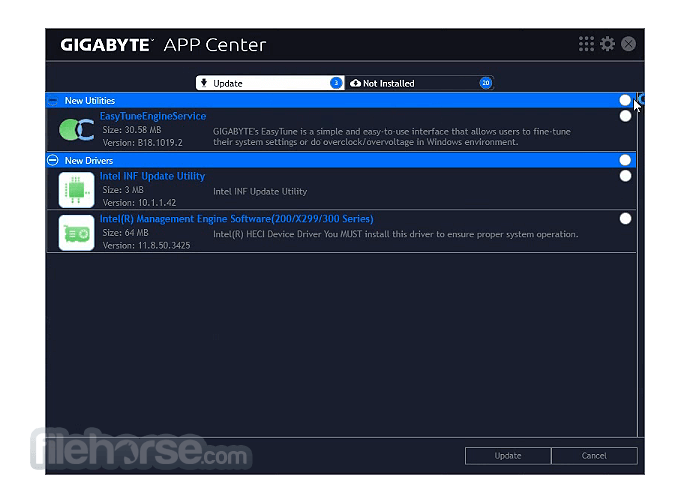
The Gigabyte App Center gives you easy access to a wealth of GIGABYTE apps that help you get the most from your GIGABYTE motherboard.
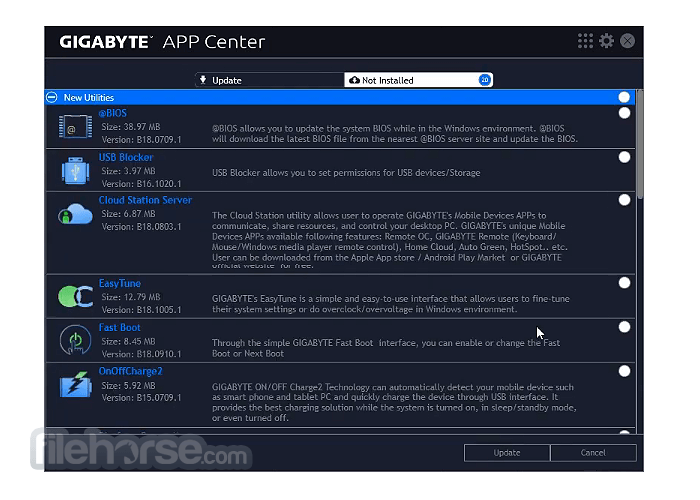
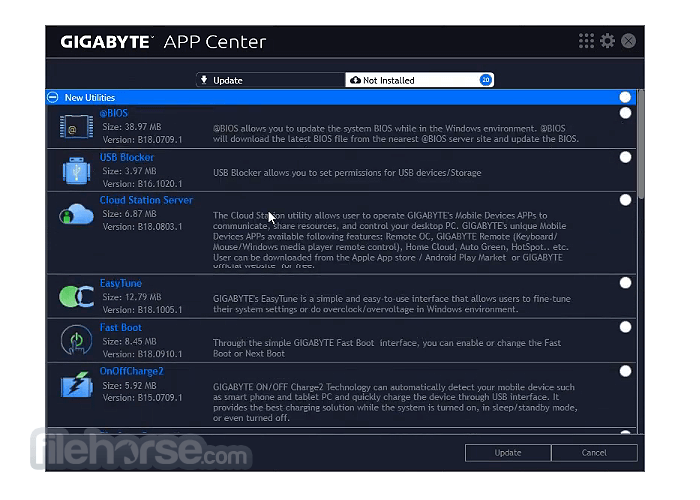
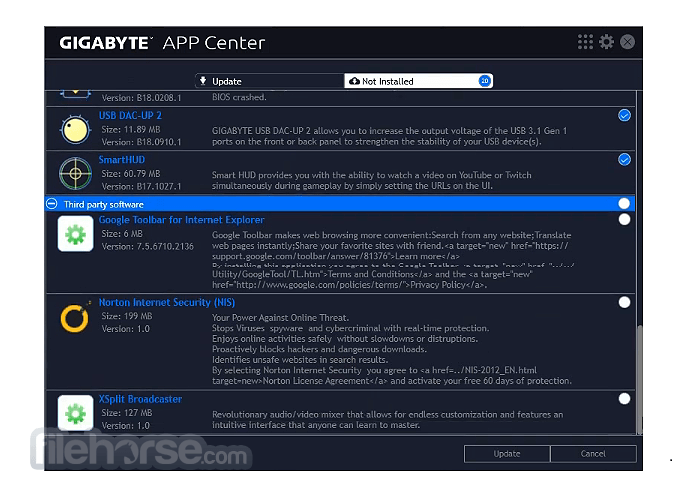
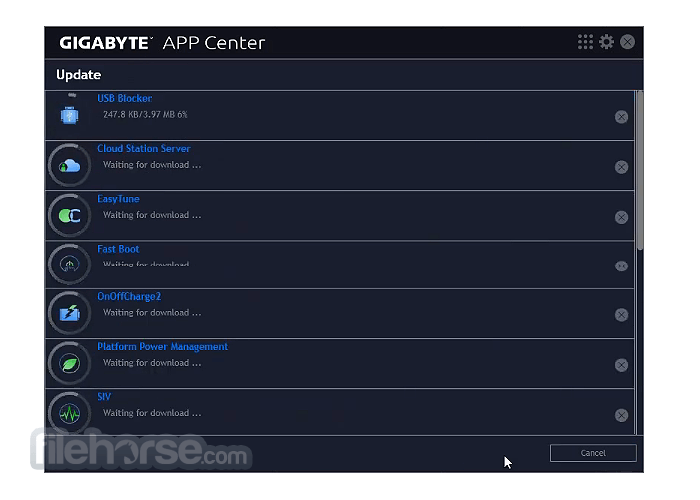
Using a simple, unified user interface, the app allows you to easily launch all Gigabyte apps installed on your system, check related updates online, and download the latest apps, drivers, and BIOS.
Gigabyte App Center for Windows is a utility software package designed to complement Gigabyte motherboards and other hardware components.
Its primary purpose is to provide users with a centralized hub for managing and customizing various aspects of their Gigabyte hardware, including overclocking, fan control, RGB lighting, and system monitoring. Essentially, it serves as a one-stop solution for optimizing and personalizing your PC's performance and aesthetics.
A simple and easy-to-use Gigabyte App Center for PC interface that allows beginner and expert users to fine-tune their system settings or adjust system and memory clocks and voltages in a Windows environment. With Smart Quick Boost, one click is all it takes to automatically overclock your system, giving an added performance boost when you need it the most.
GIGABYTE System Information Viewer is a central location that gives you access to your current system status. Monitor components such as the clocks and processor, set your fan preferred speed profile, create alerts when the temperature gets too high, or record your system’s behavior; these are the possibilities of the System Information View.
Highlights
Get a Free Boost of Performance
Get the highest levels of performance from your PC with easy-to-use GIGABYTE overclocking features.
Smart Quick Boost
It provides users with different levels of CPU frequencies to choose from to achieve the desired system performance.
Advanced CPU OC
Allows users to set the CPU’s base clock, frequency, and voltages, and integrated graphics frequency.
Advanced DDR OC
It allows users to set the memory clock with XMP profile support.
3D Power
Allows users to change PWM power phase, voltage, and frequency settings
System Information
Provides information on the installed CPU, motherboard model name, BIOS version, and in-place memory.
Smart Fan Auto
Gives users access to 4 different Smart Fan modes.
Smart Fan Advance
It allows users to manually adjust each fan’s curve ratio with the fan calibration feature to synchronize all system fans.
System Alerts
It allows you to create warning message alerts that are related to system changes.
Record
It allows users to record all hardware status during a set period of time.
Fast Boot
Through the simple GIGABYTE Fast Boot interface, with Gigabyte AppCenter, you can enable and modify the Fast Boot or Next Boot After AC Power Loss system settings in a Windows environment.
BIOS Fast Boot
This option is the same as the Fast Boot option in BIOS Setup. It allows you to enable or disable the fast boot function to shorten the OS boot time.
AC OFF Mode
This option is the same as the Next Boot After AC Power Loss option in BIOS Setup. It allows you to select the system boot mode upon the return of power after an AC power loss.
Key Features
System Information Viewer: It includes a System Information Viewer that offers real-time monitoring of vital system statistics such as CPU temperature, voltage, and fan speeds.
Smart Fan Control: Users can easily adjust fan profiles to maintain optimal cooling performance while minimizing noise levels.
RGB Fusion: This feature enables users to customize and synchronize RGB lighting effects across compatible Gigabyte components, creating stunning visual effects within the PC case.
EasyTune: Overclocking made accessible. EasyTune allows users to tweak CPU and memory settings, ensuring they get the most out of their hardware.
AutoGreen: A power-saving feature that lets you schedule your PC to enter sleep mode or shut down during idle periods to conserve energy.
BIOS Updates: It provides a convenient way to check for and install BIOS updates to keep your motherboard firmware up-to-date.
Cloud Station: A cloud-based utility for remotely controlling and monitoring your PC from a mobile device.
USB Blocker: Enhance security by preventing unauthorized USB devices from connecting to your system.
User Interface
The program boasts a clean and intuitive user interface. It is divided into several sections, each dedicated to a specific aspect of system management. The interface employs a sleek design with easy-to-navigate menus and icons.
The layout is user-friendly, making it accessible for both novice and experienced users. Overall, Gigabyte has done an excellent job in ensuring that users can quickly locate and access the features they need.
Installation and Setup
The installation process for this tool is straightforward. Users typically receive the software pre-installed with their Gigabyte motherboards. However, it can also be downloaded from the official Gigabyte website or FileHorse.
During installation, users can select which components of the App Center they wish to install, ensuring a tailored setup. Once installed, a system reboot may be required, after which the software is ready to use.
How to UseLaunch the Application: Double-click the app icon on your desktop or find it in the Windows Start menu. Choose Your Settings: Navigate through the sections (System Information Viewer, Smart Fan Control, RGB Fusion, etc.) to customize your system according to your preferences. Apply Changes: Make adjustments as needed and apply changes to your hardware settings. Save Profiles: Save your profiles to quickly switch between different configurations. FAQs
Can I use Gigabyte App Center with non-Gigabyte hardware?
No, Gigabyte App Center is specifically designed for Gigabyte motherboards and peripherals.
How can I update my motherboard's BIOS using Gigabyte App Center?
In the App Center, navigate to the BIOS Updates section, and follow the on-screen instructions to check for and install updates.
Does Gigabyte App Center support Windows 11?
Yes, Gigabyte App Center is compatible with Windows 11, as well as earlier versions of Windows.
Can I control RGB lighting on third-party components with RGB Fusion?
RGB Fusion primarily works with Gigabyte RGB-compatible hardware. Third-party support may be limited.
Is Gigabyte App Center free to use?
Yes, the program is provided FREE of charge to Gigabyte motherboard owners.
Alternatives
ASUS Armoury Crate - For ASUS motherboard owners, Armoury Crate offers similar functionalities, including RGB lighting control and system optimization.
MSI Center - MSI users can utilize Dragon Center to manage system settings, overclocking, and RGB lighting.
ASRock APP Shop - ASRock motherboard users can control RGB lighting and monitor system performance using Polychrome Sync.
EVGA Precision X1 - EVGA offers Precision X1 for users with EVGA hardware, which includes overclocking and RGB control features.
Corsair iCUE - Corsair's iCUE software provides RGB lighting control for Corsair peripherals and other compatible components.
Pricing
The tool is provided FREE of charge to Gigabyte motherboard owners. It comes as part of the package when purchasing a Gigabyte motherboard.
System Requirements
The software is compatible with a wide range of Windows operating systems, including Windows 7, 8, 8.1, and 10, as well as Windows 11.
The specific system requirements may vary depending on the version and features of the App Center, but it generally runs smoothly on most modern PCs.
PROS
Gigabyte App Center is a powerful and user-friendly utility that enhances the Gigabyte motherboard ownership experience. Its intuitive interface, real-time monitoring, and customization options make it a valuable tool for both novice and experienced PC enthusiasts. While it is limited to Gigabyte hardware, those with compatible components will find it an indispensable addition to their system management toolkit.
Overall, it delivers on its promise of providing a centralized hub for optimizing and personalizing your PC's performance and aesthetics.
Note: Please install Microsoft .NET Framework 4.5 or later first before installing the APP Center utility.
Download Gigabyte App Center Latest Version Why is this app published on FileHorse? (More info)
Using a simple, unified user interface, the app allows you to easily launch all Gigabyte apps installed on your system, check related updates online, and download the latest apps, drivers, and BIOS.
Gigabyte App Center for Windows is a utility software package designed to complement Gigabyte motherboards and other hardware components.
Its primary purpose is to provide users with a centralized hub for managing and customizing various aspects of their Gigabyte hardware, including overclocking, fan control, RGB lighting, and system monitoring. Essentially, it serves as a one-stop solution for optimizing and personalizing your PC's performance and aesthetics.
A simple and easy-to-use Gigabyte App Center for PC interface that allows beginner and expert users to fine-tune their system settings or adjust system and memory clocks and voltages in a Windows environment. With Smart Quick Boost, one click is all it takes to automatically overclock your system, giving an added performance boost when you need it the most.
GIGABYTE System Information Viewer is a central location that gives you access to your current system status. Monitor components such as the clocks and processor, set your fan preferred speed profile, create alerts when the temperature gets too high, or record your system’s behavior; these are the possibilities of the System Information View.
Highlights
Get a Free Boost of Performance
Get the highest levels of performance from your PC with easy-to-use GIGABYTE overclocking features.
Smart Quick Boost
It provides users with different levels of CPU frequencies to choose from to achieve the desired system performance.
Advanced CPU OC
Allows users to set the CPU’s base clock, frequency, and voltages, and integrated graphics frequency.
Advanced DDR OC
It allows users to set the memory clock with XMP profile support.
3D Power
Allows users to change PWM power phase, voltage, and frequency settings
System Information
Provides information on the installed CPU, motherboard model name, BIOS version, and in-place memory.
Smart Fan Auto
Gives users access to 4 different Smart Fan modes.
Smart Fan Advance
It allows users to manually adjust each fan’s curve ratio with the fan calibration feature to synchronize all system fans.
System Alerts
It allows you to create warning message alerts that are related to system changes.
Record
It allows users to record all hardware status during a set period of time.
Fast Boot
Through the simple GIGABYTE Fast Boot interface, with Gigabyte AppCenter, you can enable and modify the Fast Boot or Next Boot After AC Power Loss system settings in a Windows environment.
BIOS Fast Boot
This option is the same as the Fast Boot option in BIOS Setup. It allows you to enable or disable the fast boot function to shorten the OS boot time.
AC OFF Mode
This option is the same as the Next Boot After AC Power Loss option in BIOS Setup. It allows you to select the system boot mode upon the return of power after an AC power loss.
Key Features
System Information Viewer: It includes a System Information Viewer that offers real-time monitoring of vital system statistics such as CPU temperature, voltage, and fan speeds.
Smart Fan Control: Users can easily adjust fan profiles to maintain optimal cooling performance while minimizing noise levels.
RGB Fusion: This feature enables users to customize and synchronize RGB lighting effects across compatible Gigabyte components, creating stunning visual effects within the PC case.
EasyTune: Overclocking made accessible. EasyTune allows users to tweak CPU and memory settings, ensuring they get the most out of their hardware.
AutoGreen: A power-saving feature that lets you schedule your PC to enter sleep mode or shut down during idle periods to conserve energy.
BIOS Updates: It provides a convenient way to check for and install BIOS updates to keep your motherboard firmware up-to-date.
Cloud Station: A cloud-based utility for remotely controlling and monitoring your PC from a mobile device.
USB Blocker: Enhance security by preventing unauthorized USB devices from connecting to your system.
User Interface
The program boasts a clean and intuitive user interface. It is divided into several sections, each dedicated to a specific aspect of system management. The interface employs a sleek design with easy-to-navigate menus and icons.
The layout is user-friendly, making it accessible for both novice and experienced users. Overall, Gigabyte has done an excellent job in ensuring that users can quickly locate and access the features they need.
Installation and Setup
The installation process for this tool is straightforward. Users typically receive the software pre-installed with their Gigabyte motherboards. However, it can also be downloaded from the official Gigabyte website or FileHorse.
During installation, users can select which components of the App Center they wish to install, ensuring a tailored setup. Once installed, a system reboot may be required, after which the software is ready to use.
How to Use
Can I use Gigabyte App Center with non-Gigabyte hardware?
No, Gigabyte App Center is specifically designed for Gigabyte motherboards and peripherals.
How can I update my motherboard's BIOS using Gigabyte App Center?
In the App Center, navigate to the BIOS Updates section, and follow the on-screen instructions to check for and install updates.
Does Gigabyte App Center support Windows 11?
Yes, Gigabyte App Center is compatible with Windows 11, as well as earlier versions of Windows.
Can I control RGB lighting on third-party components with RGB Fusion?
RGB Fusion primarily works with Gigabyte RGB-compatible hardware. Third-party support may be limited.
Is Gigabyte App Center free to use?
Yes, the program is provided FREE of charge to Gigabyte motherboard owners.
Alternatives
ASUS Armoury Crate - For ASUS motherboard owners, Armoury Crate offers similar functionalities, including RGB lighting control and system optimization.
MSI Center - MSI users can utilize Dragon Center to manage system settings, overclocking, and RGB lighting.
ASRock APP Shop - ASRock motherboard users can control RGB lighting and monitor system performance using Polychrome Sync.
EVGA Precision X1 - EVGA offers Precision X1 for users with EVGA hardware, which includes overclocking and RGB control features.
Corsair iCUE - Corsair's iCUE software provides RGB lighting control for Corsair peripherals and other compatible components.
Pricing
The tool is provided FREE of charge to Gigabyte motherboard owners. It comes as part of the package when purchasing a Gigabyte motherboard.
System Requirements
The software is compatible with a wide range of Windows operating systems, including Windows 7, 8, 8.1, and 10, as well as Windows 11.
The specific system requirements may vary depending on the version and features of the App Center, but it generally runs smoothly on most modern PCs.
PROS
- User-friendly interface with a sleek design.
- Comprehensive control over Gigabyte hardware settings.
- RGB Fusion for stunning lighting customization.
- Real-time system monitoring and optimization.
- Convenient BIOS updates and remote control through Cloud Station.
- Limited compatibility with non-Gigabyte hardware.
- RGB Fusion may not support third-party components.
- Some users may find the software slightly resource-intensive.
Gigabyte App Center is a powerful and user-friendly utility that enhances the Gigabyte motherboard ownership experience. Its intuitive interface, real-time monitoring, and customization options make it a valuable tool for both novice and experienced PC enthusiasts. While it is limited to Gigabyte hardware, those with compatible components will find it an indispensable addition to their system management toolkit.
Overall, it delivers on its promise of providing a centralized hub for optimizing and personalizing your PC's performance and aesthetics.
Note: Please install Microsoft .NET Framework 4.5 or later first before installing the APP Center utility.
Download Gigabyte App Center Latest Version Why is this app published on FileHorse? (More info)
##
畫面截圖
- 2025-11-19 Gigabyte App Center 24.1105.1 23.5 MB
- 2024-03-15 Gigabyte App Center 24.0315.1 23.55 MB
- 2023-11-10 Gigabyte App Center 23.1106.1 23.76 MB
- 2022-10-31 Gigabyte App Center 22.1031.1 23.43 MB
- 2021-09-04 Gigabyte App Center 21.0426.1 51.89 MB
- 2021-04-09 Gigabyte App Center 21.0121.1 54.86 MB
- 2020-05-20 Gigabyte App Center 20.0219.1 51.6 MB
- 2020-02-21 Gigabyte App Center 19.1021.1 51.58 MB