⚠ 這是歷史版本頁面 — 查看 PC Health Check 最新版本 →

PC Health Check 3.7.220415001
v 3.7.220415001
Windows
免費軟體
8.2/10 (174)
- 目前版本3.7.220415001
- 更新日期2022-04-19
- 檔案大小13.62 MB
- 檔案名稱WindowsPCHealthCheckSetup.msi
- 作業系統Windows 10 (64-bit) / Windows 11
- 支援語系English
- 授權型式免費軟體
- 開發商 Microsoft
- 軟體分類Windows 軟體 / 桌面強化
##
編輯短評
PC Health Check 是微軟官方推出的輕量級系統檢查工具,主要用途是讓 Windows 10 使用者確認電腦是否符合安裝 Windows 11 的硬體需求。它的最大辨識度在於由微軟直接提供,檢查結果與官方相容性標準一致,具備權威性。這款工具由微軟長期維護,但更新頻率不算高,近一年僅有一次更新;在同類工具中評價普遍不錯,不過並非最熱門的選擇。
這款工具最適合準備升級到 Windows 11 的 Windows 10 使用者,尤其是想快速確認硬體是否達標的人。相較於其他第三方系統檢查軟體,PC Health Check 操作簡單、結果直接,但提供的硬體資訊較為有限。它為免費軟體,僅支援 Windows 平台,目前介面只有英文,對不熟悉英文的使用者可能稍有門檻。另外,Windows 10 的官方支援已結束,升級前更應先確認相容性。
##
翻譯排程處理中,以下暫以英文原文呈現
軟體介紹
PC Health Check is the lightweight system information listing app from Microsoft Corporation (Windows 11 Compatibility Tool), which allows Windows 10 users to officially check if their PC is fulfilling all requirements that are needed for the installation of Windows 11, the brand-new operating system that arrived on the market at the end of 2021.
Support for Windows 10 has ended on October 14, 2025
After October 14, 2025, Microsoft will no longer provide free software updates from Windows Update, technical assistance, or security fixes for Windows 10. Your PC will still work, but we recommend moving to Windows 11.
While this Microsoft PC Health Check: Windows 11 Test Tool can list some of the most basic hardware components present in desktop or laptop PCs, the main feature of this app is mostly centered on answering the question “Can I run Windows 11?”.
Sadly, its worst feature is that it does not explicitly list all the requirements that a user’s PC needs to pass.
How to check if your laptop can run Win 11
The app is distributed online as an automated installer that can be easily downloaded and deployed on local storage by just following a few simple on-screen instructions.
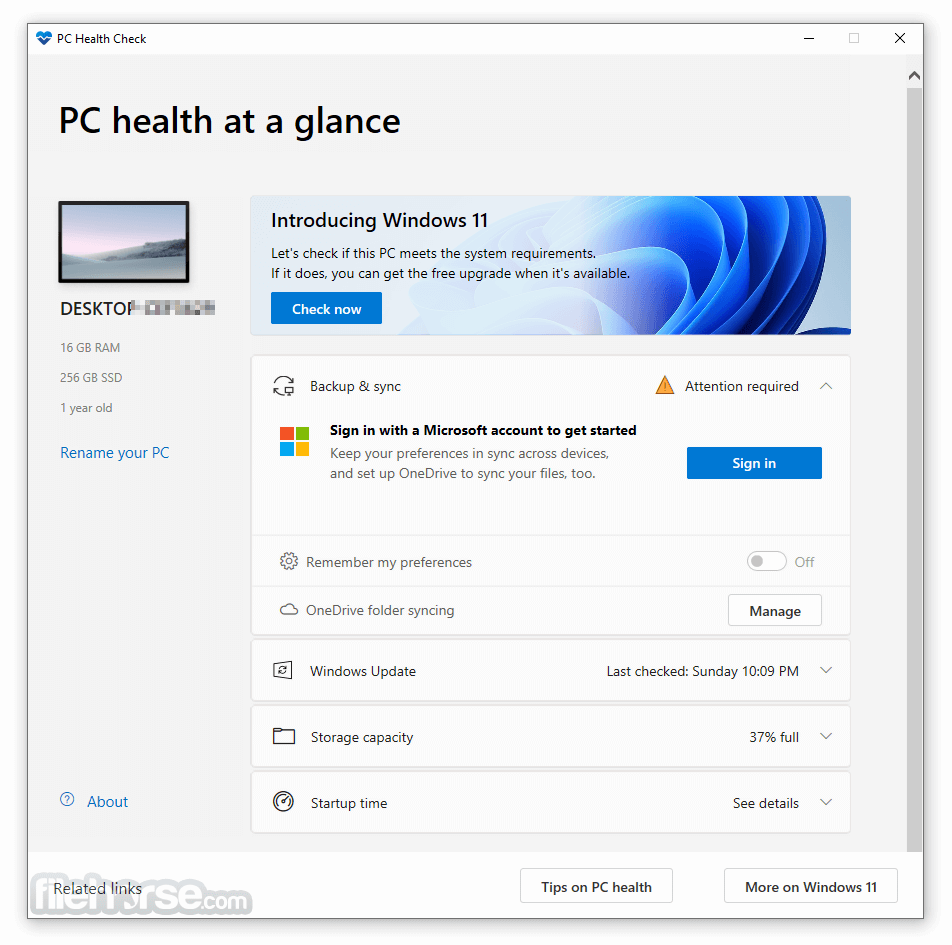
Once installed, the PC Health Checker app can be run on any version of Windows 10. The app features just a single dashboard screen that lists a few of the important hardware and OS features listings, which include the name of the PC, its CPU, RAM size, storage size, and the presence of Windows 10 features such as Backup & Sync, One Drive Syncing, Windows Update state (the last installed update), Storage capacity, and the last Startup time.
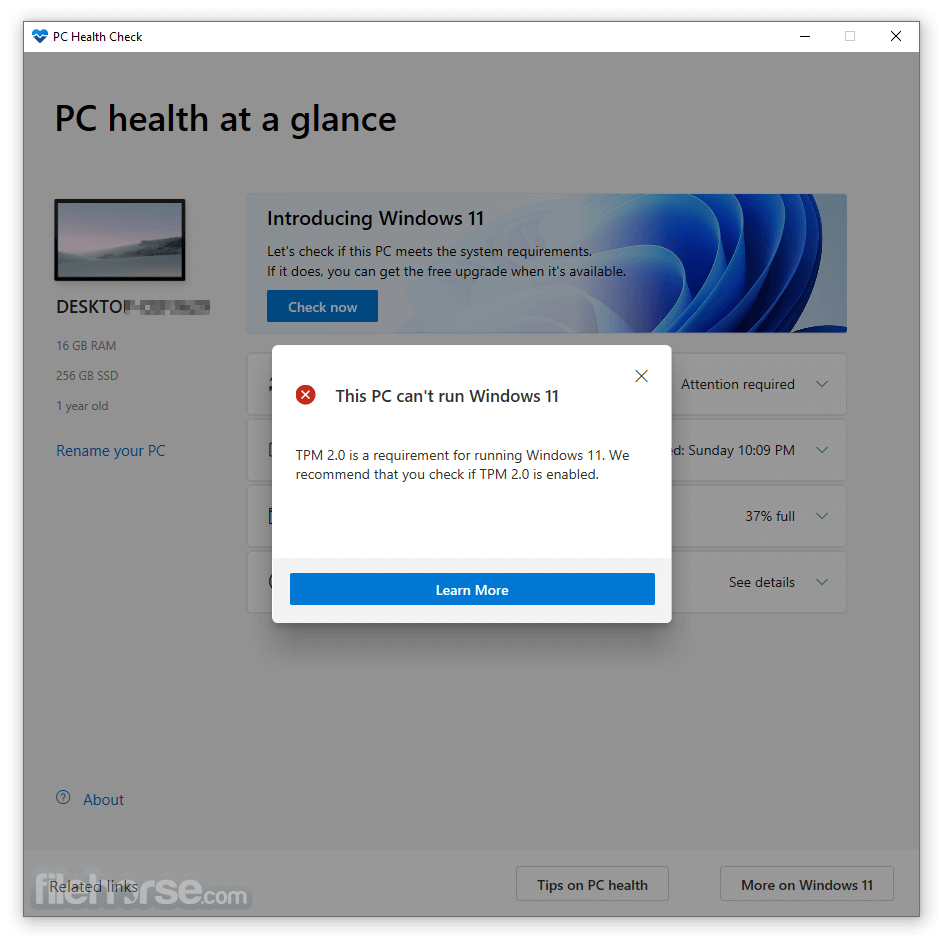
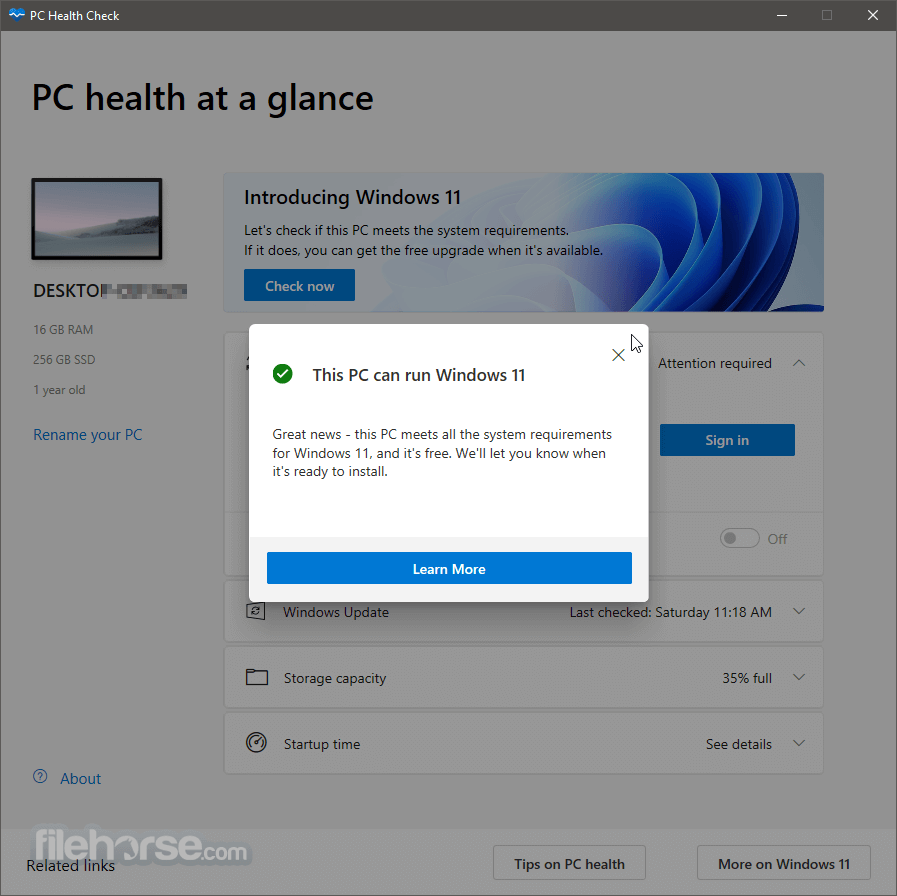
However, the main feature of the app is placed on the very top, where a large promotional banner introduces Windows 11 to the users. There, anyone can simply click on the blue “Check now” button and receive an instant prompt that will announce whether or not the host PC will be able to receive automatic FREE updates from Windows 10 to Windows 11.
Note: If a compatibility issue is detected on your device that might affect your experience with Windows 11, we will temporarily postpone your upgrade until the issue is resolved.
These compatibility safeguards are in place to ensure you have the best possible experience during the upgrade and to prevent any disruption to your productivity due to incompatible critical apps or drivers.
Minimum System Requirements to Run Windows 11
The PC Health Check tool primarily checks for strict hardware requirements of Windows 11, which include at least a 1GHz dual-core 64-bit only CPU, 4GB of RAM, 64GB or more of storage space, DX12 capable graphic card, and, most controversially, the presence of A UEFI & Secure Boot-capable motherboard, and Trusted Platform Module (TPM).
These last two requirements essentially mean that only owners of fairly new hardware components will be granted access to the Windows 11 update. According to Microsoft, these requirements were placed to ensure greater security for their users and their data.
While lightweight, this system diagnostic app can help anyone determine whether or not their PC is ready for Windows 11.
It does not provide much information about the upgrade process, but at least it can answer which part of the hardware requirement is lacking. PC Health Check (Windows 11 Compatibility Tool) is 100% FREE and can be run only on Windows 10 PCs.
How to Enable the Trusted Platform Module (TPM) on your PC
The PC Health Check app is easy to download and install, and it is free to use. It provides a quick and easy way for users to determine if their PC is ready for Windows 11. However, it does not offer detailed information about the upgrade process itself. It can help identify which hardware requirement is lacking, but it may require some expertise to take appropriate action.
Overall, the app offers a comprehensive analysis of a PC's compatibility with Windows 11, enhances system stability, and emphasizes security.
Download PC Health Check Latest Version Why is this app published on FileHorse? (More info)
Support for Windows 10 has ended on October 14, 2025
After October 14, 2025, Microsoft will no longer provide free software updates from Windows Update, technical assistance, or security fixes for Windows 10. Your PC will still work, but we recommend moving to Windows 11.
While this Microsoft PC Health Check: Windows 11 Test Tool can list some of the most basic hardware components present in desktop or laptop PCs, the main feature of this app is mostly centered on answering the question “Can I run Windows 11?”.
Sadly, its worst feature is that it does not explicitly list all the requirements that a user’s PC needs to pass.
How to check if your laptop can run Win 11
The app is distributed online as an automated installer that can be easily downloaded and deployed on local storage by just following a few simple on-screen instructions.
Once installed, the PC Health Checker app can be run on any version of Windows 10. The app features just a single dashboard screen that lists a few of the important hardware and OS features listings, which include the name of the PC, its CPU, RAM size, storage size, and the presence of Windows 10 features such as Backup & Sync, One Drive Syncing, Windows Update state (the last installed update), Storage capacity, and the last Startup time.
However, the main feature of the app is placed on the very top, where a large promotional banner introduces Windows 11 to the users. There, anyone can simply click on the blue “Check now” button and receive an instant prompt that will announce whether or not the host PC will be able to receive automatic FREE updates from Windows 10 to Windows 11.
Note: If a compatibility issue is detected on your device that might affect your experience with Windows 11, we will temporarily postpone your upgrade until the issue is resolved.
These compatibility safeguards are in place to ensure you have the best possible experience during the upgrade and to prevent any disruption to your productivity due to incompatible critical apps or drivers.
Minimum System Requirements to Run Windows 11
The PC Health Check tool primarily checks for strict hardware requirements of Windows 11, which include at least a 1GHz dual-core 64-bit only CPU, 4GB of RAM, 64GB or more of storage space, DX12 capable graphic card, and, most controversially, the presence of A UEFI & Secure Boot-capable motherboard, and Trusted Platform Module (TPM).
These last two requirements essentially mean that only owners of fairly new hardware components will be granted access to the Windows 11 update. According to Microsoft, these requirements were placed to ensure greater security for their users and their data.
While lightweight, this system diagnostic app can help anyone determine whether or not their PC is ready for Windows 11.
It does not provide much information about the upgrade process, but at least it can answer which part of the hardware requirement is lacking. PC Health Check (Windows 11 Compatibility Tool) is 100% FREE and can be run only on Windows 10 PCs.
How to Enable the Trusted Platform Module (TPM) on your PC
- During the server startup sequence, press the F9 key to access System Utilities.
- From the System Utilities screen, select System Configuration > BIOS/Platform Configuration (RBSU) > Server Security.
- Select Trusted Platform Module Options and press the Enter key.
- Select Enabled to enable the TPM and BIOS secure startup. The TPM is fully functional in this mode.
- Press the F10 key to save your selection.
- When prompted to save the change in System Utilities, press the Y key.
- Press the ESC key to exit System Utilities. Then, press the Enter key when prompted to reboot the server.
- In Windows, locate the Search bar on the taskbar.
- Type "PC Health Check" in the search bar and wait for the results to appear.
- From the list of results, select "PC Health Check" to open the application.
- If there is an update available for the app, you can install it to ensure you have the latest version.
- Sign in with your Microsoft account or create a new one.
- This allows you to sync your preferences across devices, including passwords, Microsoft Edge browser settings (such as favorites and reading lists), themes, and more.
- You can also back up your photos and files to OneDrive, ensuring they are protected and accessible on all your devices.
- It can notify you if your device requires Windows updates or attention.
- If there are updates or issues, the application will provide you with this information.
- To access Windows Update in Settings, select "Open Windows Update."
- It provides information about battery performance for devices with one or two batteries.
- Battery capacity details are available for devices older than 3 years.
- To view battery-saving tips, select "See battery-saving tips" and follow the recommended steps to improve your battery life.
- It displays the amount of storage space used on your device's main drive, which includes files, apps, and Windows.
- The app shows the percentage of how full your drive is.
- Expand this section for information on available free space.
- To manage storage settings, select "Manage storage settings" to enable Storage Sense or receive cleanup recommendations.
- It provides details about your device's startup time and the factors that affect it.
- You can also review and modify your startup apps by selecting "Manage your startup programs."
- Select "Tips on PC Health" to access more ways to enhance the performance of your device.
- Below the device image in PC Health Check, you can find additional information about your device, such as its age and storage amounts.
- If you wish to give your device a different name, select "Rename your PC" and follow the instructions provided.
- CCleaner
- IObit Advanced SystemCare Pro
- System Mechanic Professional
- AVG TuneUp
- Ashampoo WinOptimizer
- Windows Security (Windows Defender)
- Quick and Easy
- Comprehensive Analysis
- Identifies Performance Issues
- Improves System Stability
- Easy Download and Deployment
- Enhances Security
- Requires Expertise for Action
- The Update is Not Frequent
- Relies on Software Accuracy
- Limited Information on Updates
- Inadequate Windows 11 Requirements Analysis
The PC Health Check app is easy to download and install, and it is free to use. It provides a quick and easy way for users to determine if their PC is ready for Windows 11. However, it does not offer detailed information about the upgrade process itself. It can help identify which hardware requirement is lacking, but it may require some expertise to take appropriate action.
Overall, the app offers a comprehensive analysis of a PC's compatibility with Windows 11, enhances system stability, and emphasizes security.
Download PC Health Check Latest Version Why is this app published on FileHorse? (More info)
##
畫面截圖
- 2026-06-16 PC Health Check 4.0.241023001 13.68 MB
- 2024-02-14 PC Health Check 3.9.240214001 13.64 MB
- 2022-04-19 PC Health Check 3.7.220415001 13.62 MB
- 2021-11-02 PC Health Check 3.3.211022002 13.57 MB
- 2021-10-03 PC Health Check 3.1.210929003 13.56 MB
- 2021-09-21 PC Health Check 3.0.210914001 13.56 MB
- 2021-09-17 PC Health Check 2.9.210914001 13.7 MB
- 2021-07-05 PC Health Check 2.1.210625001 13.5 MB