⚠ 這是歷史版本頁面 — 查看 SAPPHIRE TriXX 最新版本 →

- 目前版本9.8.1
- 更新日期2025-03-04
- 檔案大小6.07 MB
- 檔案名稱TRIXX_9.8.1_signed.zip
- 作業系統Windows 7 / Windows 8 / Windows 10 / Windows 11
- 支援語系English
- 授權型式免費軟體
- 開發商 Sapphire Technology Limited
- 軟體分類Windows 軟體 / 系統優化
##
編輯短評
SAPPHIRE TriXX 是專為 Sapphire 顯示卡用戶設計的硬體工具,主要用來調整核心超頻、監控顯示卡運作狀態,並控制遊戲畫面的視覺呈現。它最大的辨識度在於與 Sapphire 自家顯卡的深度整合,能直接針對該品牌硬體進行細部調校,而非像一般系統優化軟體那樣只做通用清理。這套軟體長期持續更新,近期仍維持活躍,不過使用者樣本數不多,評價普遍不錯,屬於小眾但忠實的玩家社群會關注的工具。
如果你手上正好是 Sapphire 的顯示卡,又想手動榨出更多效能或確認超頻後的穩定性,這套軟體會很實用。它適合對硬體調校有興趣的遊戲玩家或技術愛好者,在需要微調時脈、電壓或風扇曲線的場合派得上用場。與其他通用型優化工具相比,它的取捨在於只支援 Sapphire 產品,無法用於其他品牌顯卡;但相對地,針對自家硬體的控制選項更直接。軟體本身免費,僅提供英文介面,使用前需留意平台為 Windows,且不支援中文語系。
##
翻譯排程處理中,以下暫以英文原文呈現
軟體介紹
SAPPHIRE TriXX is a crucial software package for any owner of Sapphire Graphics cards, helping them to achieve the best performance that can be extracted from their powerful gaming hardware, monitor the stability of their graphics card, and take full control over the visual aspect of their PC gaming experience.
Presented in a very daring and eye-catching designed aimed to please lifelong gamers and tech enthusiasts who strive to extract the maximum performance from their hardware, SAPPHIRE TriXX packs a wide variety of tools aimed to take complete control over the core overclocking functions of the latest GPU cards and all the secondary sensors, monitoring tools, RGB illumination, and data listings.
Installation and Use
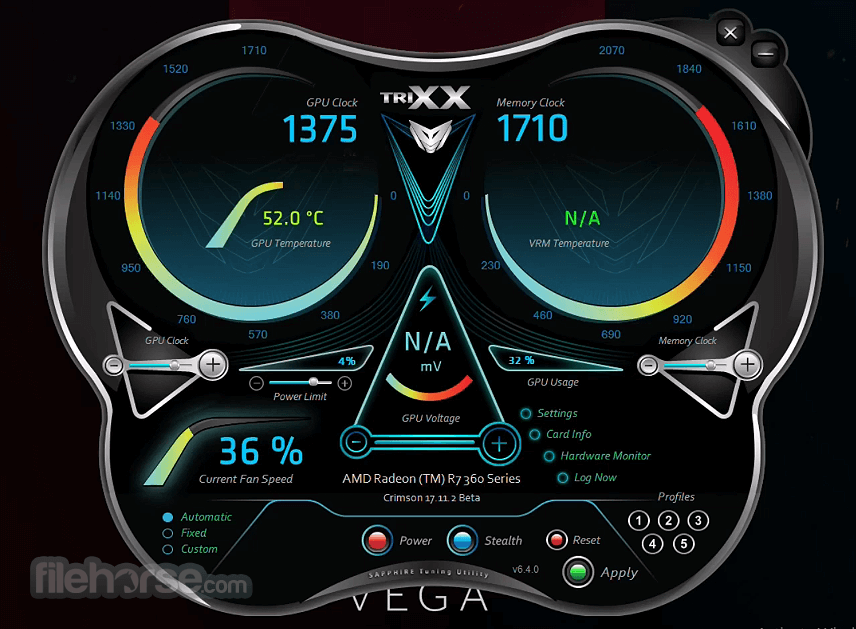
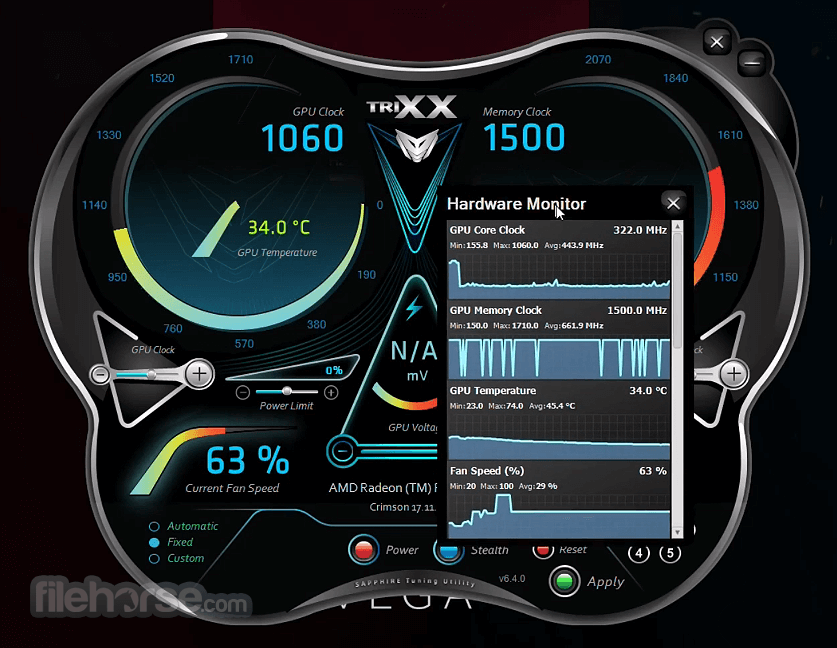
After the quick and simple installation, the users of SAPPHIRE TriXX will be welcomed with the futuristic and visually very daring user interface that best resembles the main dashboard display of modern cars.
The two big dial areas are focused on two most important readings of the GPU cards, their GPU core clocks, and Memory Clocks, while the rest of the window is focused on smaller sections that are dedicated for real-time monitoring or control functions such as GPU temperature showcase, overclocking dials for GPU clock, memory, voltage and fan speeds, profile saving and loading, access to card info and more.
Overclocking tools can handle the following:
RGB illumination on your Sapphire GPU card is controlled inside the “Nitro Glow” window that supports activation of pre-made visual presets, or the creation of new customized colors and brightness settings. If you want, there you can also tie RGB coloring with GPU temperature, fan speed, or turn it off completely.
Cooling Fan diagnostic
The final major part of the SAPPHIRETriXX application is its diagnostic system that can be activated with the “Fan Check” tool. In this mode, the app will test the true limits of your card’s cooling, pushing the fans to the maximum speed and determining the impact of the produced airflow.
This test successfully calibrates your GPU to the capabilities of your current cooling setup, taking into account any possible reduction in the fan ability to move air (due to their age, or presence of dust in the fins of the cooling setup).
Fan Check is also the best way to determine if your GPU fans need to be replaced, which is a service that is sometimes covered by Sapphire’s warranty offering.
How to Use SAPPHIRE TriXX tool
TriXX is unable to work with a dual card system for ARGB. Only primary card is available.
Fan Health Check and Nitro Glow are supported on the NITRO+ Graphics Card Series Products ONLY.
TriXX does not support Crossfire configurations.
TriXX 6.8 : Supports for VEGA, RX 500, and RX 400
PROS
Download SAPPHIRE TriXX Latest Version Why is this app published on FileHorse? (More info)
Presented in a very daring and eye-catching designed aimed to please lifelong gamers and tech enthusiasts who strive to extract the maximum performance from their hardware, SAPPHIRE TriXX packs a wide variety of tools aimed to take complete control over the core overclocking functions of the latest GPU cards and all the secondary sensors, monitoring tools, RGB illumination, and data listings.
Installation and Use
After the quick and simple installation, the users of SAPPHIRE TriXX will be welcomed with the futuristic and visually very daring user interface that best resembles the main dashboard display of modern cars.
The two big dial areas are focused on two most important readings of the GPU cards, their GPU core clocks, and Memory Clocks, while the rest of the window is focused on smaller sections that are dedicated for real-time monitoring or control functions such as GPU temperature showcase, overclocking dials for GPU clock, memory, voltage and fan speeds, profile saving and loading, access to card info and more.
Overclocking tools can handle the following:
- The GPU clock
- The memory clock (including the HBM overclocking on R9 FURY)
- Power Limit
- GPU Voltage
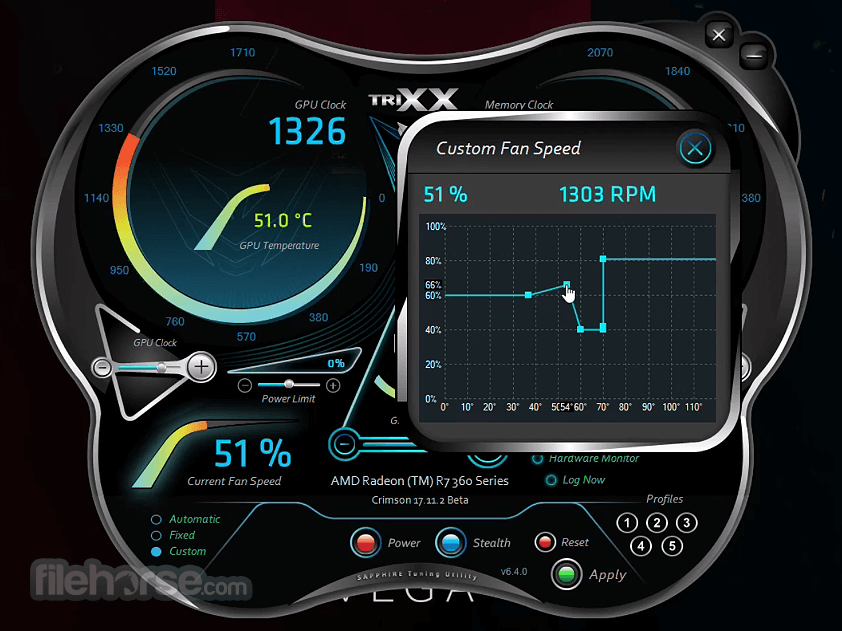
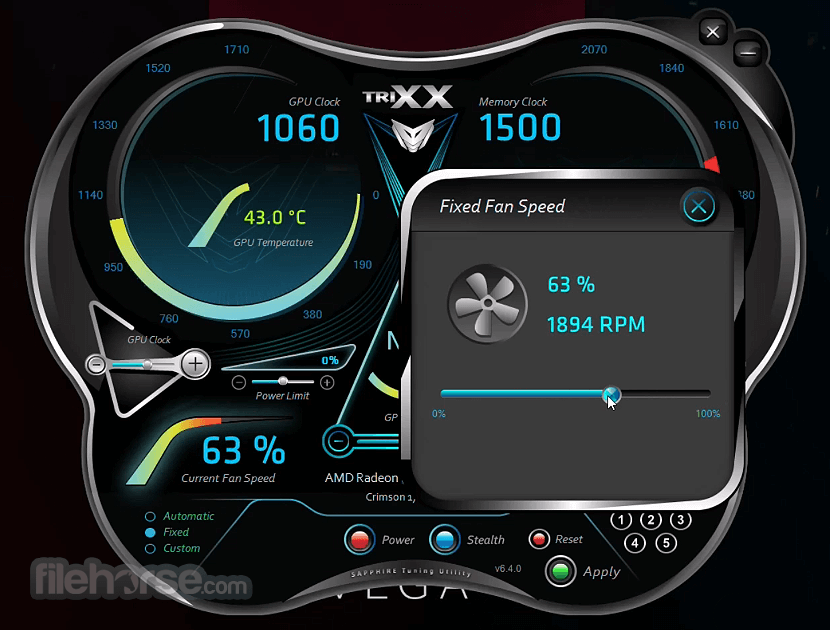
- Fan Speed (with up to 5 custom profiles)
RGB illumination on your Sapphire GPU card is controlled inside the “Nitro Glow” window that supports activation of pre-made visual presets, or the creation of new customized colors and brightness settings. If you want, there you can also tie RGB coloring with GPU temperature, fan speed, or turn it off completely.
Cooling Fan diagnostic
The final major part of the SAPPHIRETriXX application is its diagnostic system that can be activated with the “Fan Check” tool. In this mode, the app will test the true limits of your card’s cooling, pushing the fans to the maximum speed and determining the impact of the produced airflow.
This test successfully calibrates your GPU to the capabilities of your current cooling setup, taking into account any possible reduction in the fan ability to move air (due to their age, or presence of dust in the fins of the cooling setup).
Fan Check is also the best way to determine if your GPU fans need to be replaced, which is a service that is sometimes covered by Sapphire’s warranty offering.
How to Use SAPPHIRE TriXX tool
- Install the software following on-screen instructions
- Launch TriXX and allow hardware detection
- Adjust GPU clock, memory, and voltage as needed
- Use TriXX Boost to tweak resolution and performance
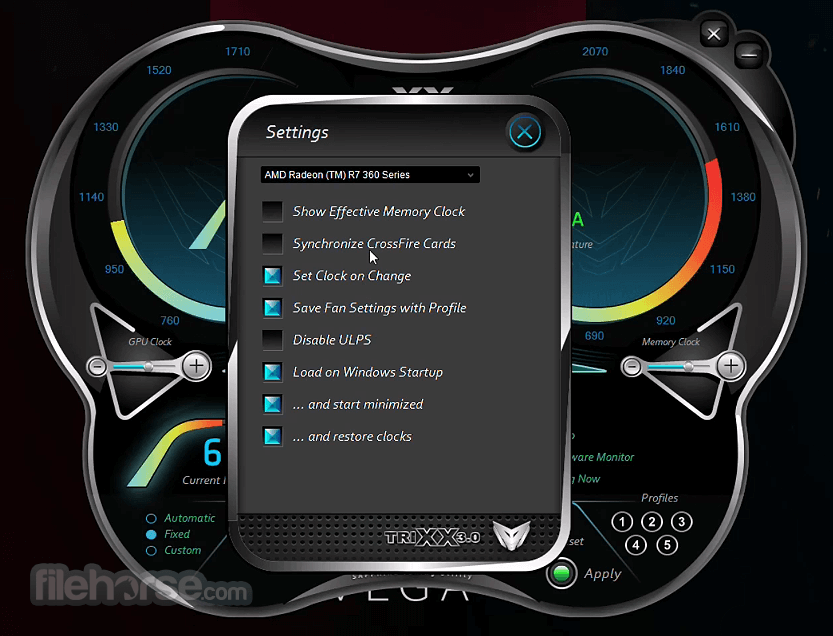
- Save and apply custom profiles for different games
- Monitor GPU temperature and usage in real-time
- Enable fan control for custom cooling settings
- Use hardware info tab to view detailed GPU specs
- Update TriXX regularly for new features and support
- OS: Windows 10 or Windows 11 (64-bit)
- CPU: Intel Core i3 or AMD equivalent
- RAM: Minimum 4 GB
- GPU: SAPPHIRE Radeon graphics card required
- Storage: At least 200 MB free disk space
- Internet: Required for software updates
TriXX is unable to work with a dual card system for ARGB. Only primary card is available.
Fan Health Check and Nitro Glow are supported on the NITRO+ Graphics Card Series Products ONLY.
TriXX does not support Crossfire configurations.
TriXX 6.8 : Supports for VEGA, RX 500, and RX 400
PROS
- Easy GPU overclocking and tuning
- Real-time hardware monitoring
- Custom fan and voltage control
- TriXX Boost improves frame rates
- Clean and user-friendly interface
- Limited to SAPPHIRE GPUs only
- No support for other brand cards
- May void warranty if misused
- Not ideal for novice users
- Occasional bugs or crashes
Download SAPPHIRE TriXX Latest Version Why is this app published on FileHorse? (More info)
##
畫面截圖
- 2026-07-31 SAPPHIRE TriXX 11.2.0 8.01 MB
- 2026-05-14 SAPPHIRE TriXX 11.1.3 7.22 MB
- 2026-01-28 SAPPHIRE TriXX 11.0.0 7.22 MB
- 2025-07-03 SAPPHIRE TriXX 10.0.0 6.99 MB
- 2025-03-04 SAPPHIRE TriXX 9.8.1 6.07 MB
- 2024-07-30 SAPPHIRE TriXX 9.7.5 5.84 MB
- 2024-03-06 SAPPHIRE TriXX 9.7.0 5.84 MB
- 2024-02-16 SAPPHIRE TriXX 9.6.0 5.65 MB